QR codes
A QR code is a square code that opens a page of your site when scanned with a phone camera. You print it on a table, a window, the counter, a business card or a flyer; the customer scans it and your site, menu or card opens. On the QR code screen you choose what the code opens, design its look to match your business and download a print-ready file.
Every site type has a QR code screen: on a website it's at the end of the Content group in the sidebar, on a menu it sits under Design. You can add as many QR codes to a site as you like, each with its own target and design.
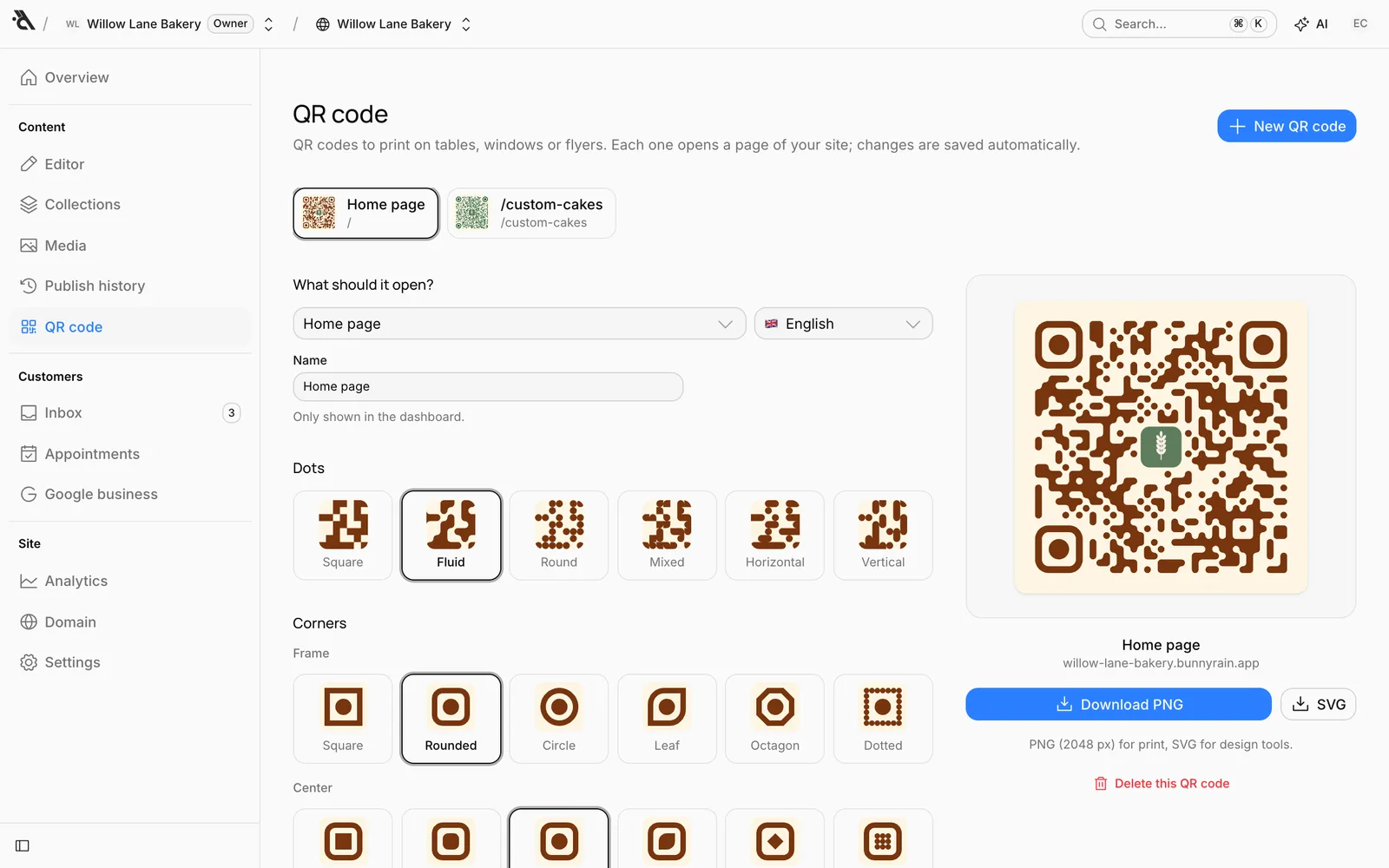
What the code opens
When you first open the screen, a code that opens your home page is ready. Pick another target from the What should it open? list:
- On a website: your pages (home page first), your collection pages (under the collection's name) and your blog posts.
- On a QR menu: the Whole menu or a single category. If you want a separate code for the drinks menu, pick its category; the customer who scans it lands right on that category.
- On a card: the card itself.
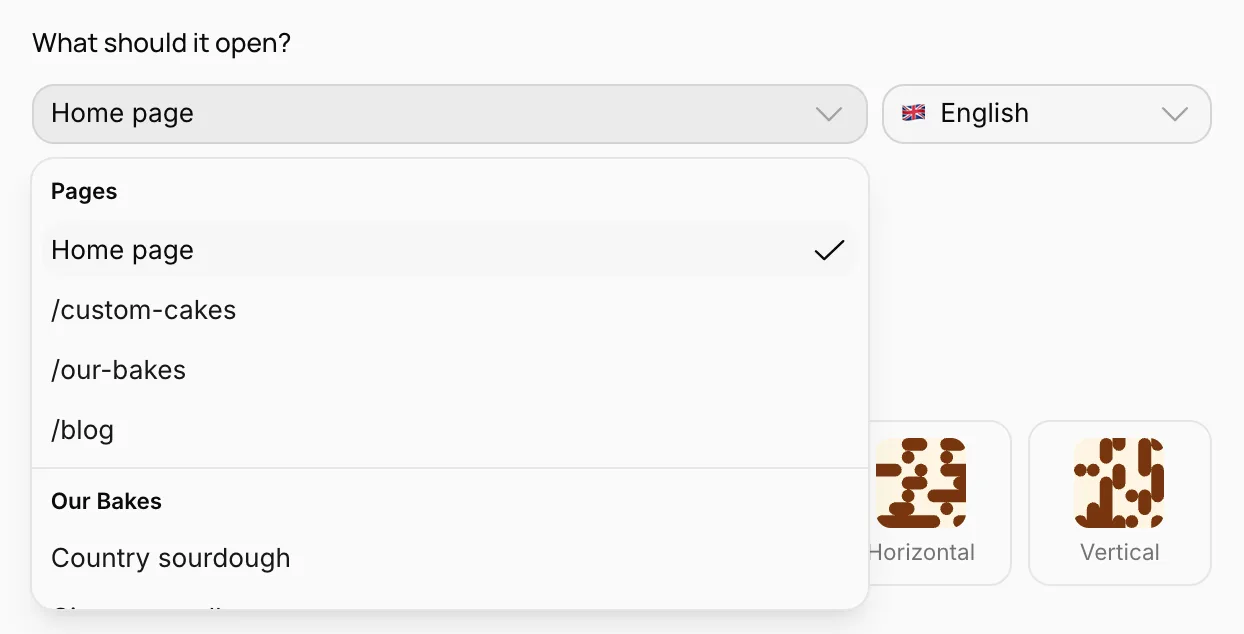
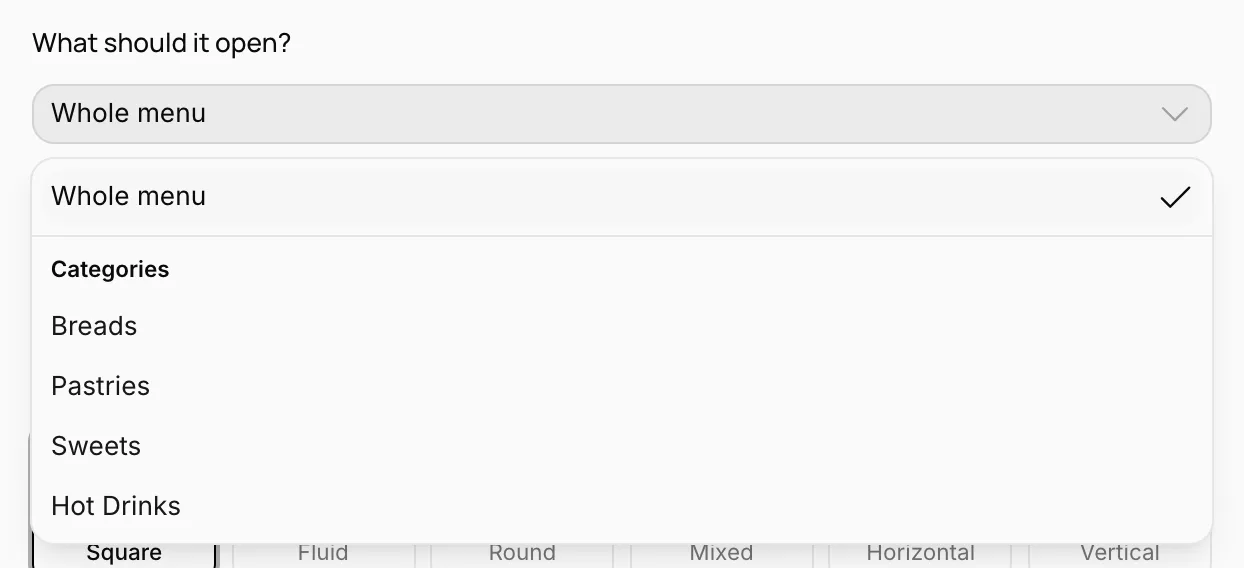
If your site has more than one language, the Language selector next to it sets which language the code opens in; a café with tourists might put a second code on the table that opens the English menu, for example.
The Name is only shown in the dashboard; it helps you tell codes apart ("Table card", "Window"). Leave it empty and it takes the target's name.
If the page you picked isn't published yet, or isn't published in the language you chose, the screen warns you; the code would open a page that can't be found. A code pointing to a page that was later deleted or renamed gets a warning too; pick a new target.
Design it
A black-and-white code always works, but a code in your business's colors with your logo looks far better in print. The settings run down the left side; every change shows on the code to the right straight away and is saved automatically.
- Dots: the shape of the code's dots: Square, Fluid, Round, Mixed, Horizontal or Vertical.
- Corners: the Frame of the three large corner squares (Square, Rounded, Circle, Leaf, Octagon, Dotted) and their Center (Square, Rounded, Circle, Leaf, Diamond, Dotted).
- Colors: preset colors for the Dots, Corners and Background, or any color under Another color. Corners use the same color as the dots by default. The background can also be Transparent, handy when you'll place the code on a colored design.
- Background image: a photo behind the code, covered with a light veil in the background color so the code stays readable. Visibility (Low, Medium, High) sets how much of the photo shows through. A light, simple photo works best.
- Logo: your logo in the center of the code. Upload image or pick one from your site's media; Size is small, medium or large. A simple square or round logo works best.
The thumbnails of the shape options are drawn in your colors, so you see the result while choosing.
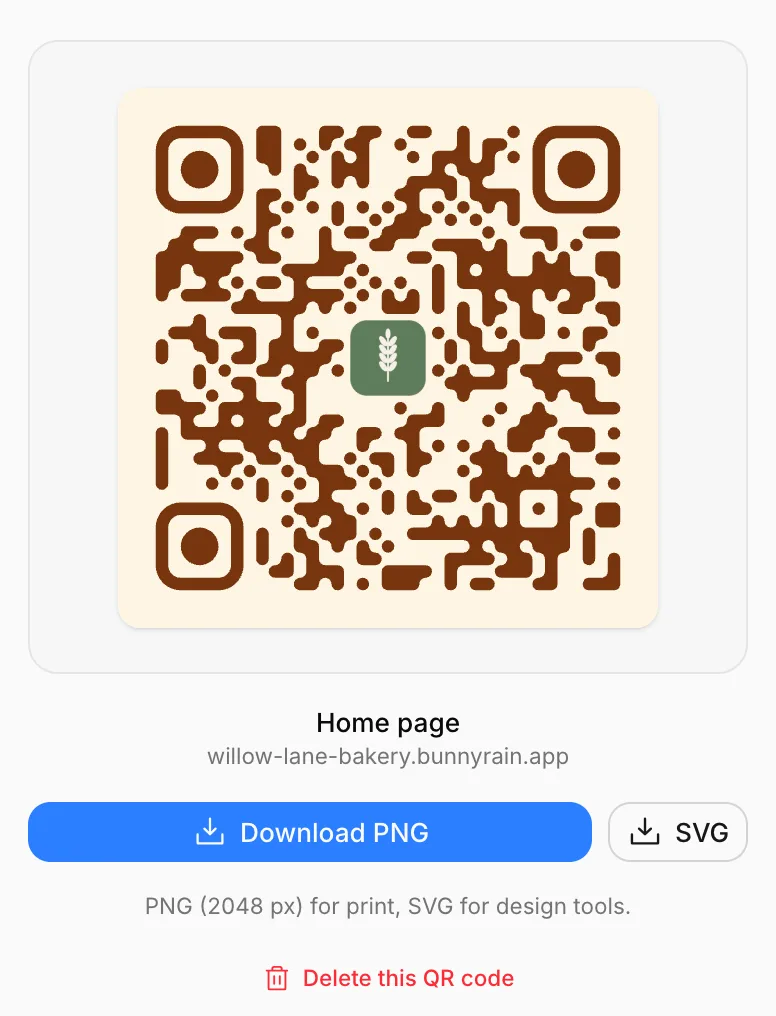
Download and print
Download PNG under the code gives you a high-resolution PNG (2048 pixels) for print; SVG is a vector file for design tools (Canva, Illustrator, Figma) that stays sharp at any size. The logo and background image are embedded in the file. If you chose a transparent background, the PNG is transparent too.
The smaller the place you're printing on, the simpler you should keep the code: for a code on a table card, a plain background is safer than a logo and a background image.
More than one QR code
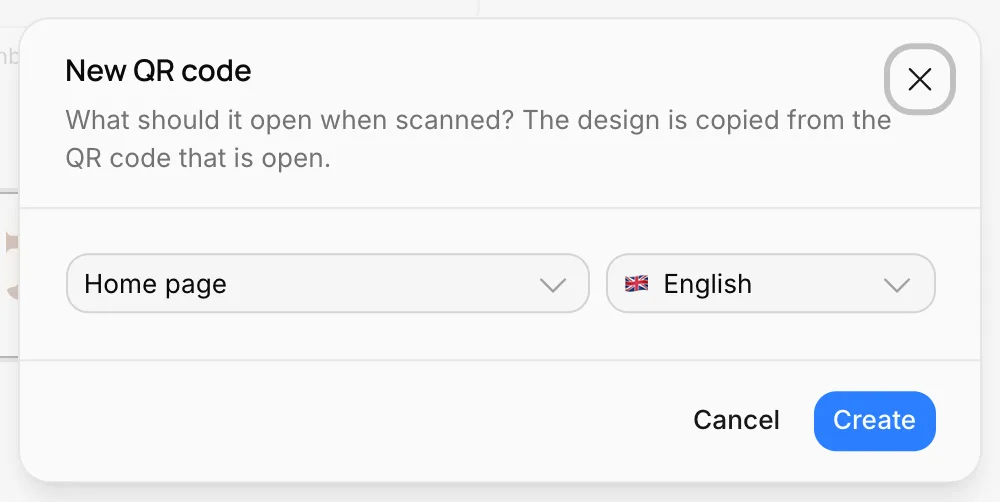
Press New QR code in the top right, choose what the code opens (and its language if needed) and press Create. The new code copies the design of the code that's open, so all your business's codes look the same. Once you have more than one code, a strip at the top of the screen lets you switch between them.

To delete a code, press Delete this QR code at the bottom of the screen. Only the design in the dashboard is deleted; codes you've already printed keep working, because the page's address is written inside them.
Good to know
- QR codes don't wait for publishing; the file you download is up to date as soon as the settings are saved. Publishing the site is a separate matter: the page the code opens has to be live.
- If you connect your own domain later, the code in the dashboard carries the new address; codes printed earlier with the subdomain keep redirecting visitors to your domain. We still recommend connecting the domain before you print. See Connect your own domain.
- The Share card on the Overview screen shows your home page's code with the design from this screen; you can download it quickly there too, and Design brings you here.
- Editing a code requires permission to edit the site or the menu; teammates without it can view and download the codes but can't change the settings.