Multiple languages
If you serve tourists, international customers or speakers of other languages, you can publish your site in more than one language. The design stays the same in every language: same blocks, same layout, same photos. For the other languages you only enter the text.
Visitors switch your site's language with the language switcher in the header. Spanish pages open at addresses starting with /es (willow-lane-bakery.bunnyrain.app/es).
Turn on multiple languages
Open Settings
Press Settings in the sidebar. On the Multiple languages card, turn on Publish my site in multiple languages.
Choose the main language and the other languages
- Main language: The language your site's existing text is written in. You design the site in this language. The dashboard looks at your text and suggests the right language; if your choice matches the text, it says Matches your site's text.
- Other languages: The languages your site will be translated into. Choose at least one.
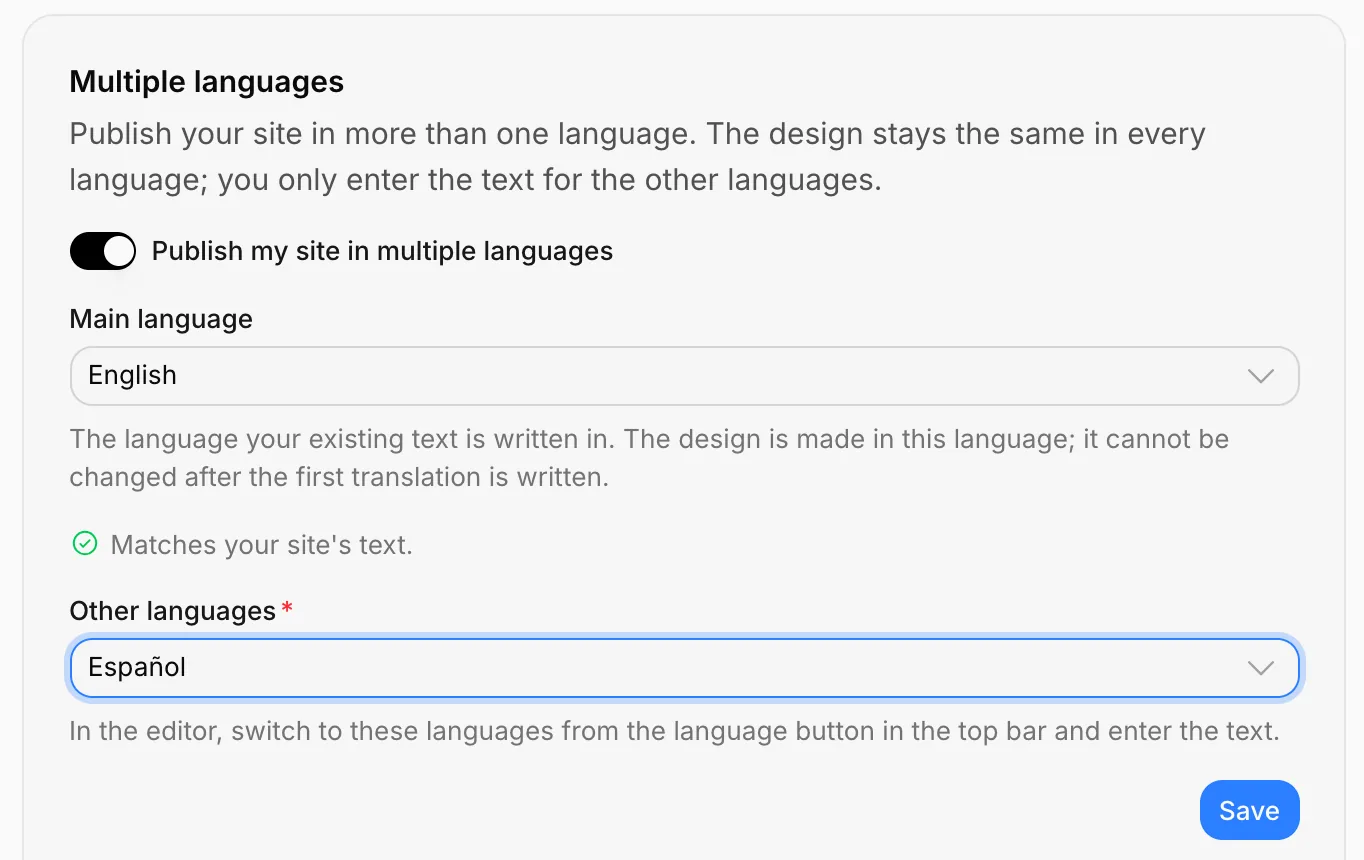
Save
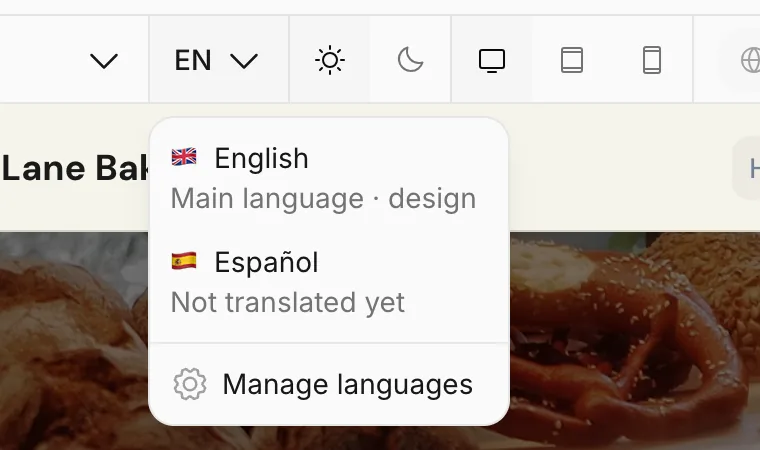
Press Save. A language button now appears in the editor's top bar, next to the page picker.
Enter the translations
Press the language button in the editor. The list shows the main language (Main language · design) and the other languages; languages without a translation say Not translated yet.
Have the assistant translate
The quickest way is the assistant. Press AI and write "Write the Spanish version of the site". The assistant first translates the open page, the header and the footer, then the other pages and blog posts one by one; you can follow the progress in the notification at the bottom of the screen.
When translating, the assistant only changes the text; it doesn't touch your design, your prices or your photos.
Fix it yourself
Choose Español in the language button. The editor switches to translation mode, and a strip saying Editing Español — you can only change the text appears above the page. Click the text on the page and type the translation; fields you don't translate show in the main language.
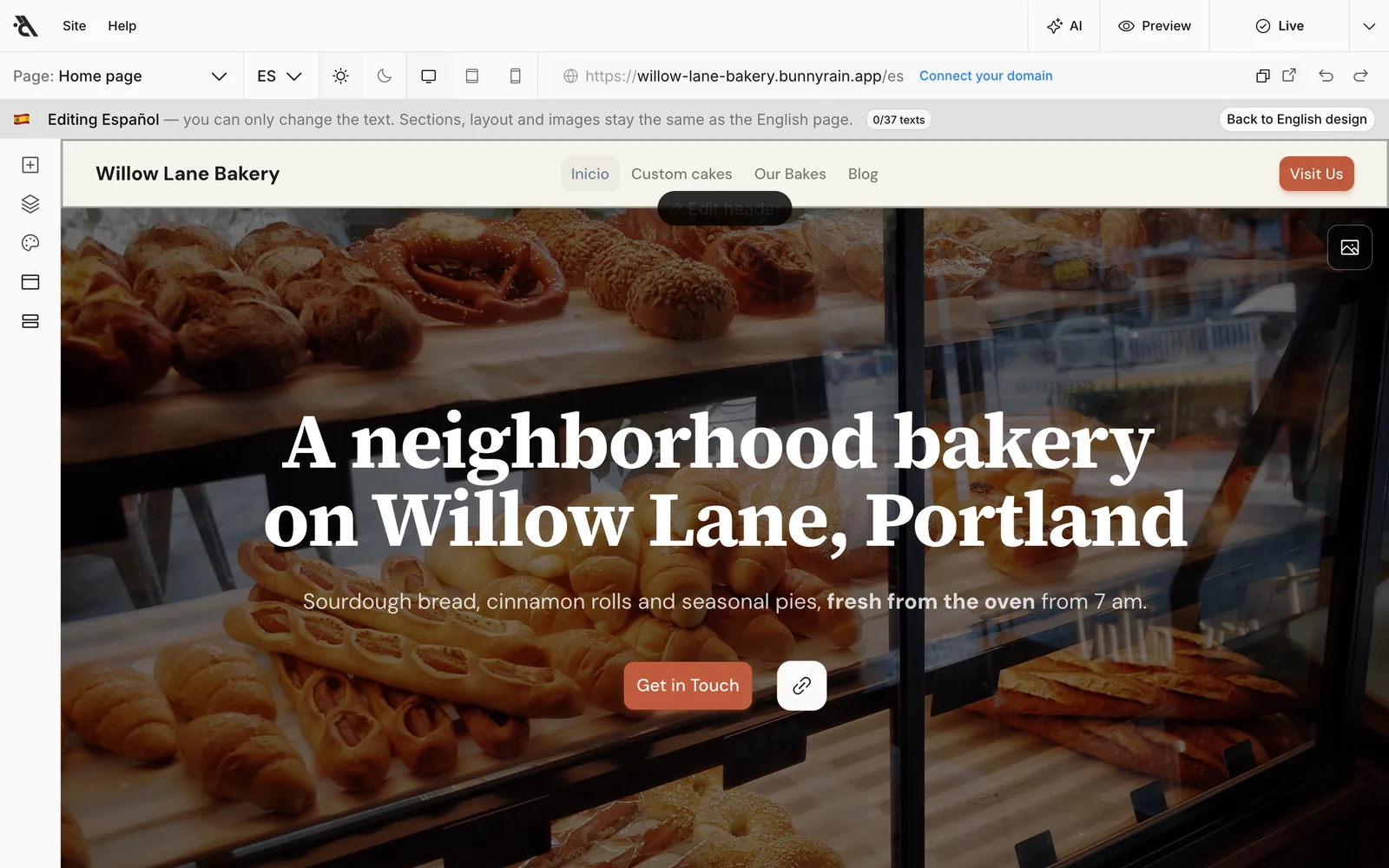
The counter on the right of the strip shows how many texts are translated.
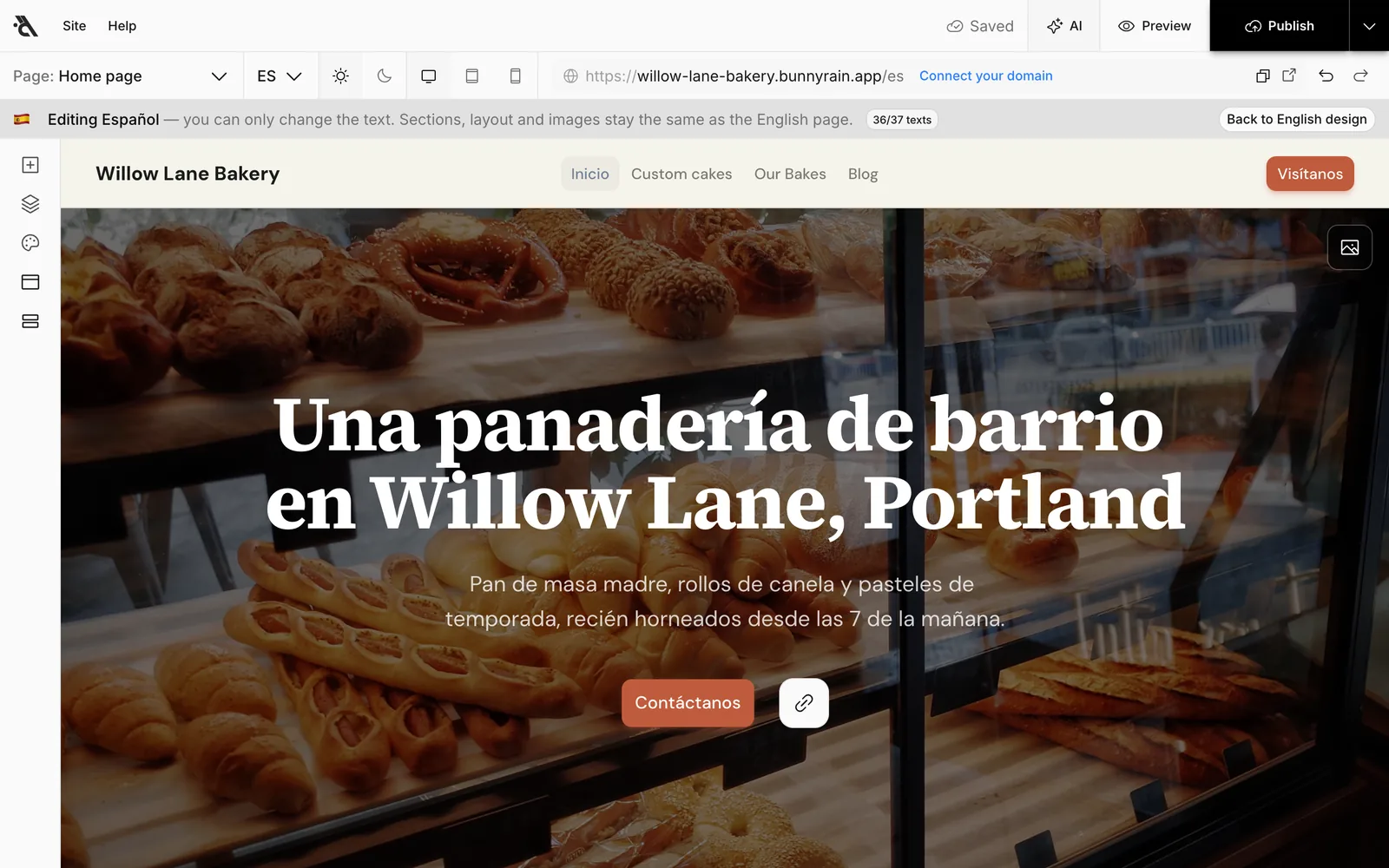
In translation mode only the text changes. To add or delete blocks, or change a layout or an image, press Back to English design in the strip; the change applies to every language. Prices are also the same in every language and are changed in the main language.
To translate the header and footer text (menu, button, tagline), open the Header or Footer panel while in translation mode.
Publish
Translations are saved to the draft too. When you press Publish, every language goes live together. If a page has no translation, it isn't published in that language; a Spanish-speaking visitor only sees translated pages in the menu.
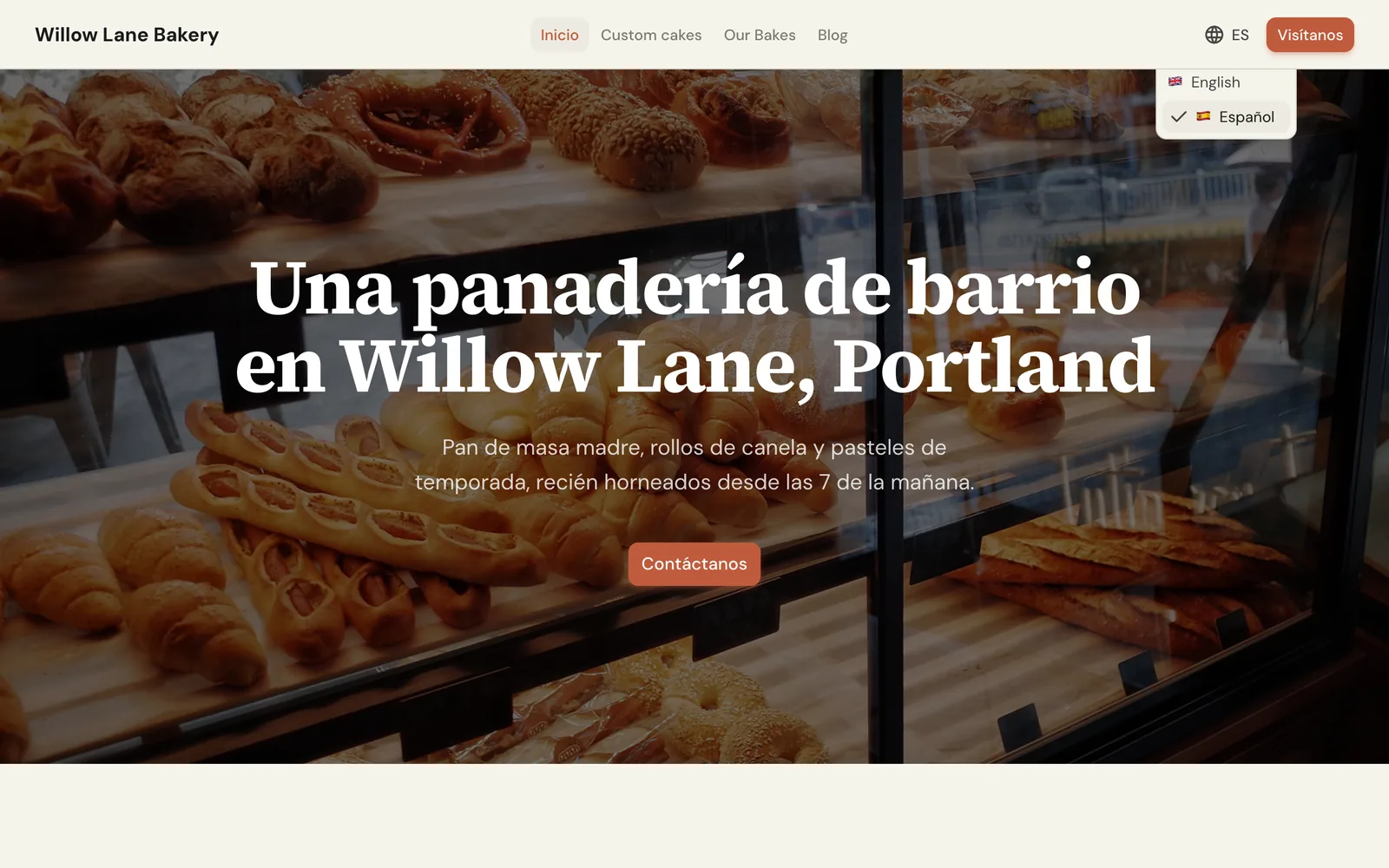
You can change how the language switcher looks (code, flag, name) in the Header panel. See Header and footer.
Changing the main language
After the first translation is written, the main language picker is locked, because your text is in that language. If you want to change your site's main language (for example, if most of your visitors speak Spanish), press Change main language under Settings > Multiple languages. The translations in the language you choose become the site's main text, and the old main language stays as a translation. The design doesn't change.
Turning multiple languages off
If you turn off Publish my site in multiple languages, the site is published only in the main language. Your translations aren't deleted; they're still there when you turn it back on.
Publishing and publish history
Take your draft live, publish just one page or the site's look, fix what's blocking publishing and go back to an earlier version.
Collections
Manage many pages that follow the same pattern, such as services, products or projects, with a collection; each page at its own address, all of them as cards on a list page.