Your account
Your account belongs to you; your sites belong to your organization. This guide covers your account settings. Your team and organization are covered in Team and organization.
Sign up and log in
The dashboard lives at app.bunnyrain.com. You can log in three ways:
- Continue with Google
- Continue with Apple
- With your email address and password
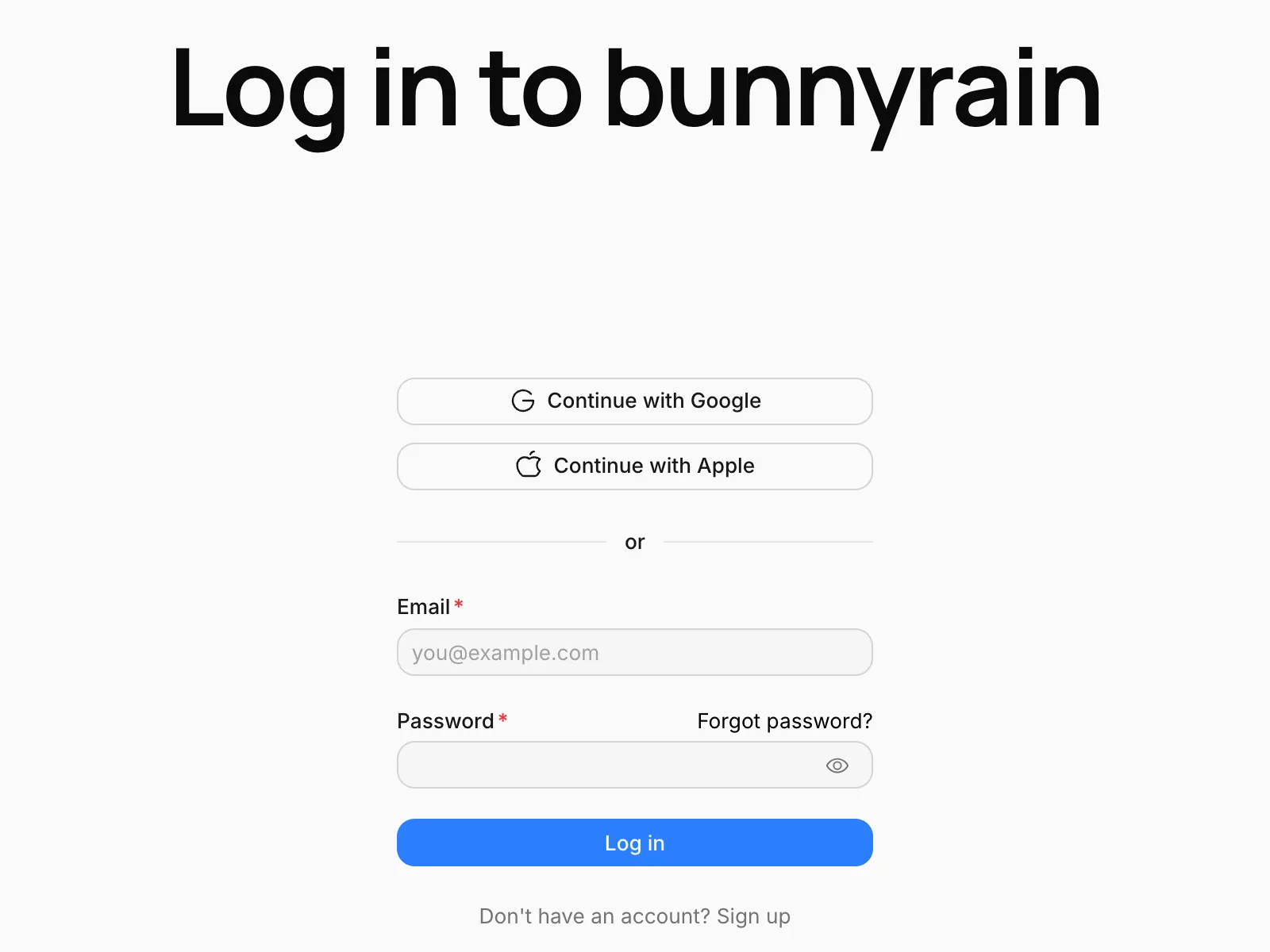
If you don't have an account yet, press Sign up at the bottom. With Google or Apple you don't need to sign up separately; your account is created the first time you log in. If you signed up with your email, you'll get a confirmation email; click the link in it to activate your account.
When you sign up, an organization is set up for you as well. If you work alone, you don't need to think about organizations; you can start creating sites right away.
If you forgot your password
On the login screen, press Forgot password?, enter your account's email address and press Send reset link. The link in the email takes you to a screen where you set a new password. If the email doesn't arrive within a few minutes, check your spam folder.
Open your account settings
Click your initials in the top right and choose Account. You can also switch the dashboard theme quickly from the same menu.
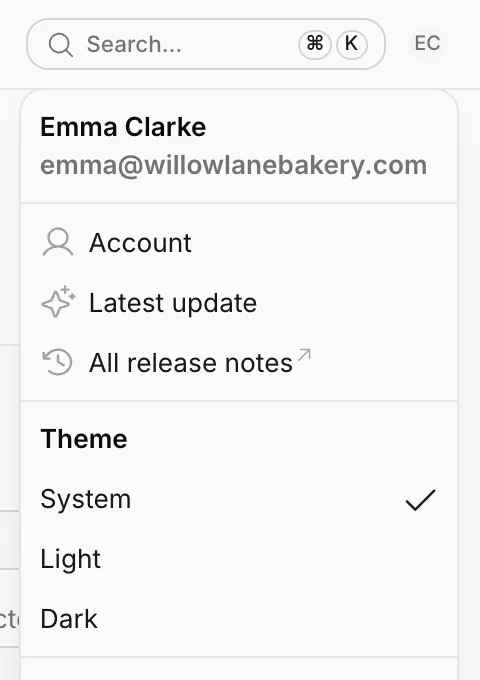
On the account screens the sidebar changes to Preferences and Security. To get back to your sites, press Back to dashboard at the top.
Preferences
Profile information
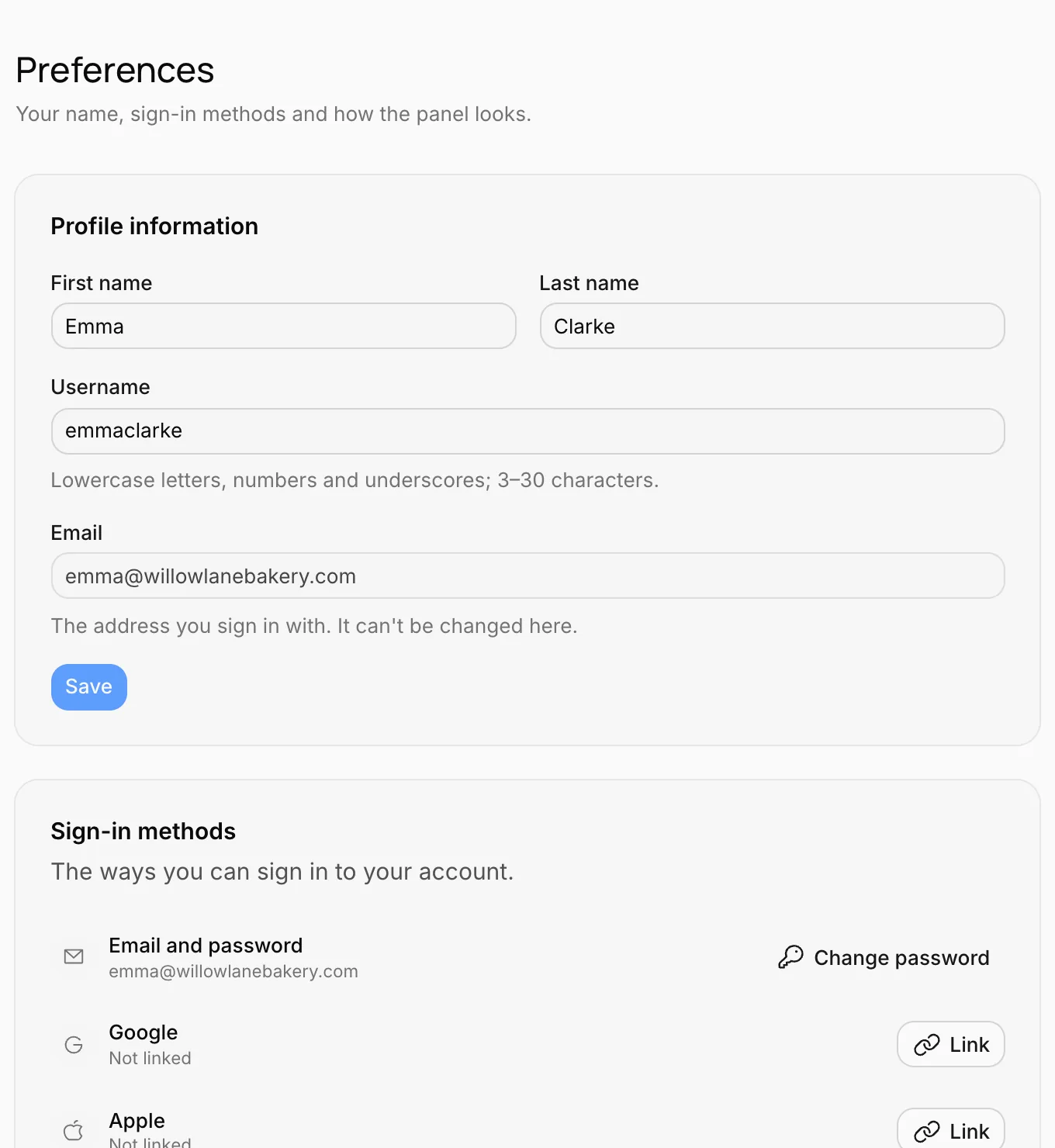
Change your First name, Last name and Username here. Your name appears in the profile menu, in the member list your teammates see and in the publish history ("Publish · Emma Clarke"). Press Save after making changes.
Usernames can only contain lowercase letters, numbers and underscores (3–30 characters). Email is the address you sign in with and can't be changed here.
Sign-in methods
Shows the ways you can sign in to your account. For example, if you signed up with your email, you can link your Google account too; after that, both take you into the same account.
- To link a method, press Link next to it and choose your account on the Google or Apple screen.
- To remove a linked method, press Unlink.
Appearance
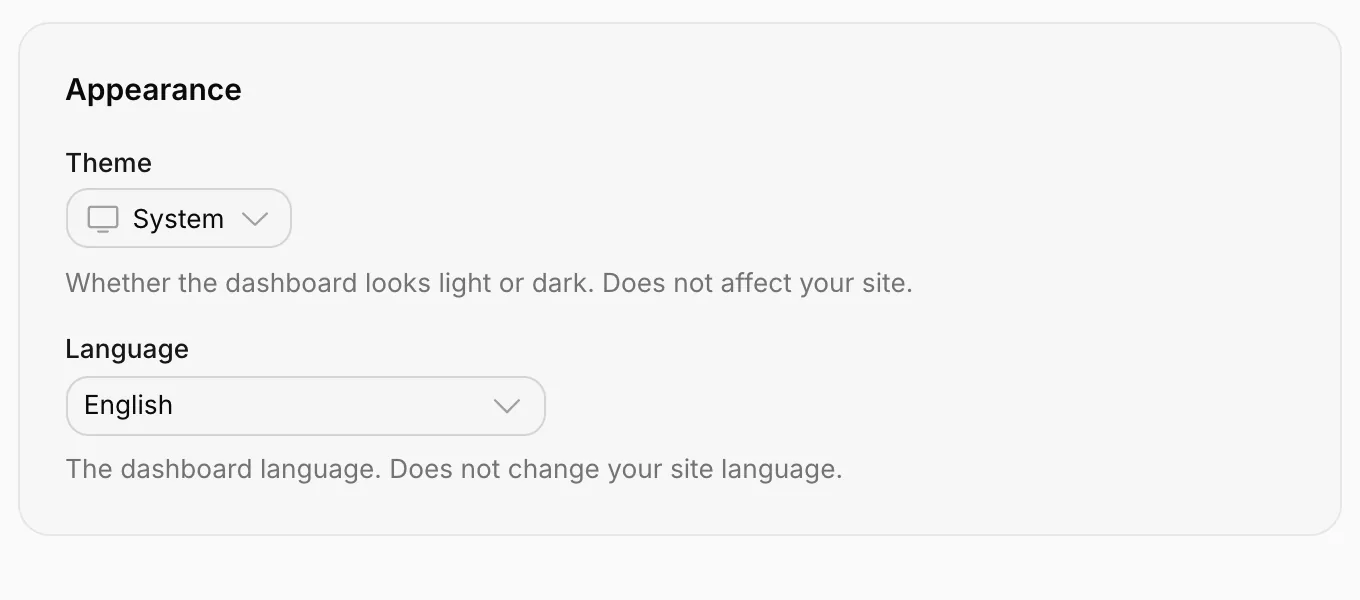
- Theme: Whether the dashboard looks light or dark. With System, it follows your computer's setting. This only affects the dashboard, not your site's theme.
- Language: The dashboard language, English or Turkish. It doesn't change your site's language; to publish your site in more than one language, see Multiple languages.
Security
Changing your password
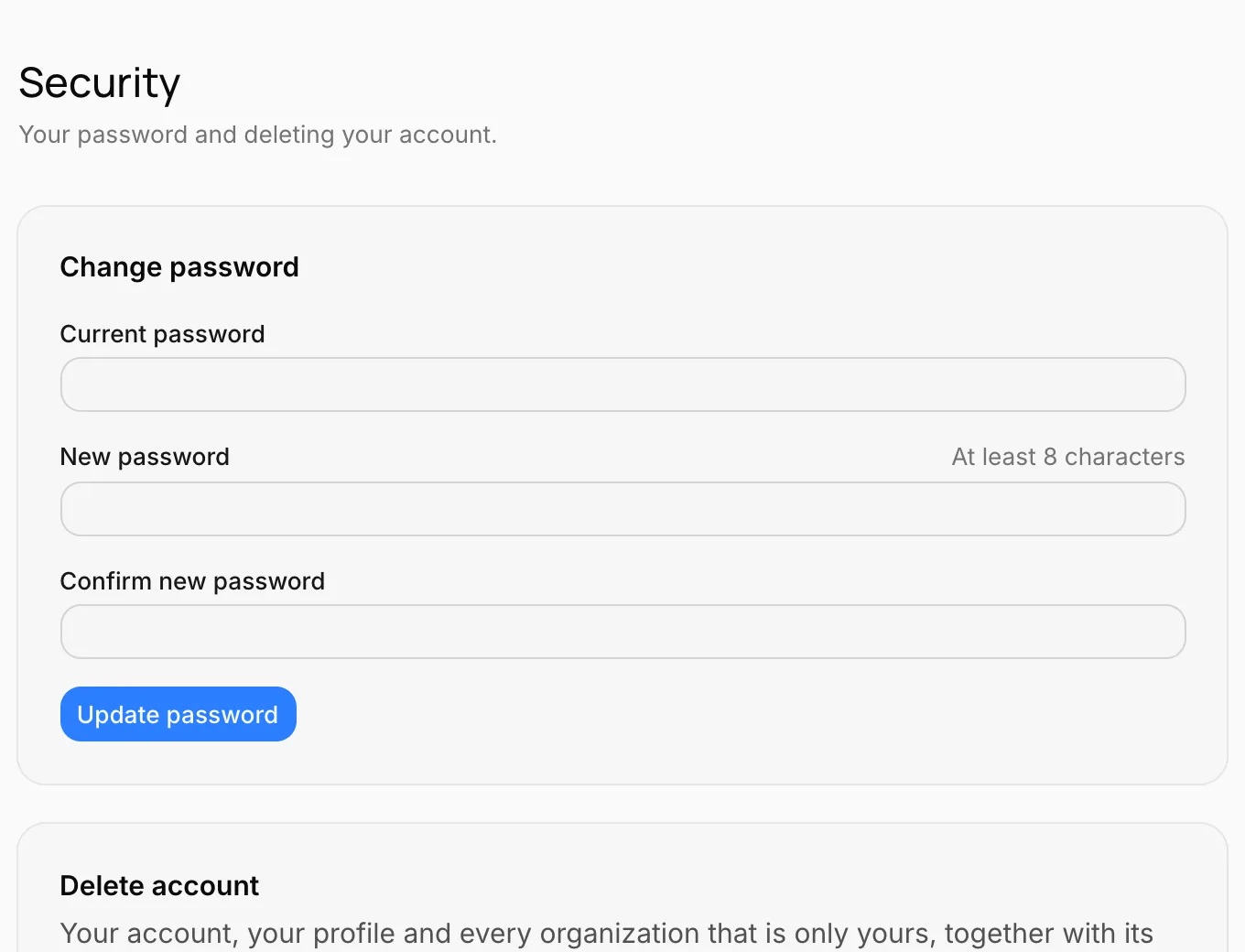
On the Security screen, enter your Current password and your New password twice, then press Update password. The password must be at least 8 characters long.
If you created your account with Google or Apple only, you don't have a password yet. In that case the same card says Set a password; once you set one, you can also log in with your email and password.
Deleting your account
You can permanently delete your account from the Delete account section at the bottom of the Security screen. When you press Delete my account, a window shows what will happen to each of your organizations before anything is deleted:
- If you're the only member of an organization, it's deleted together with its sites.
- If there are other members and you're not the owner (or there's another owner), only your membership is removed; the organization and its sites stay.
- If you're the only owner and someone on the team can manage roles, ownership passes to them.
- If you're the only owner and nobody can take over, the account can't be deleted. First give someone the Admin role on the Members screen, or remove the other members.
To confirm, type your email address and press Permanently delete my account.