Header and footer
The header is the strip at the very top of every page: your business name or logo, the menu and a button. The footer is the short section at the very bottom of every page. Both look the same on every page, so you only edit them once.
The fourth button on the editor's left rail opens the Header panel, the fifth opens the Footer panel. You can also open the same panels by clicking the header or footer on the page.
Header
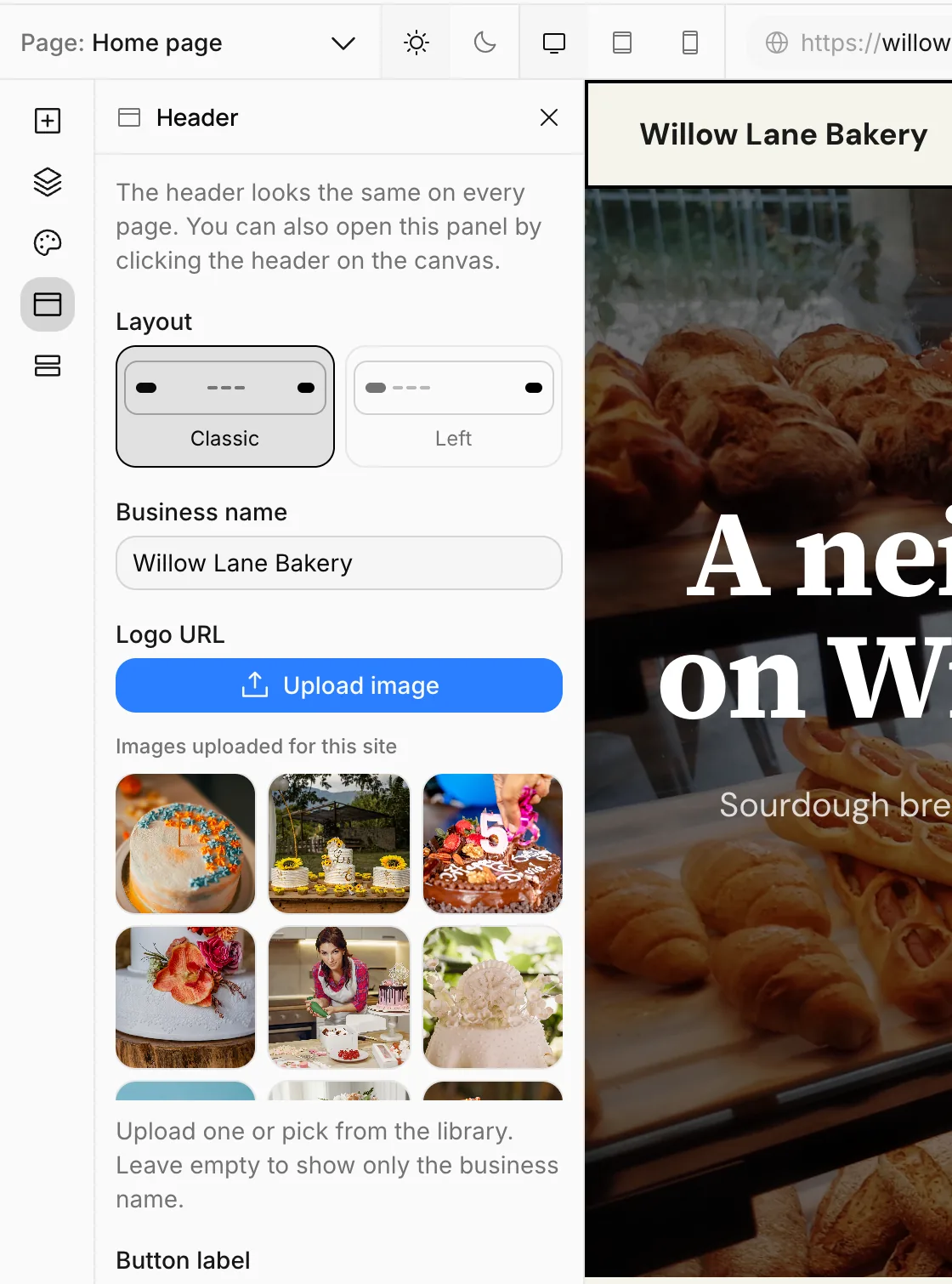
- Layout: Classic (logo on the left, menu in the middle, button on the right) or Left (logo and menu side by side on the left).
- Business name: Shown as text in the header if there's no logo.
- Logo URL: Upload your logo with Upload image or pick it from the library. If there's a logo, it's shown instead of the business name. A PNG with a transparent background works best.
- Button label and Button link: The button on the right of the header. Use it for the one thing you most want visitors to do: "Contact us", "Order now", "Book a tasting". Choosing the link works the same as for buttons.
- Stay on top while scrolling: When on, the header stays visible at the top of the screen as the visitor scrolls down.
Menu
There are two kinds of menu:
- Automatic: The menu is built from your pages. When you create and publish a new page, it's added to the menu too. This is the easiest choice for most sites. To leave a page out of the menu, turn off Show in menu in its Page settings.
- Custom: You build the menu yourself. You can put pages in any order, collect several pages under a group, and add links to other sites.
In a custom menu, add an item with Add to menu and choose its type:
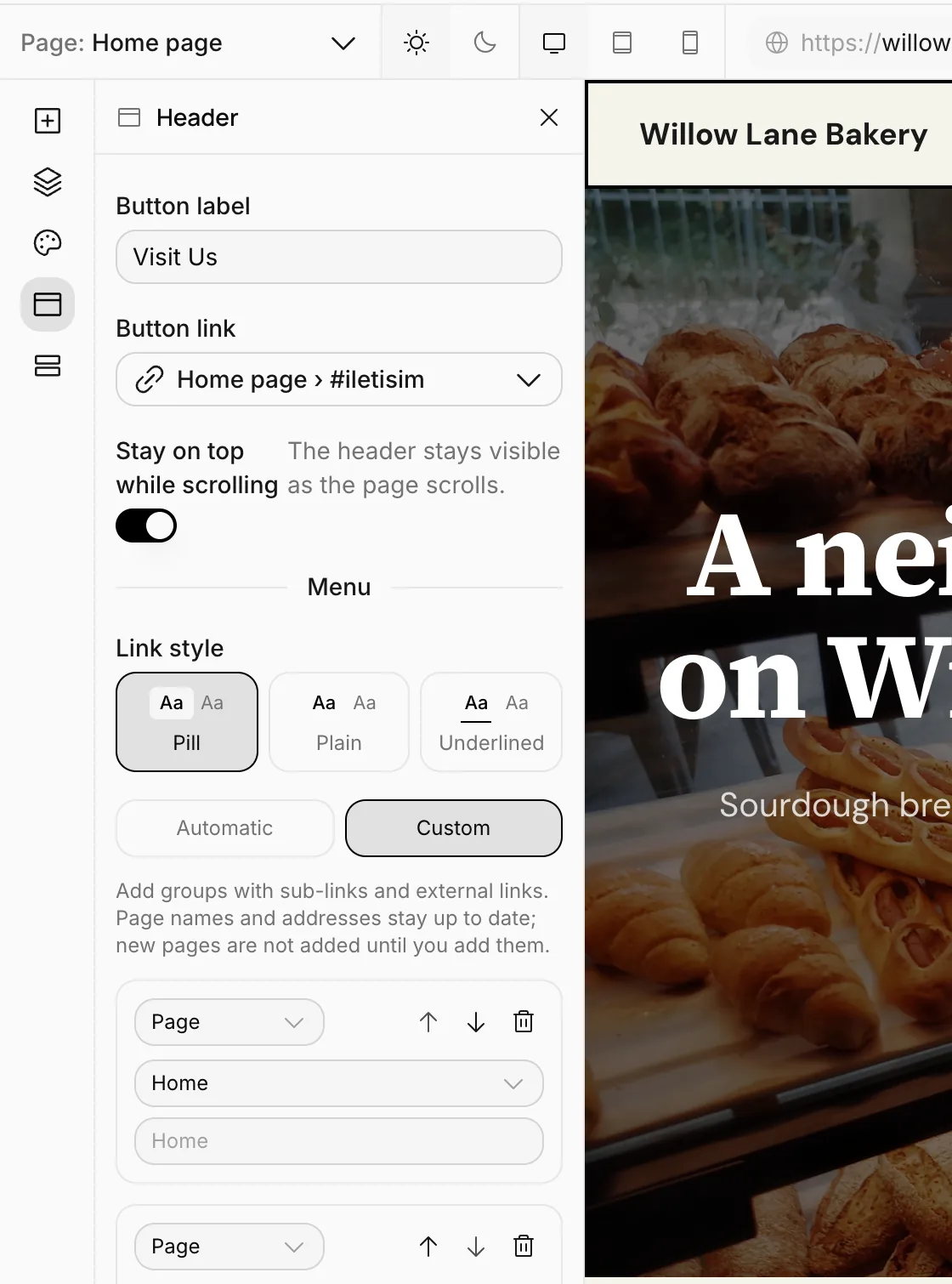
| Type | What it's for |
|---|---|
| Page | Goes to a page on your site. If Menu text is empty, the page's name is used. The menu stays up to date even if the page's name or address changes. |
| Link | Goes to an address: your location on Google Maps, your online ordering page, another site. |
| Group | Collects several links under one title (for example your service pages under Services). The title itself isn't clickable; it opens what's underneath. Add items to it with Add sub-link. |
Change the order with the up and down arrows next to the items, and delete them with the trash can. An incomplete item (for example a link without an address) is marked Incomplete — hidden from the menu until filled in.
In the video below we add a Directions link to Google Maps to Willow Lane Bakery's menu:
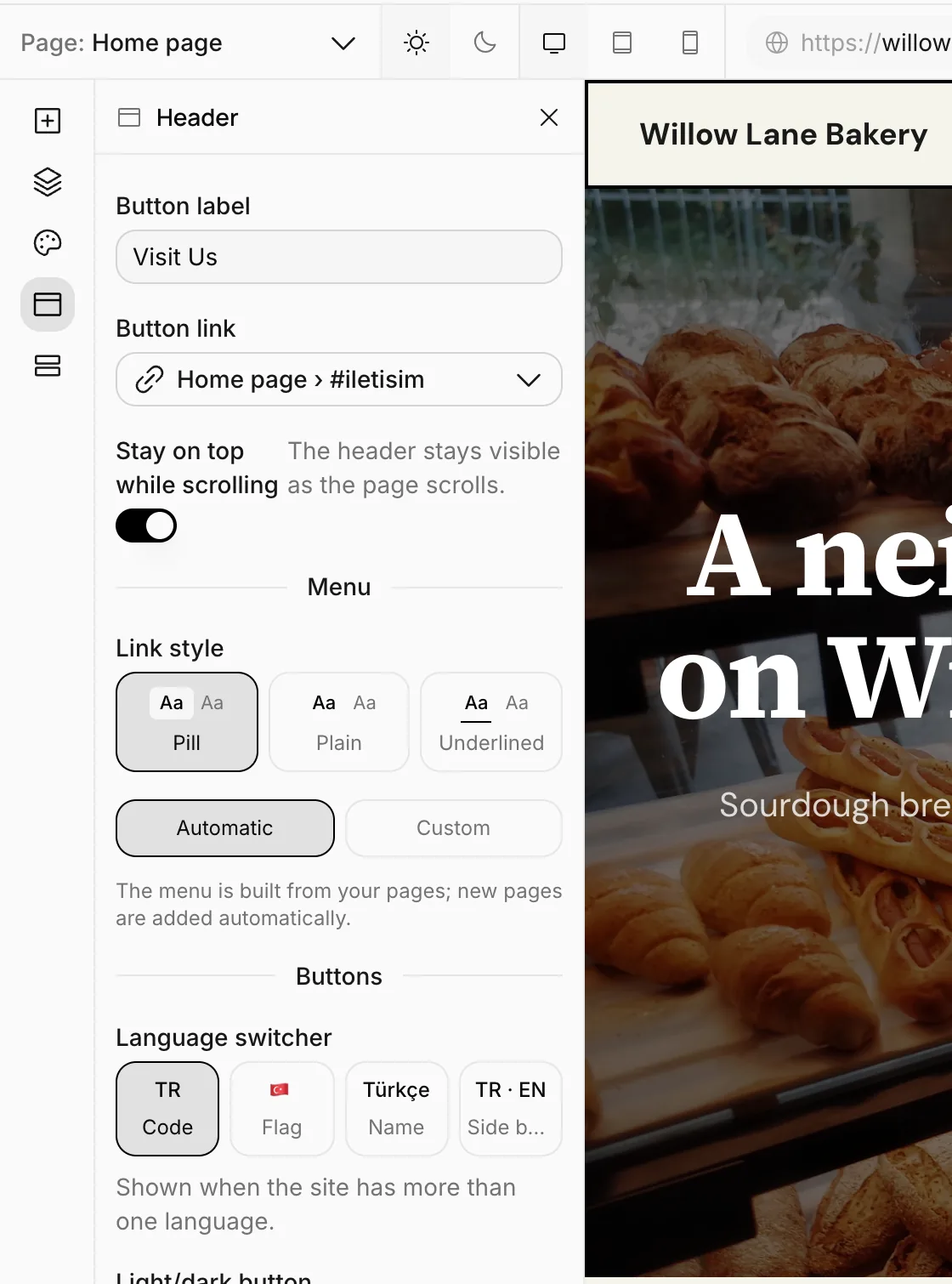
Link style is how the menu links look: Pill, Plain or Underlined. The page the visitor is on is highlighted in this style.
Language switcher and light / dark button
In the header's Buttons section you choose how two buttons look:
- Language switcher: Code (EN), Flag, Name (English) or Side by side (EN · ES). Only shown when your site is published in more than one language. See Multiple languages.
- Light/dark button: Icon, Switch or Menu. Only shown if Let visitors switch is on in the Theme panel.
Footer
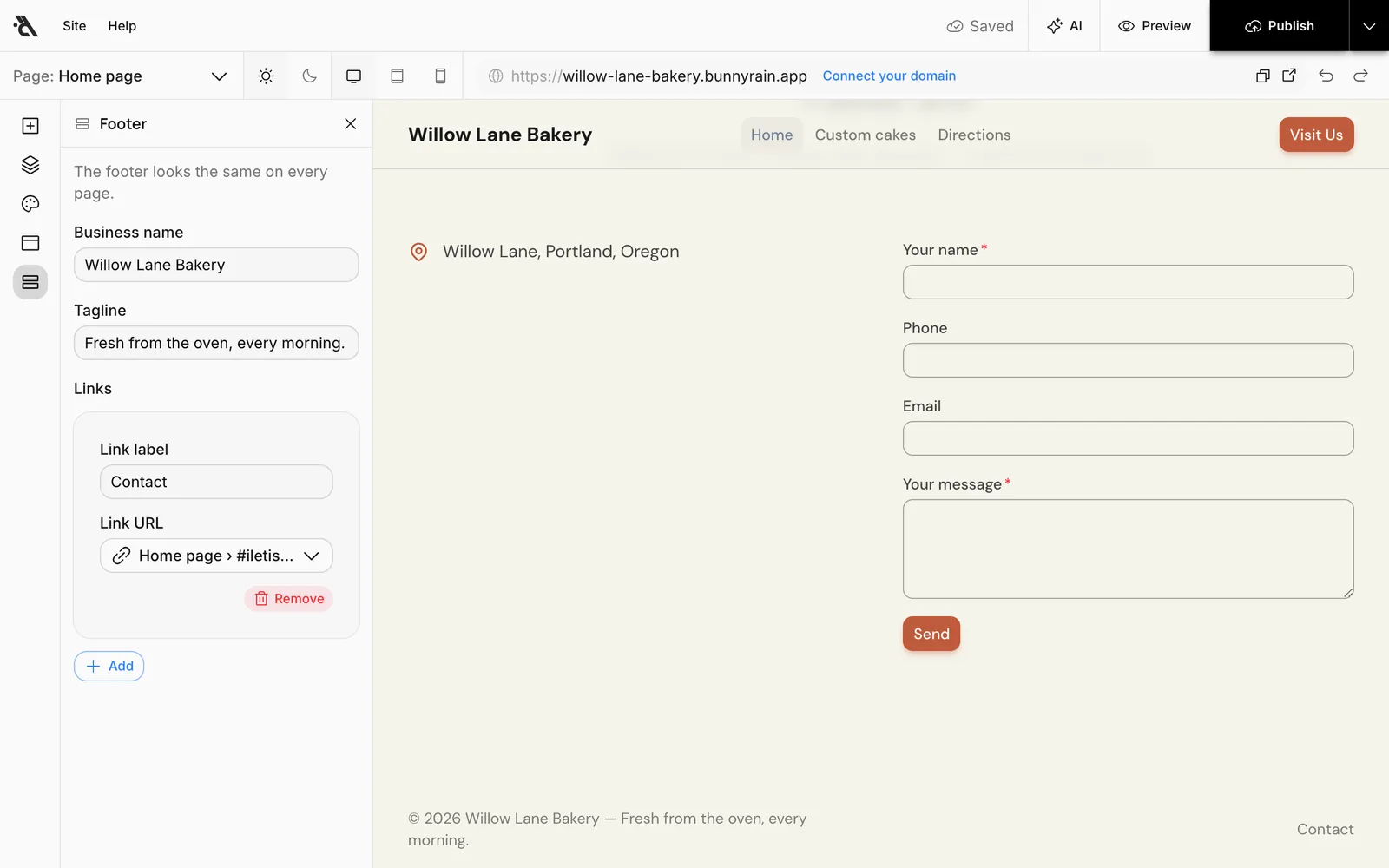
- Business name and Tagline: Shown on the left of the footer, in the copyright line.
- Links: The small links on the right of the footer. Add a new one with Add, type its Link label and choose where it goes. Remove deletes the link.
The footer usually links to the contact section, a privacy policy or your social media accounts.
Publishing
Header and footer changes also go into the draft and go live when you press Publish. In the publish menu, they're on the Site appearance (theme, header and footer) row. See Publishing and publish history.