Digital business card
A Card is a single-page digital business card and link page. You put it in your Instagram bio link, in the QR code on your business card or in your email signature. Visitors see who you are, how to reach you and your most important links on one screen.
A card can have:
- Profile: Your photo, name, title and a short line about you.
- Links: Buttons stacked on top of each other: WhatsApp, Instagram, your website, your order page, your booking link…
- Social media: Icons for your accounts.
- Gallery: Your photos; the first few on the card, all of them full screen when tapped.
- Save contact: Visitors add you to their phone's contacts in one tap.
Create a card
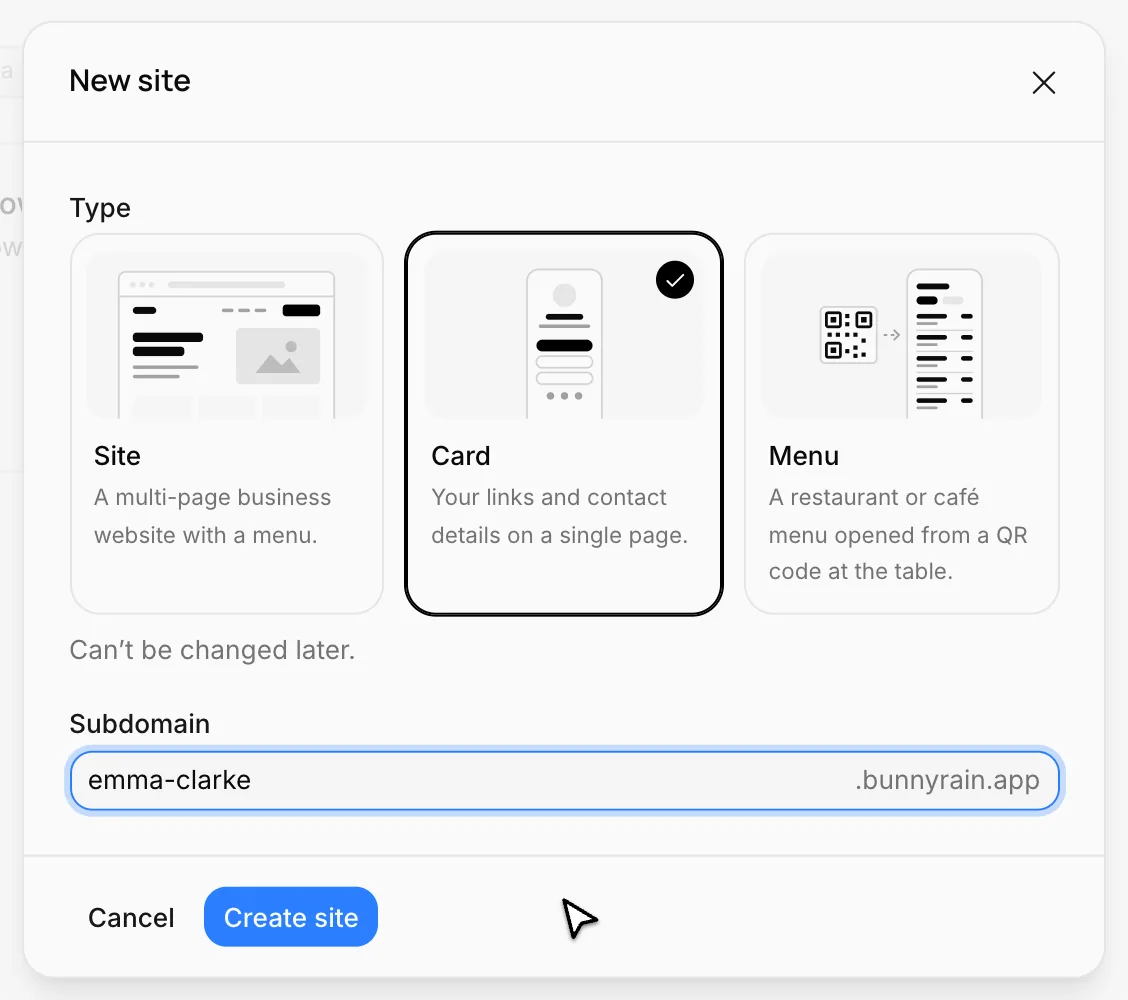
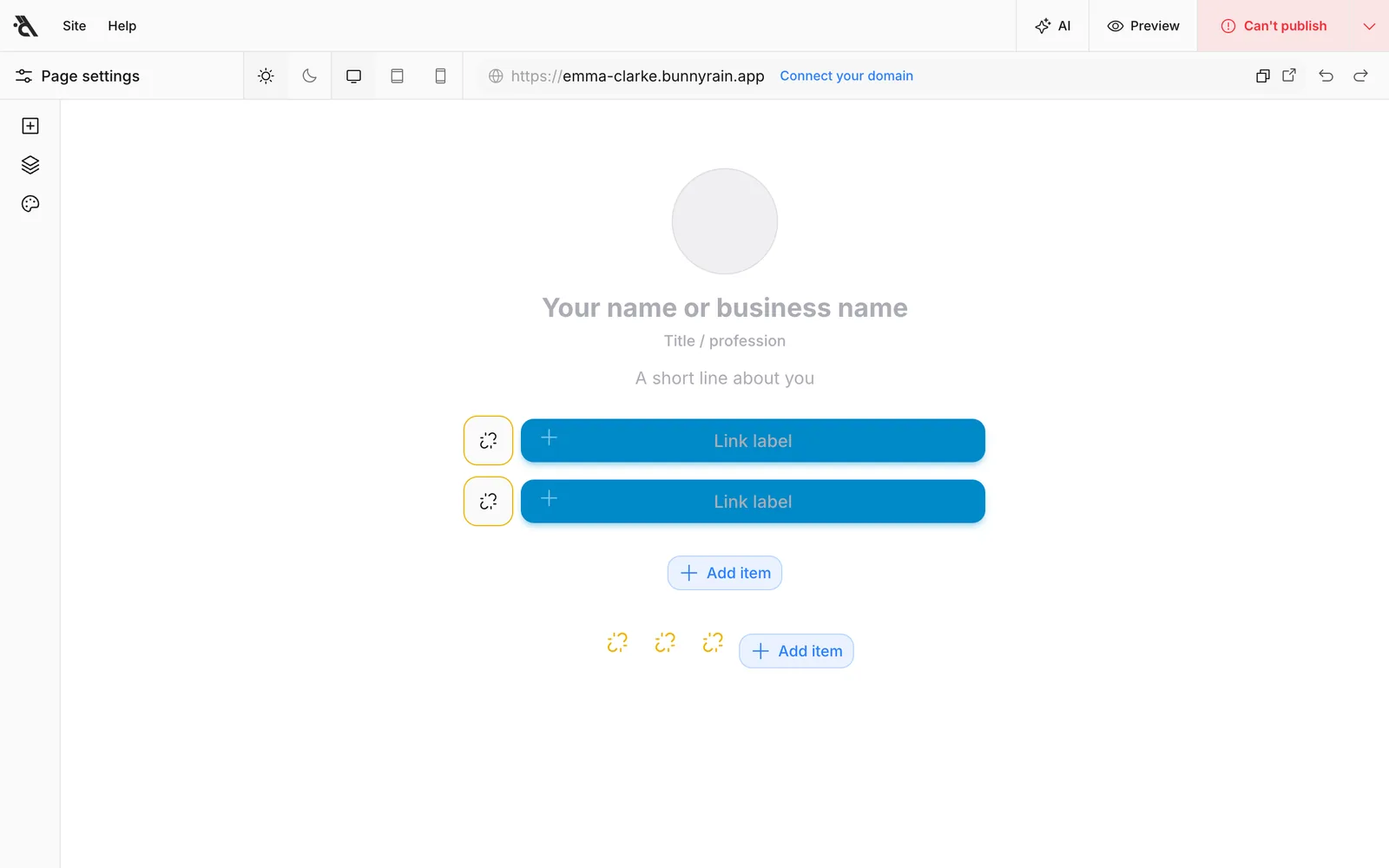
On My sites, press New site, choose Card as the type and type an address (emma-clarke). When you press Create site, the card is set up with profile, links and social media blocks and opens in the editor.
Fill it in with the assistant
The quickest way is to tell the assistant about yourself and the links you want. Press AI and write. In our example:
I'm Emma Clarke, owner and head baker at Willow Lane Bakery in Portland. Add links to our Instagram (instagram.com/willowlanebakery), our website (willowlanebakery.com) and custom cake orders (willow-lane-bakery.bunnyrain.app/custom-cakes); make the cake orders link stand out. Add a save-contact button with my phone (503) 555-0147, and pick warm bakery colors.
The assistant built the card and explained what it did in the chat:
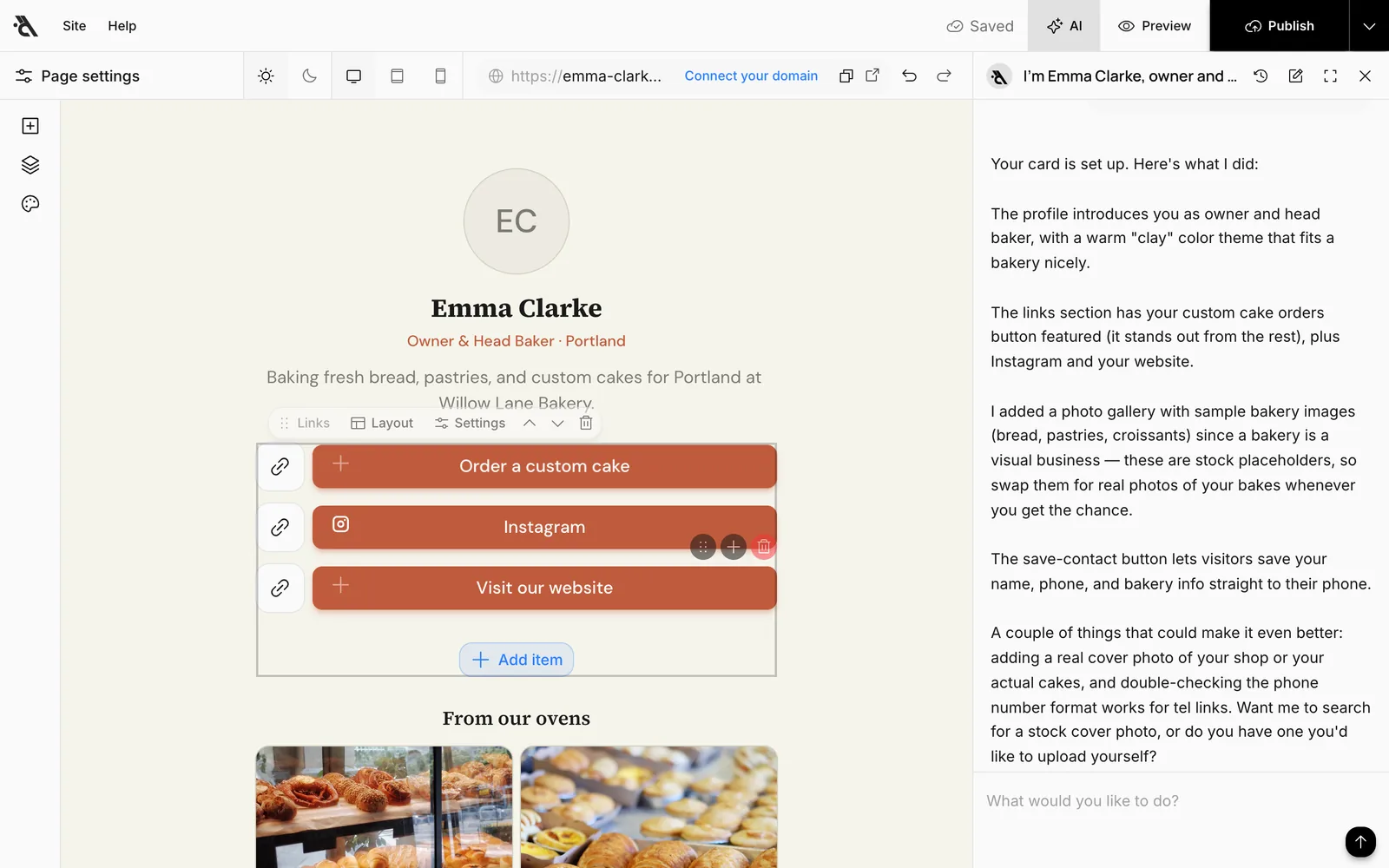
The assistant never makes up an address. If it doesn't know where a link should go, it asks you, often with options to pick from.
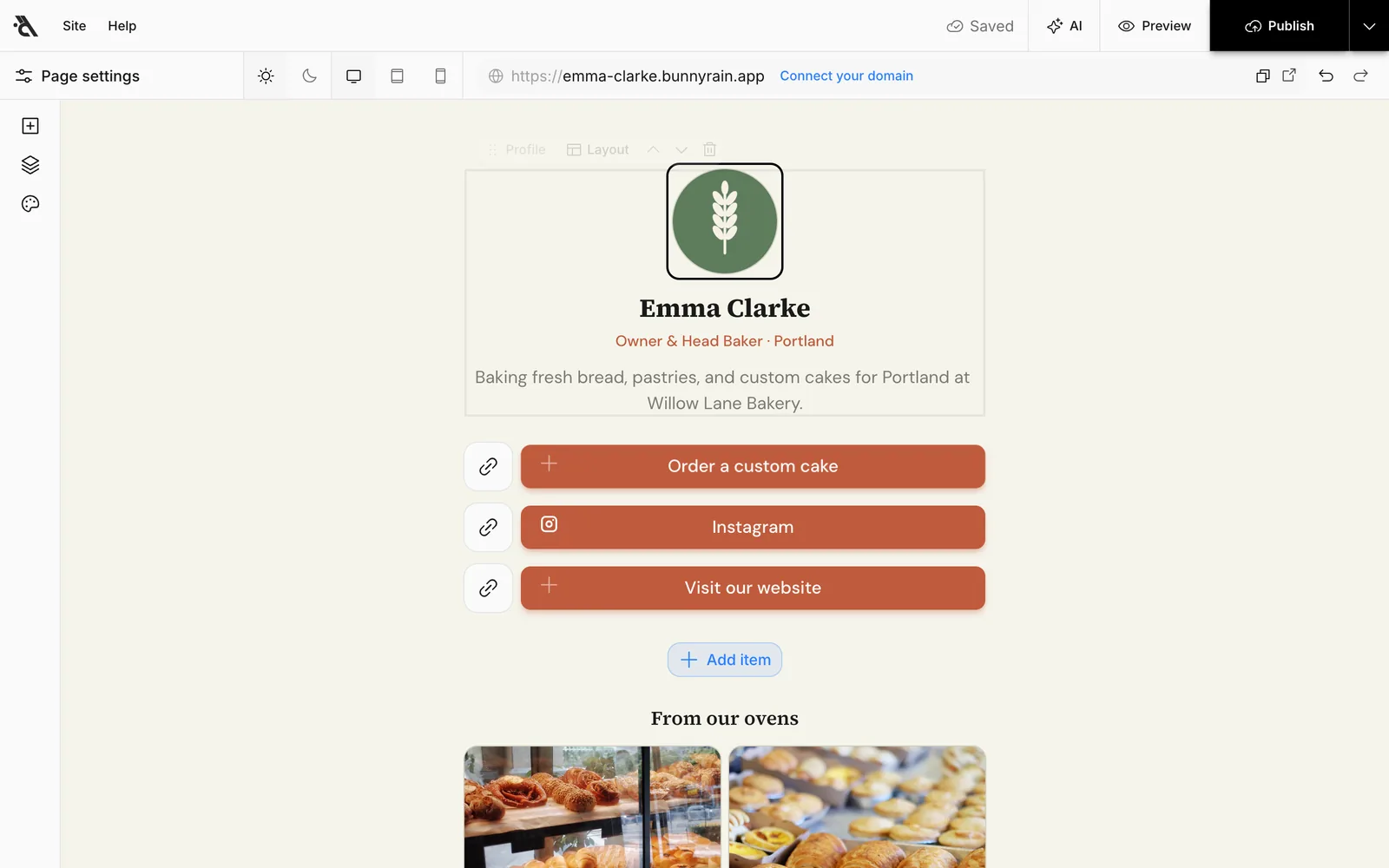
Edit it yourself
You edit a card just like a site: click text to change it, click a photo to choose a new one, add blocks with Add block. A card only offers blocks that suit a card.
Links
- Add a new link with Add item and type its label.
- Press the link icon on the left of the link and enter the address. You can type it short:
instagram.com/willowlanebakerygetshttps://added; a phone number becomes a call link and an email address becomes an email link. - The icon comes from the address: an Instagram address gets the Instagram icon, WhatsApp gets the WhatsApp icon, automatically.
- A link without an address doesn't appear on the live card; in the editor it's marked with a warning color.
A featured link uses the primary color and wiggles gently to draw attention. Choose it in the Links block bar's Settings; use it for your single most important link (in our example, Order a custom cake).
Social media
In the Social media block you only type the address; the icon comes from the address.
Gallery
Add several photos to the gallery at once with Upload photos. Depending on the layout, the first few photos show on the card, and the rest show as "+3" on the last box. When a visitor taps the gallery, all the photos open full screen.
Save contact
Enter your name, title, company, phone, email, website and address in this block. When a visitor taps the button, these details open in their phone's add contact screen. A name and at least a phone or email are required.
Theme and languages
A card's theme and languages work just like a site's; see Theme and Multiple languages. Since a card has no header, the language switcher and the light / dark button appear at the bottom of the card. Write the title and description shown on Google under Page settings in the top left of the editor.
Publish and share
Press Publish. Here's how your card looks on a phone:
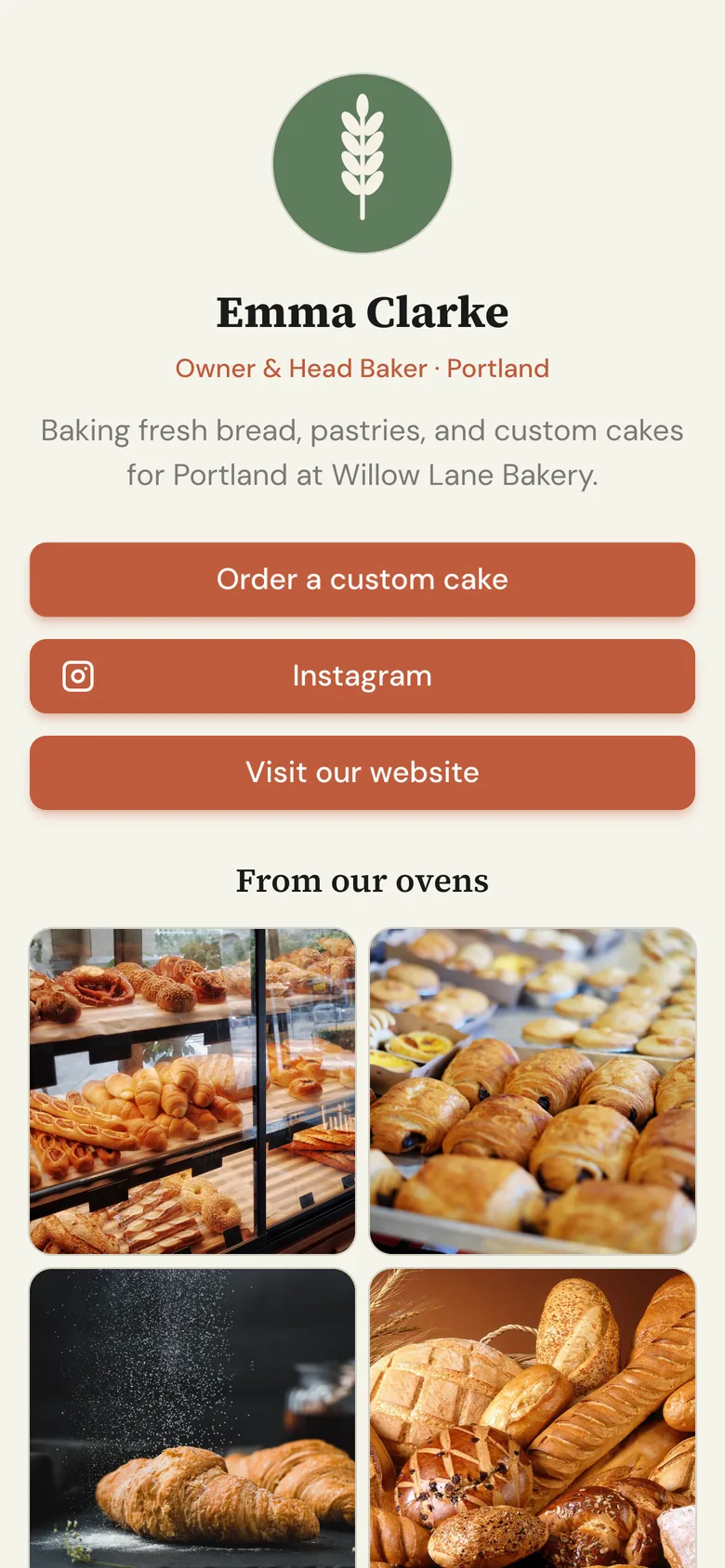
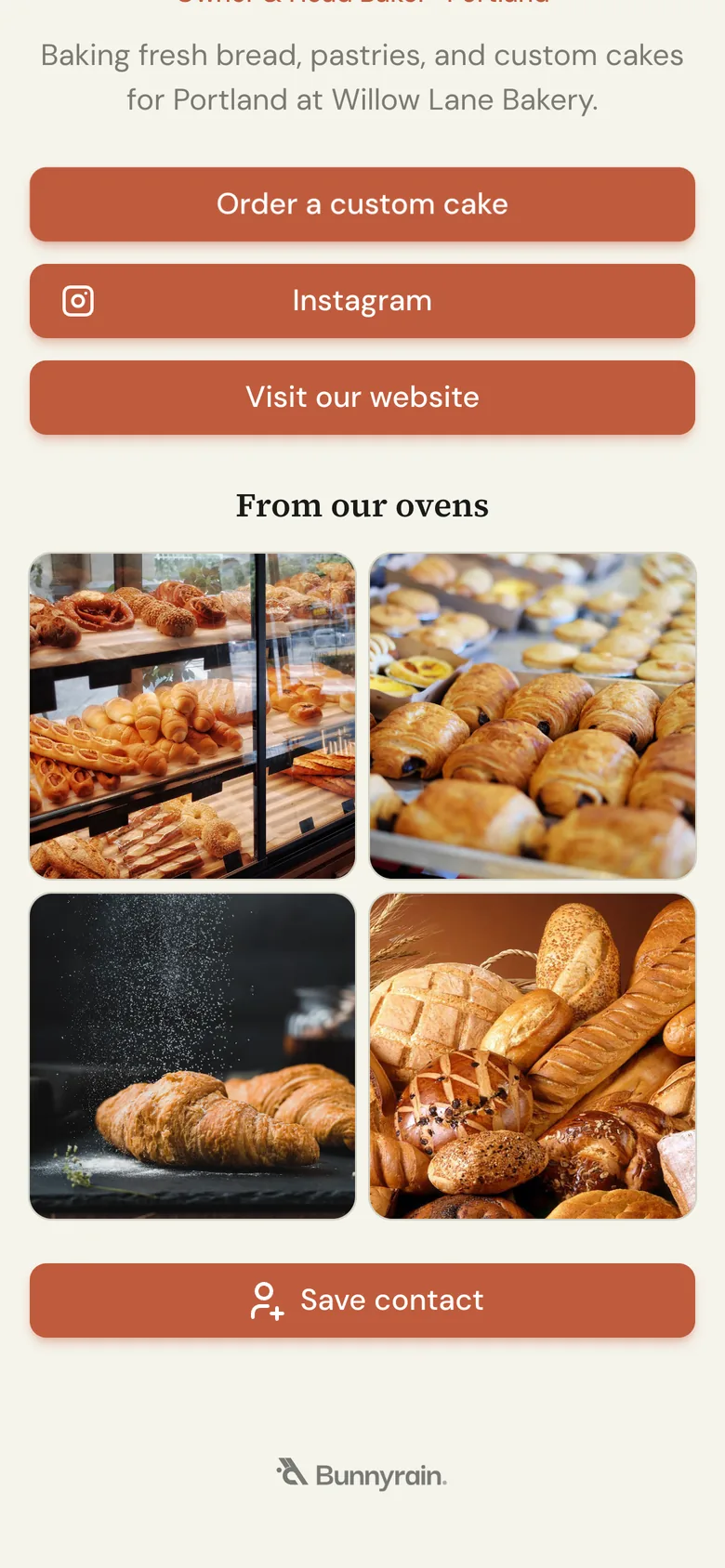
Add the card's address to your Instagram profile, or print its QR code on your business card. Download the QR code from the Share card on the card's Overview screen. You can connect your own domain to a card too.
The card's dashboard
A card's sidebar is shorter than a site's: there's no Inbox, Appointments, Google business or Collections. Analytics shows how many people visited your card and which sites (Instagram, WhatsApp…) visitors went on to. Clicks are counted by the site they lead to; two links to the same site show as one row.