Editor tour
The editor is a full-screen workspace where you see your site exactly as visitors will and edit it directly. It opens from Editor in the sidebar or Open editor on the site's Overview. It opens on the page you last worked on.
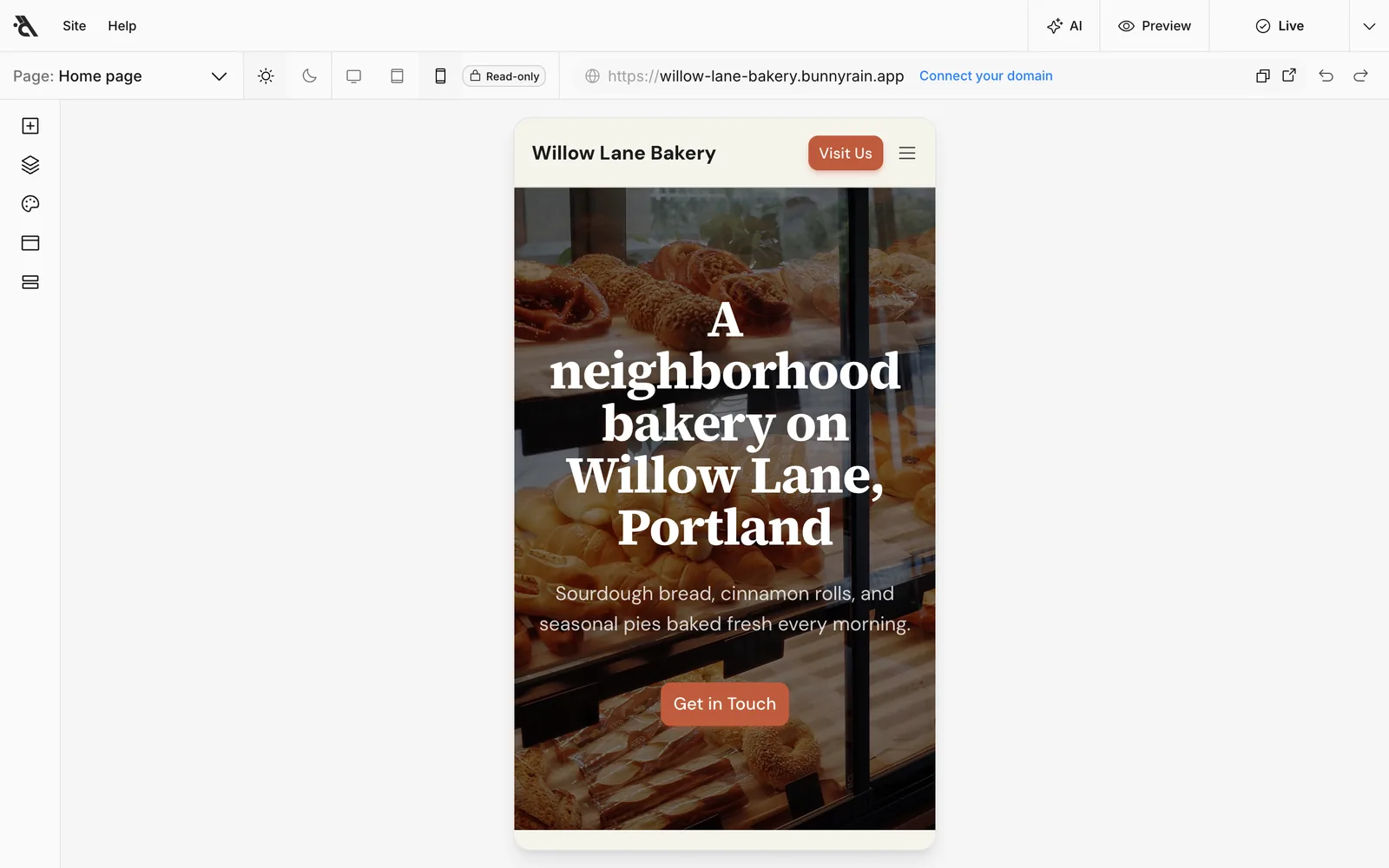
Parts of the screen
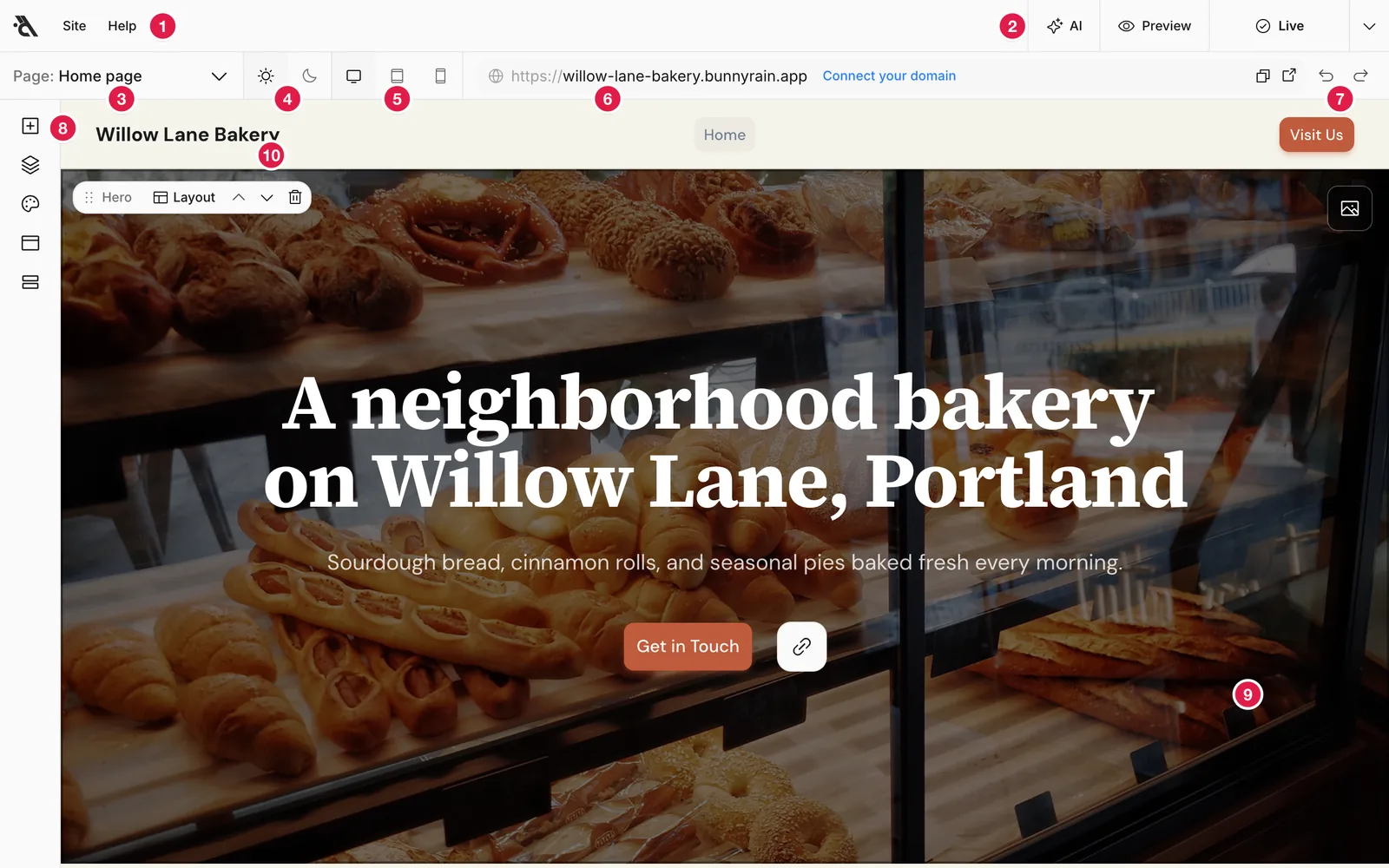
- Site and Help menus. The Bunnyrain logo on the left takes you back to the site's Overview. The Site menu takes you to the other dashboard screens (Media, Inbox, Settings…) and lets you change the dashboard theme and language. The Help menu has this user guide and the release notes.
- Save status, AI, Preview and Publish. When you make a change, Saving and then Saved appear here. AI opens the assistant on the right, Preview shows your site full screen, and Publish makes your changes visible to visitors.
- Page picker. Shows which page you're on. Switching pages, creating a new page or changing the page's settings happens here. See Pages.
- Light and dark view. Lets you check how your site looks in dark mode. It's only for viewing; it doesn't change the mode visitors see.
- Device. Shows the page at desktop, tablet or phone width (see below).
- Address bar. The address visitors will see for the open page. If you haven't connected your own domain, Connect your domain appears next to it.
- Copy, open, undo, redo. The first two buttons copy the page's address or open the live page in a new tab (the open button is disabled if the page has never been published). The arrows undo or redo your last change.
- Left rail. From top to bottom: the Add block, Blocks, Theme, Header and Footer panels. Press an icon to open its panel; press it again to close it.
- Your page. What you see is your site itself. Click any text to change it; click images and buttons to open their settings. See Editing text and images.
- Block bar. Your page is made of blocks (hero, about, services…). When you hover over a block, this bar appears: the block's name (here Hero), the Layout picker, arrows to move the block up or down, and a delete button. See Blocks and layouts.
You can widen or narrow the left panel and the assistant on the right by dragging their edge. Double-click the edge to reset the width.
The Site and Help menus
Since the editor is full screen, the dashboard's sidebar isn't here; the same screens are in the Site menu. Back to dashboard at the top takes you to the site's Overview.
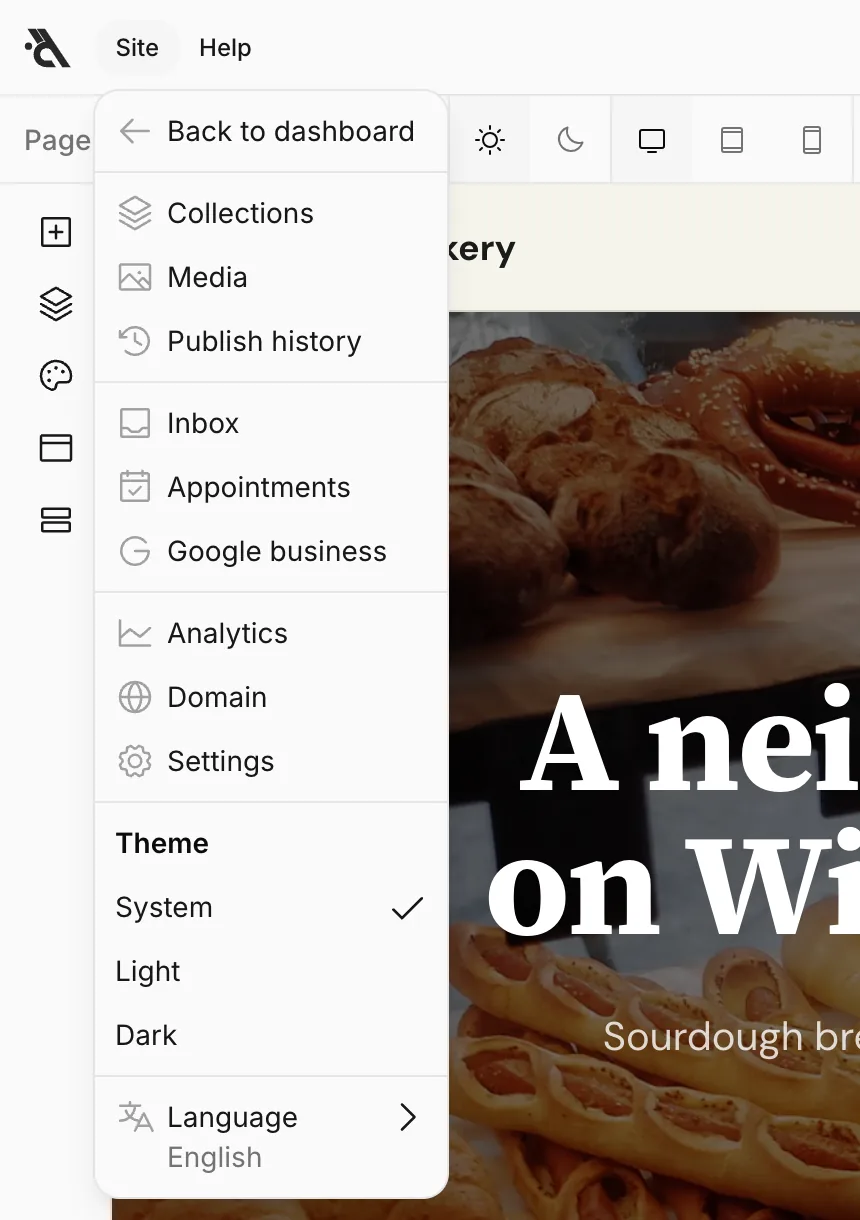
Theme and Language at the bottom of the menu are for the dashboard itself (light / dark dashboard, English / Turkish dashboard). Your site's theme is in the Theme panel on the left rail.
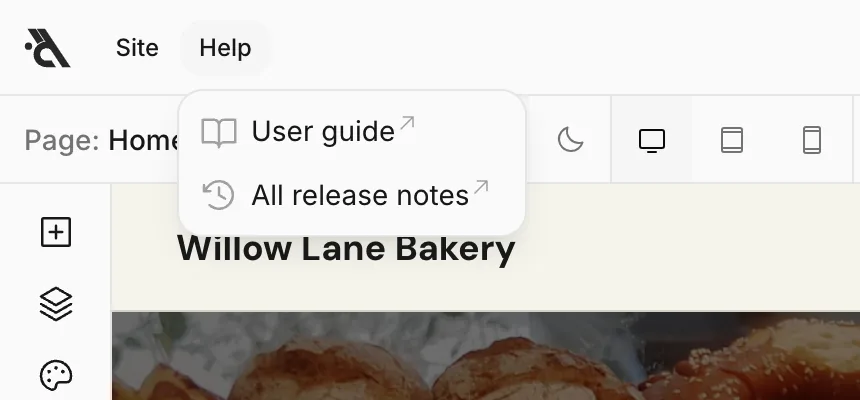
In the Help menu, User guide opens this guide and All release notes opens what's new in Bunnyrain, both in a new tab.
Changes are saved automatically
There's no save button in the editor. Every change is saved within a second, and Saved appears in the top right. If your connection drops, it says Not saved; nothing you typed is lost, and the editor tries again after a few seconds.
Saved changes are a draft: visitors keep seeing the previous version of your site until you press Publish. That way you can work on your site at your own pace and publish when you're ready. See Publishing and publish history.
Undo
The arrows to the right of the address bar (7) or keyboard shortcuts undo your recent changes on the page:
- Undo: Z
- Redo: ⇧ Z
While you're inside a text box, these shortcuts only undo typing in that box. To undo things like deleting, moving or changing the layout of a block, first click outside the box or use the arrows.
Undo is limited to the open page; switching pages resets the history. Theme, header and footer changes aren't in this history. To undo a change the assistant made, use Undo in the notification at the bottom of the screen.
How it looks on phones and tablets
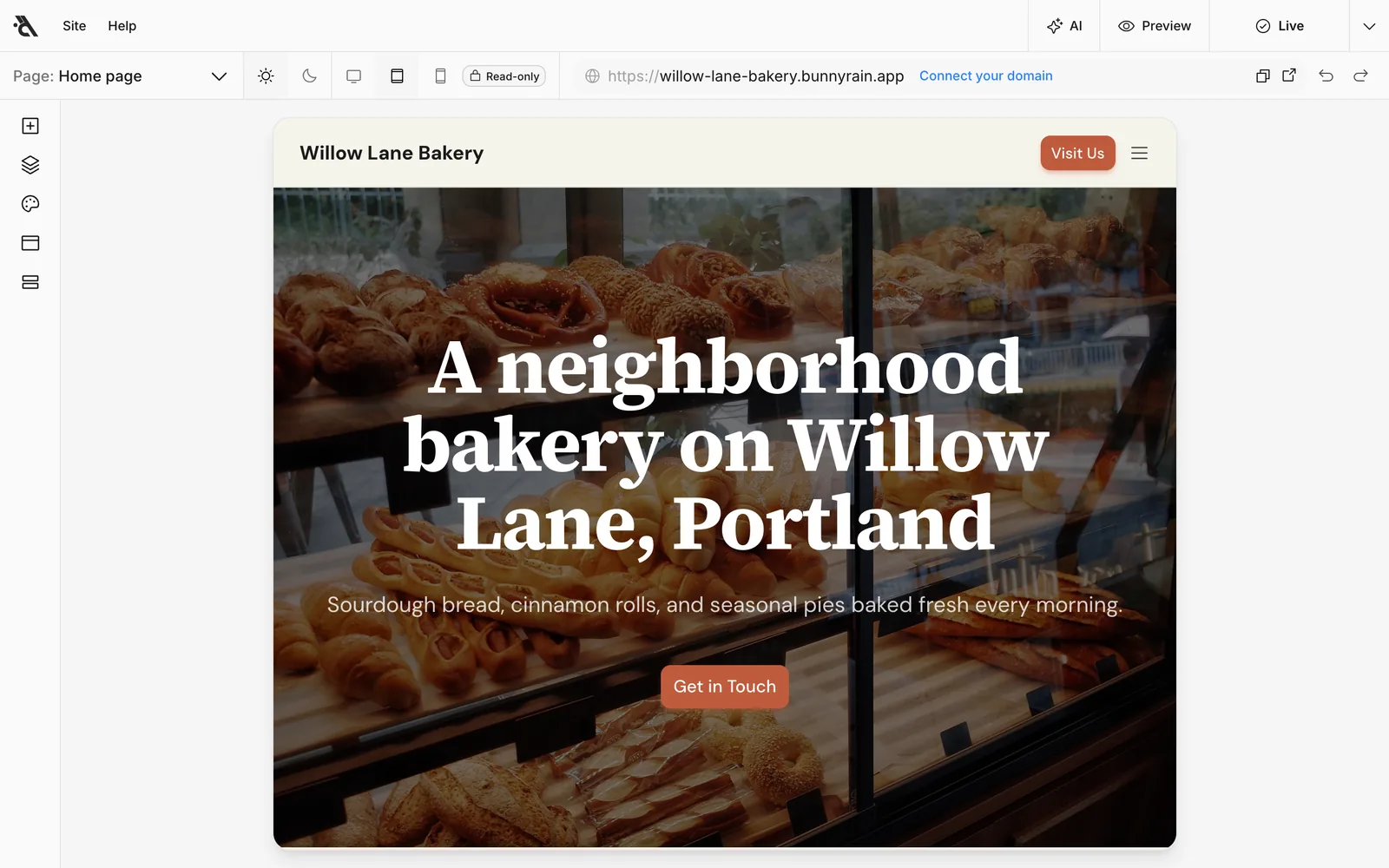
The device buttons at the top (5) show your page at tablet and phone width. Most visitors will see your site on a phone, so take a look before you publish.
Preview
Preview in the top right shows your site full screen, without the editor's bars and panels. You can click links and move between pages; forms aren't sent in preview.
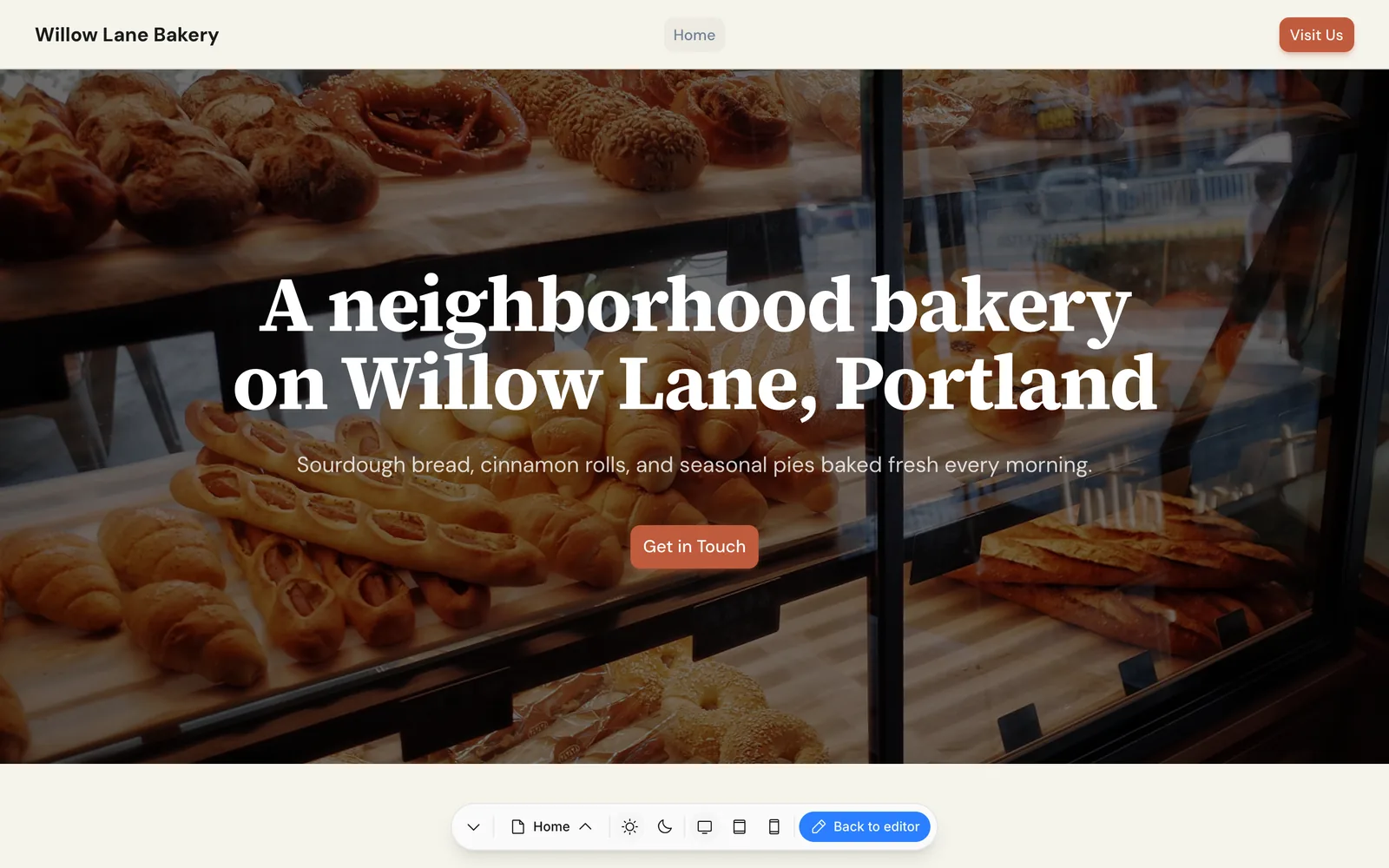
Use the small bar at the bottom to switch pages, light / dark view and device. To get back to editing, press Back to editor or Esc.
Preview shows the draft, so changes you haven't published yet are visible too. To see the live version, use the open button in the address bar.
Editing from your phone
The editor works on phones too. Because the screen is small, the layout changes: the left rail becomes a tab bar at the bottom, panels open in a drawer that slides up from the bottom, and the assistant opens full screen. There are no device buttons on a phone, since the screen itself is a phone.