Pages
Your site starts with a single page: the home page. A single page is often enough to present your business. If a topic is long, or you want a separate address for it (for example willow-lane-bakery.bunnyrain.app/custom-cakes for cake orders), add a new page.
The page picker
The Page: box in the top left of the editor shows the open page. Click it to list all the pages of the site; press one to open it.
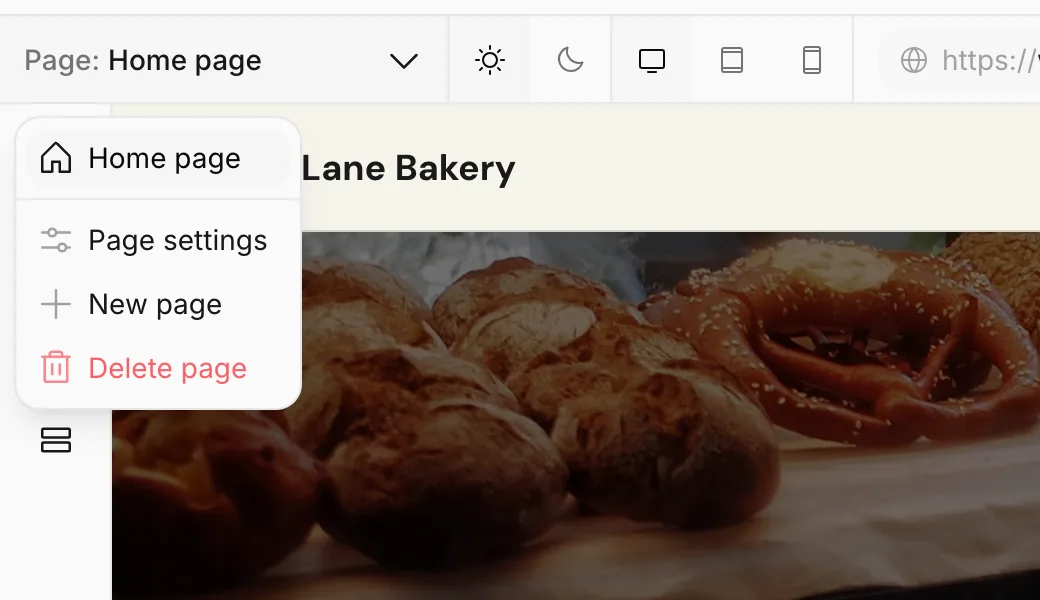
The home page has a house icon. Pages that belong to collections are grouped under the collection's name at the bottom of the list. Page settings, New page and Delete page at the bottom act on the open page.
Create a new page
Press New page
Open the page picker and choose New page.
Type the page path
The Page path is the part of the page's address that comes after your site's address. If you type custom-cakes, the page opens at willow-lane-bakery.bunnyrain.app/custom-cakes.
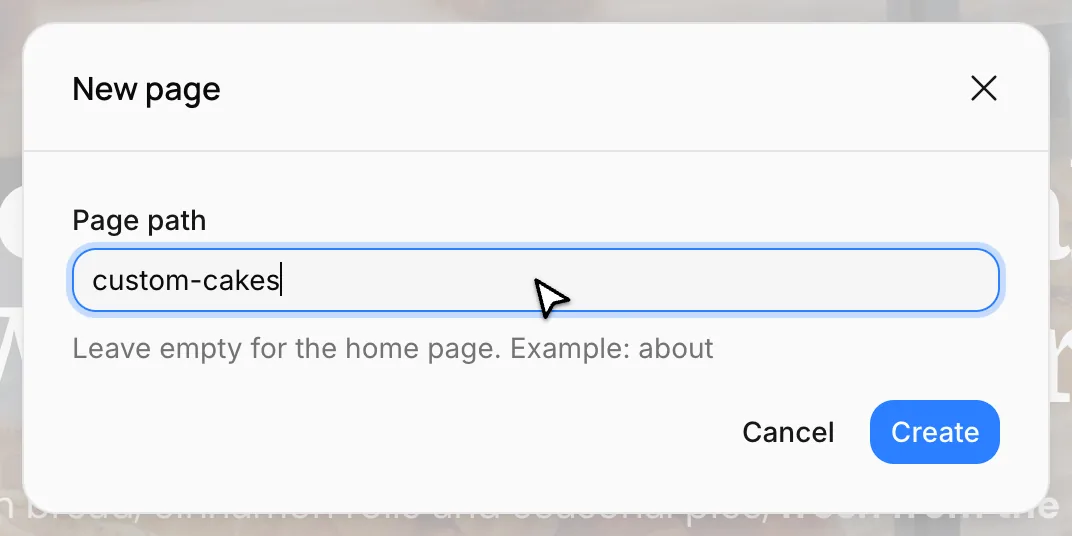
Pick a short, readable path: about, prices, custom-cakes. Separate words with hyphens. The path can't start with a language code like en or es; those addresses are reserved for your site's language versions.
Press Create
The new page opens empty.
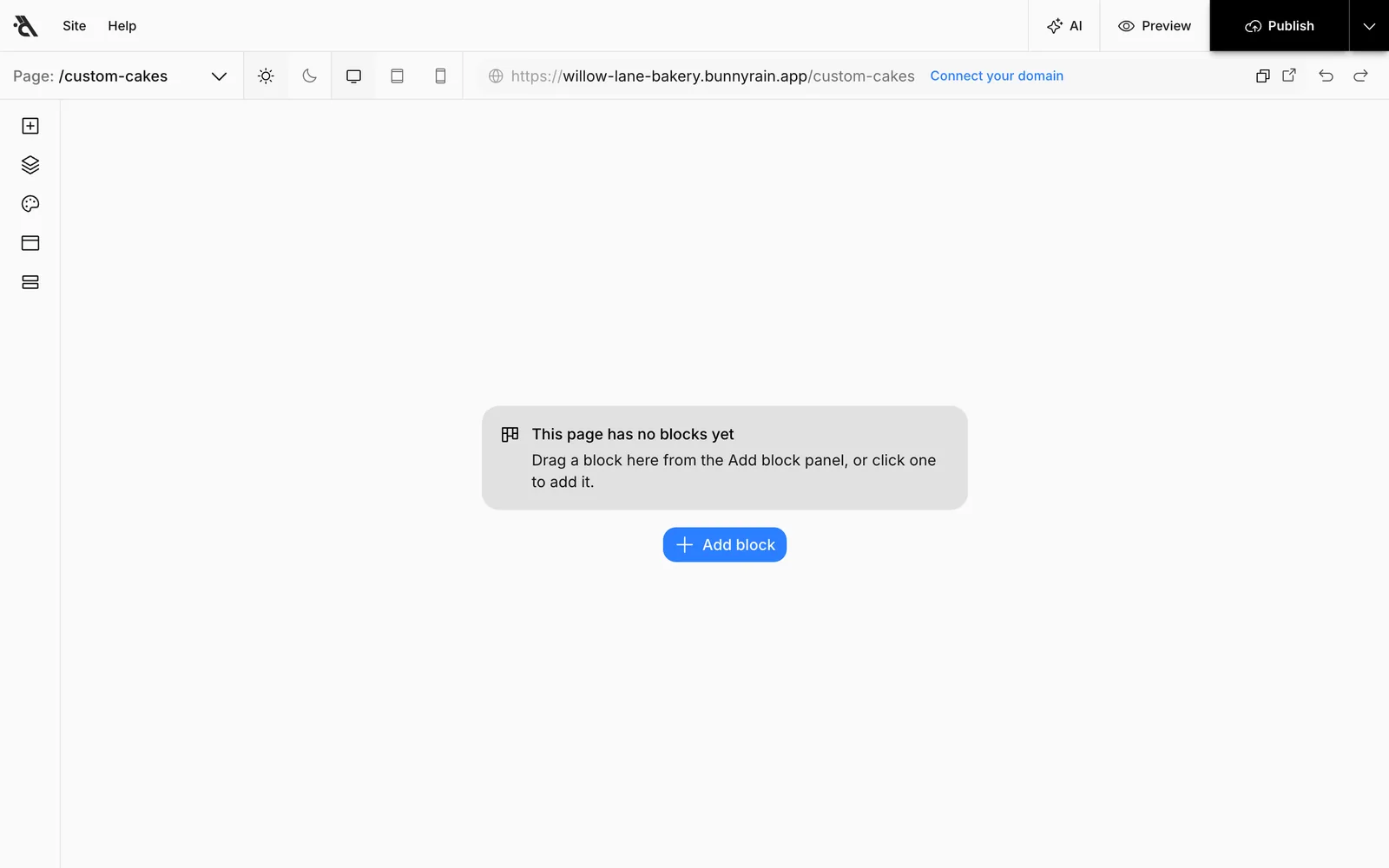
You can fill the page in two ways:
- Add blocks: Press Add block and add blocks such as a hero, text or a price list. See Blocks and layouts.
- Have the assistant write it: Press AI and describe what the page is about; for example, "This page is for our custom cakes. We make birthday, engagement and wedding cakes; orders need at least 5 days' notice." The assistant builds the page with its blocks. See AI assistant.
The new page isn't visible to visitors until you press Publish.
Page settings
Choose Page settings in the page picker. The settings belong to the open page.
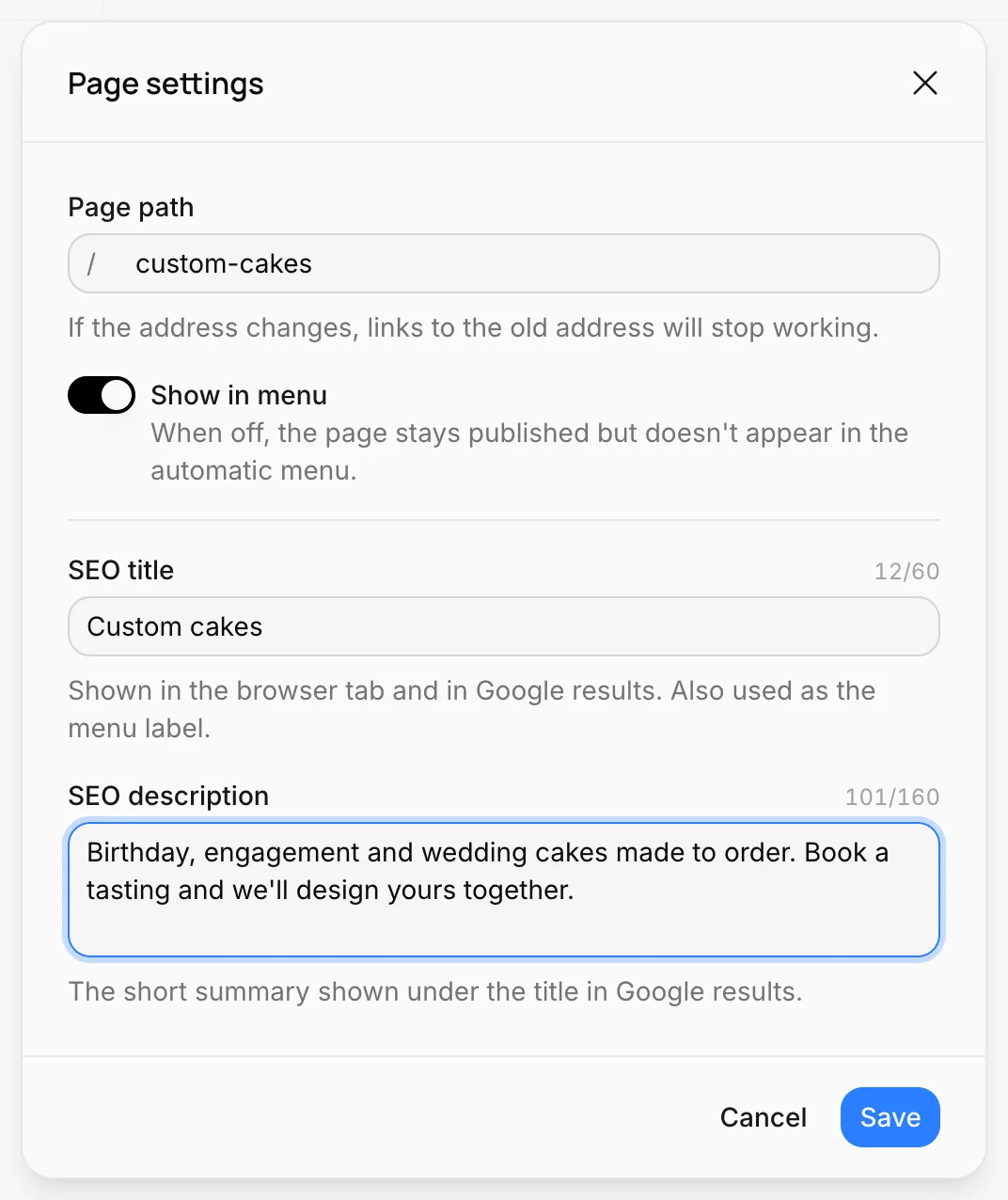
- Page path: The page's address. You can change it, but links to the old address (for example one you shared on Instagram) will stop working. Buttons and the menu on your site follow the new address automatically. The home page and blog page addresses can't be changed.
- Show in menu: When on, the page appears in the menu at the top of your site. When off, the page stays published and opens at its address but isn't in the menu. Useful for pages you only want people to reach from a button or a link.
- SEO title: The title shown in the browser tab and in Google results. It's also the page's label in the menu. Keep it short (60 characters at most) so it fits in the menu.
- SEO description: The short summary shown under the title in Google results (160 characters at most). Describe in a sentence or two what's on the page and what visitors can do there.
Press Save when you're done.
How pages appear in the menu
The menu at the top of your site builds itself: pages that are live and have Show in menu turned on are listed with their SEO titles, in the order they were created; the home page always comes first. When you create and publish a new page, it's added to the end of the menu. A page that has never been published doesn't appear in the menu.
To arrange the menu yourself, group pages or add links to other sites, switch the menu to Custom in the Header panel. See Header and footer.
Delete a page
Open the page you want to delete, choose Delete page in the page picker and confirm. The page is permanently deleted together with its version history; this can't be undone. If the site has only one page, it can't be deleted.