Collections
Some content repeats: you want a page for each of your services, products or projects. That's what a collection is for. You create a collection (for example Our Bakes) and add pages to it (Country sourdough, Cinnamon rolls…). Each page opens at its own address (/our-bakes/country-sourdough), and all of them appear as cards on a list page.
Collection pages are like regular pages: they're built with blocks, written with the assistant, translated and published. The difference is that they're listed together and appear in the menu through the list page, not one by one.
Create a collection
Press Collections in the sidebar. The Blog comes first in the list, with your collections below it.
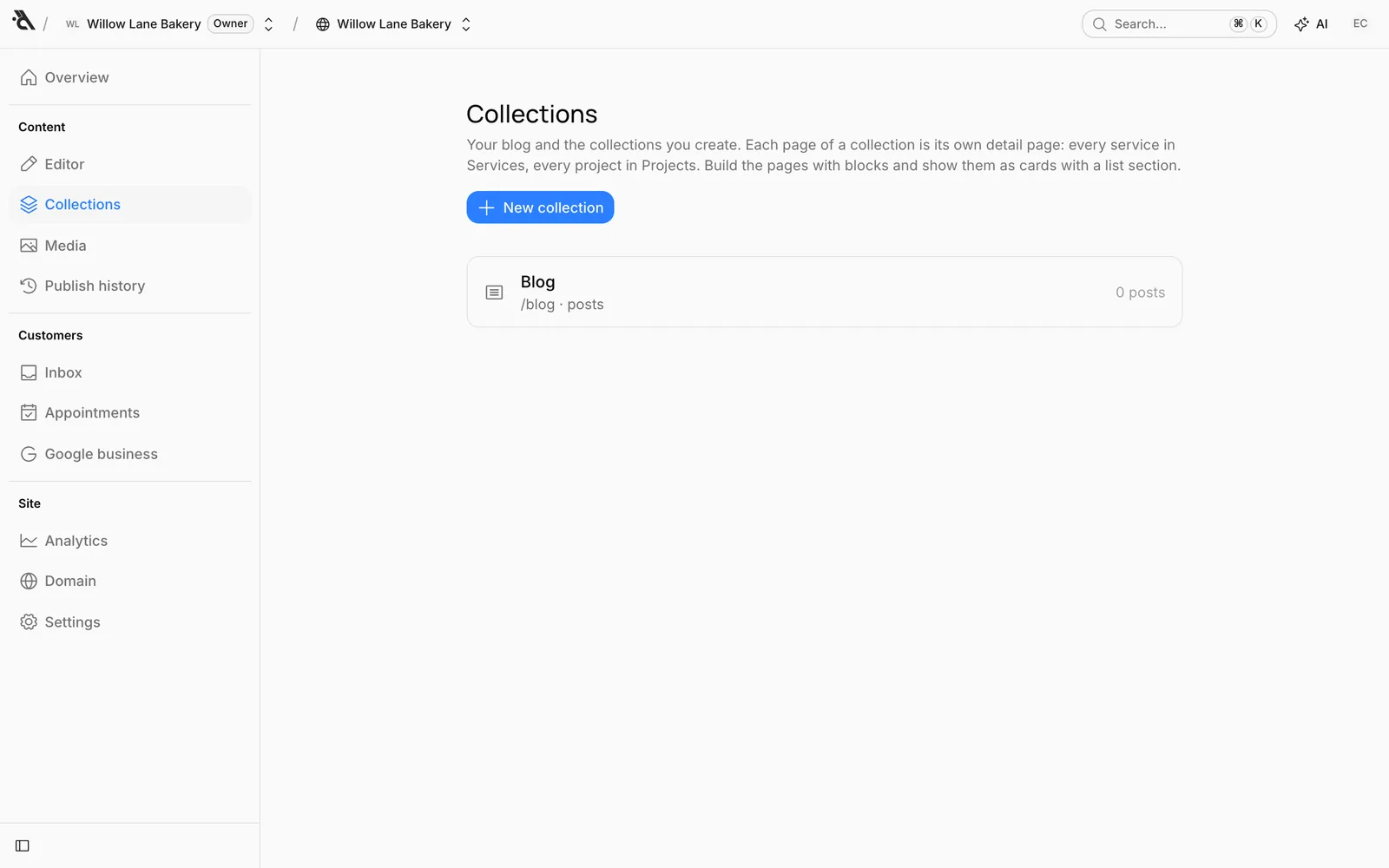
Press New collection and fill in two things:
- Name: Shown in the dashboard and as the list page title (Our Bakes, Services, Projects).
- Address: The list page's address, filled in from the name. The collection's pages open under this address:
/our-bakes/cinnamon-rolls.
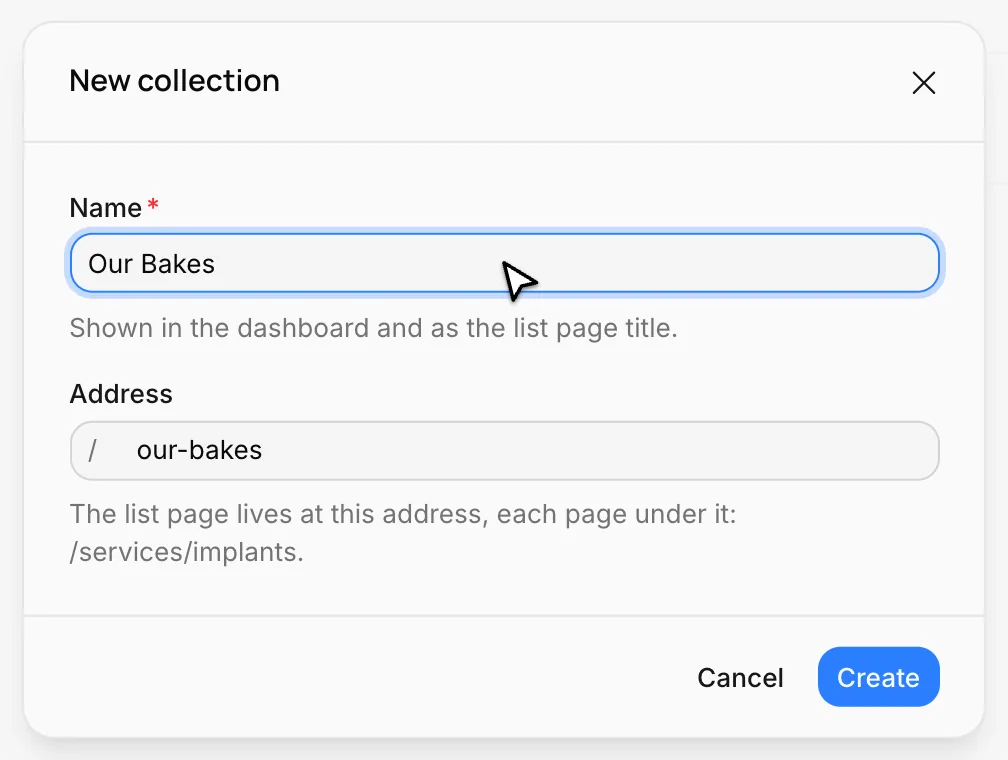
A list page is created along with the collection (it isn't live yet). The collection's screen opens; now add the first page.
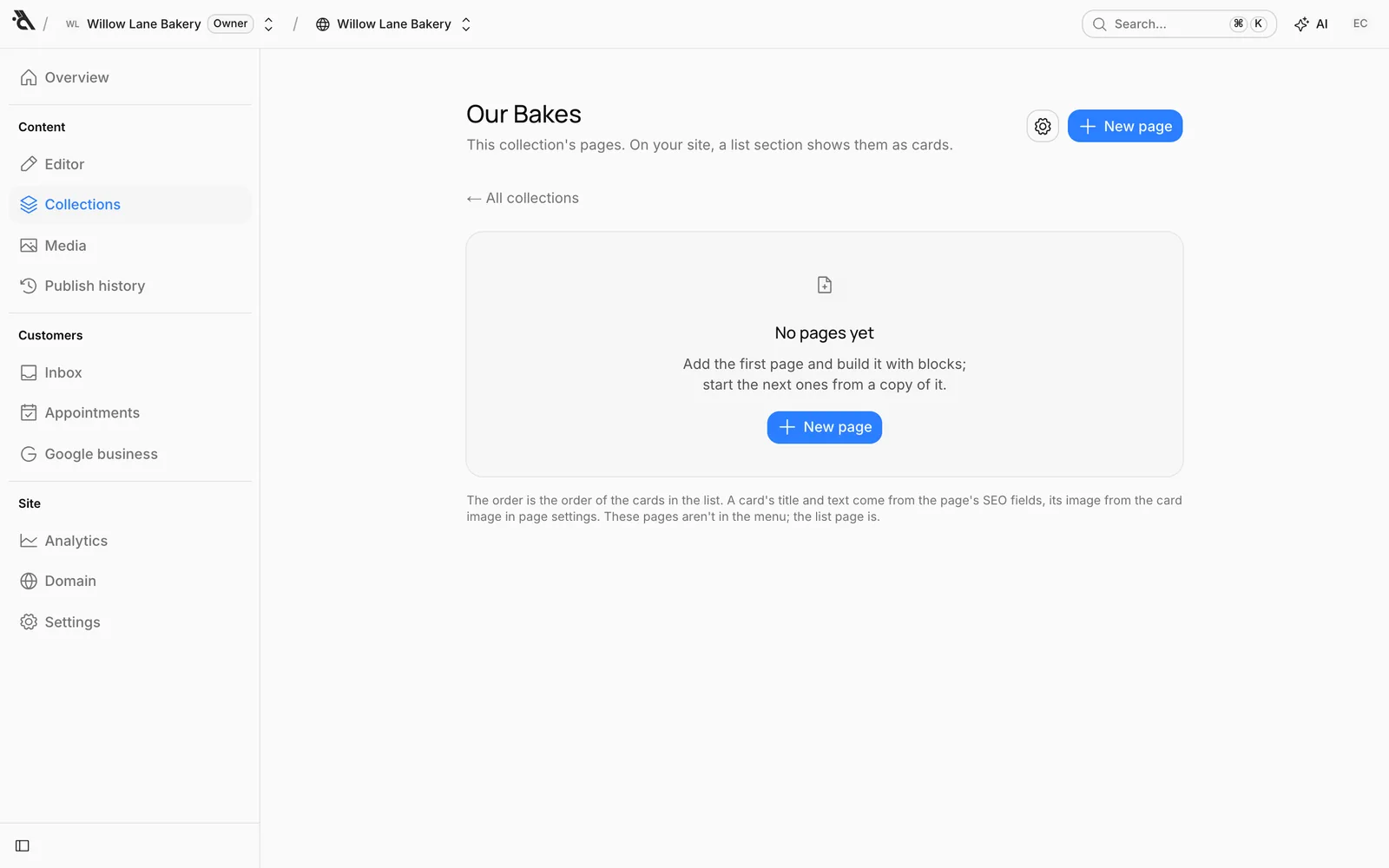
Add pages
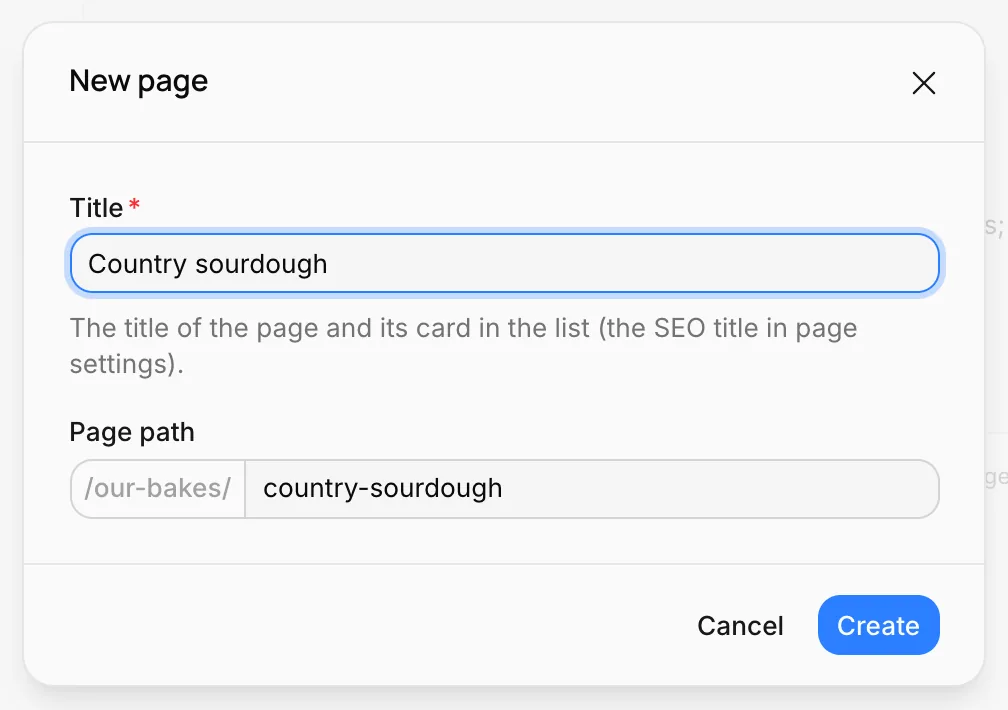
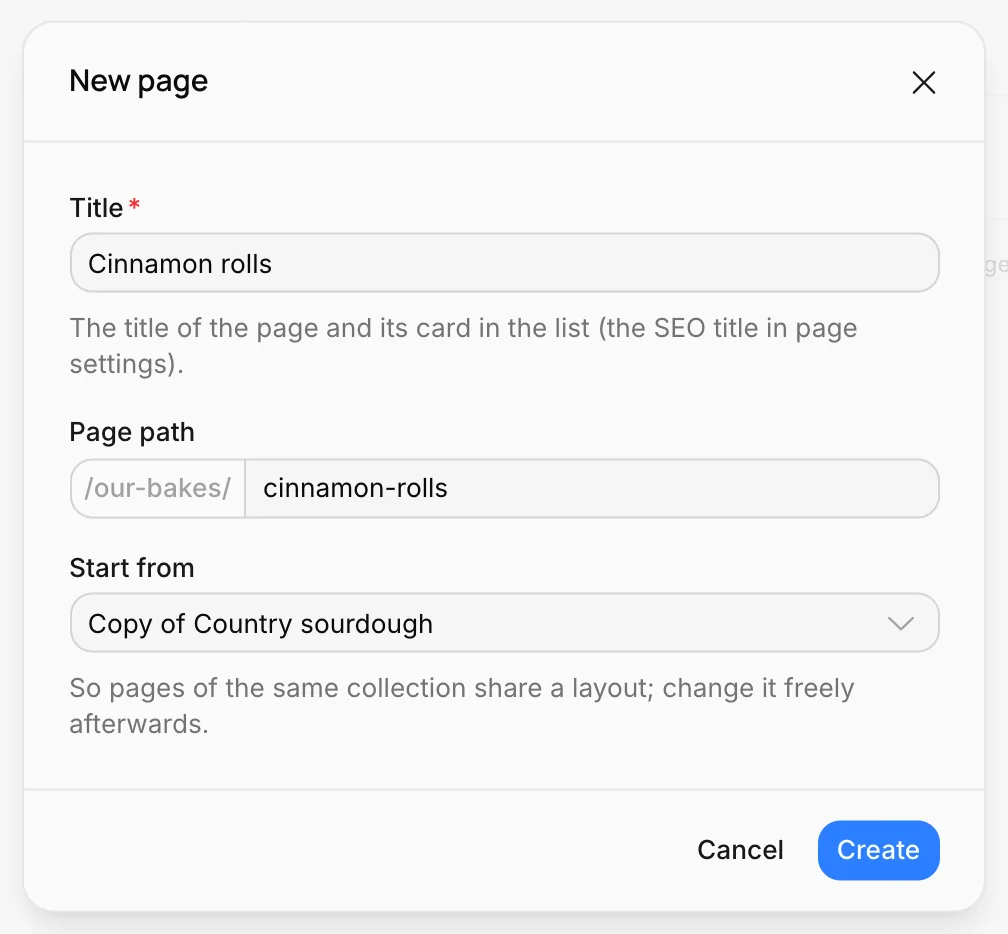
Press New page:
- Title: The title of the page and of its card in the list (it becomes the SEO title in page settings).
- Page path: Filled in from the title; it starts with the collection's address.
- Start from: Shown once the collection has at least one page: a Blank page or a copy of one of the collection's pages.
Build the first page with blocks or have the assistant write it ("This page is about our country sourdough: fermented for 24 hours and baked in our stone oven"). Start the next pages as copies of it: that way all your product pages share the same layout and you only change the text and photos. The copy is only a starting point; later changes to one page don't carry over to the others.
Card image
The photo on the list page's card isn't taken from the page automatically; you choose it. In the editor, open Page settings from the page picker and press Choose image under Card image. You can upload your own photo or pick a stock photo.
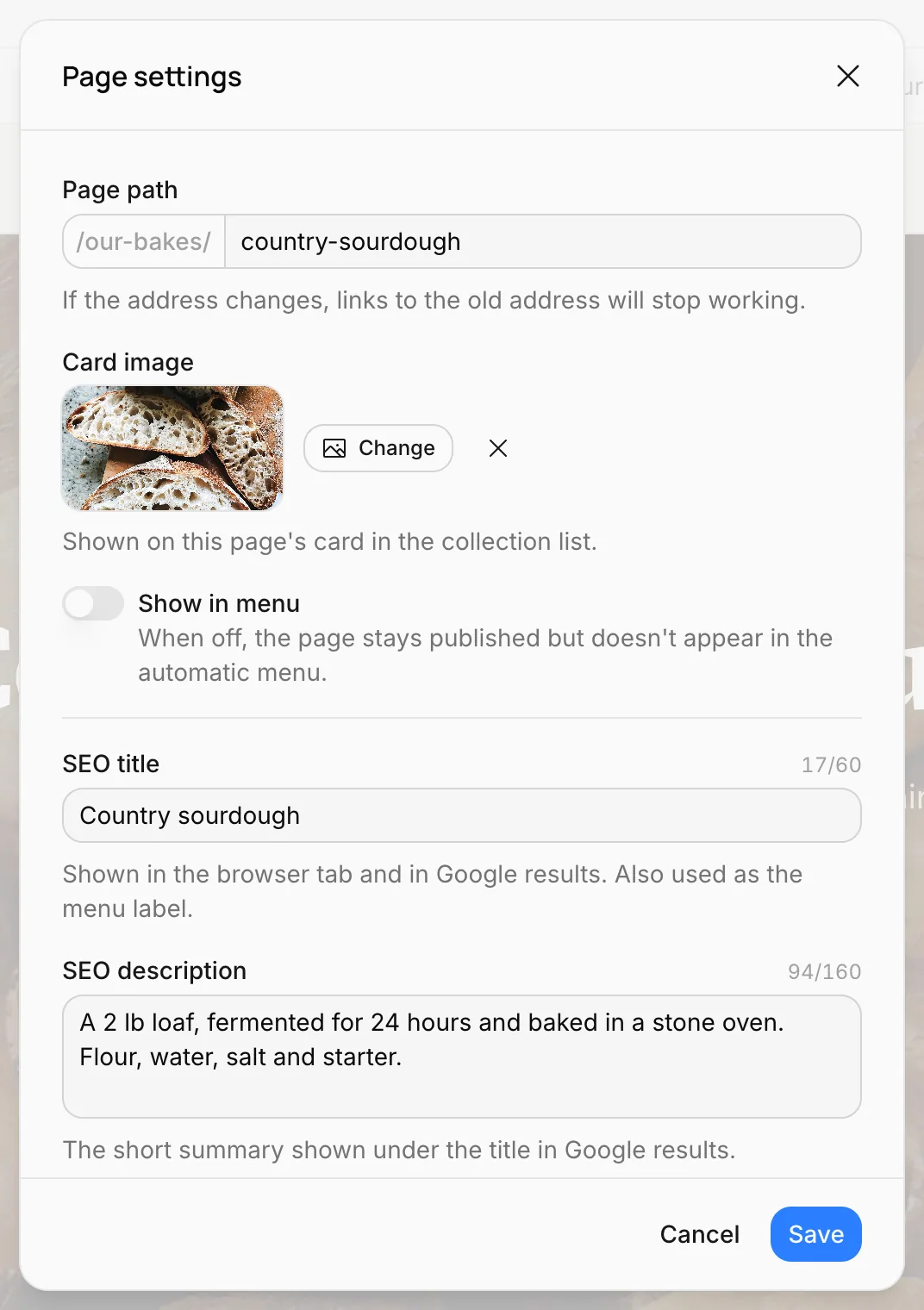
The card's title is the page's SEO title, and the short text under it is the SEO description. Fill in both so the cards look good.
Manage the pages
The collection's screen lists its pages with their card image, title and address. Pages that haven't been published yet say Draft.
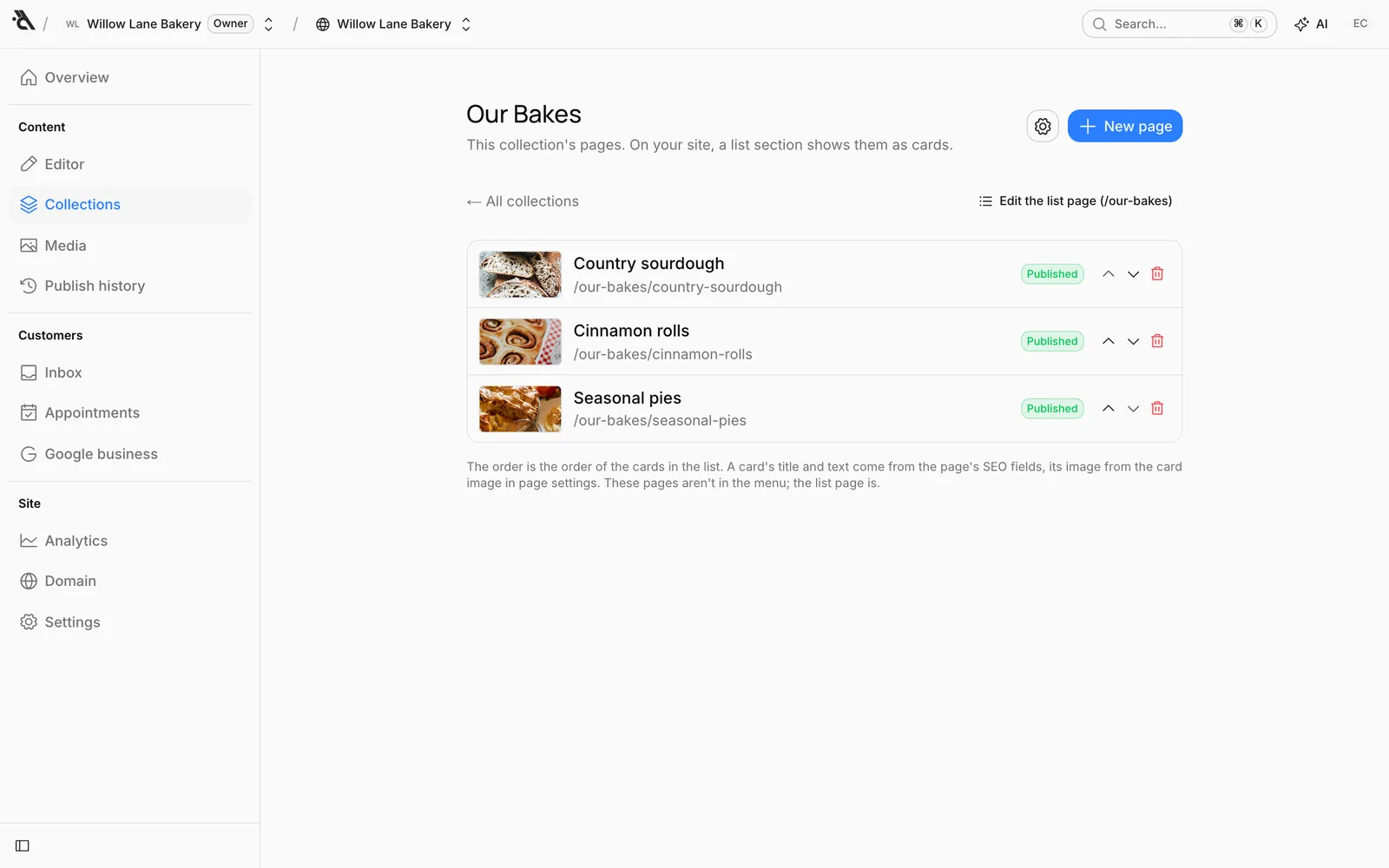
- Click a page: It opens in the editor.
- Up and down arrows: Change the order. The cards on the list page follow this order.
- Trash can: Deletes the page.
- Edit the list page: Opens the list page in the editor.
- Collection settings (gear): The collection's name and address, and deleting the collection. The address can't change while the collection has pages, because their addresses would break.
The list page
The list page (/our-bakes) shows all of the collection's pages as cards. It's a regular page: you can add other blocks too, like a hero, a description or a contact form. The block that shows the cards is the List block.
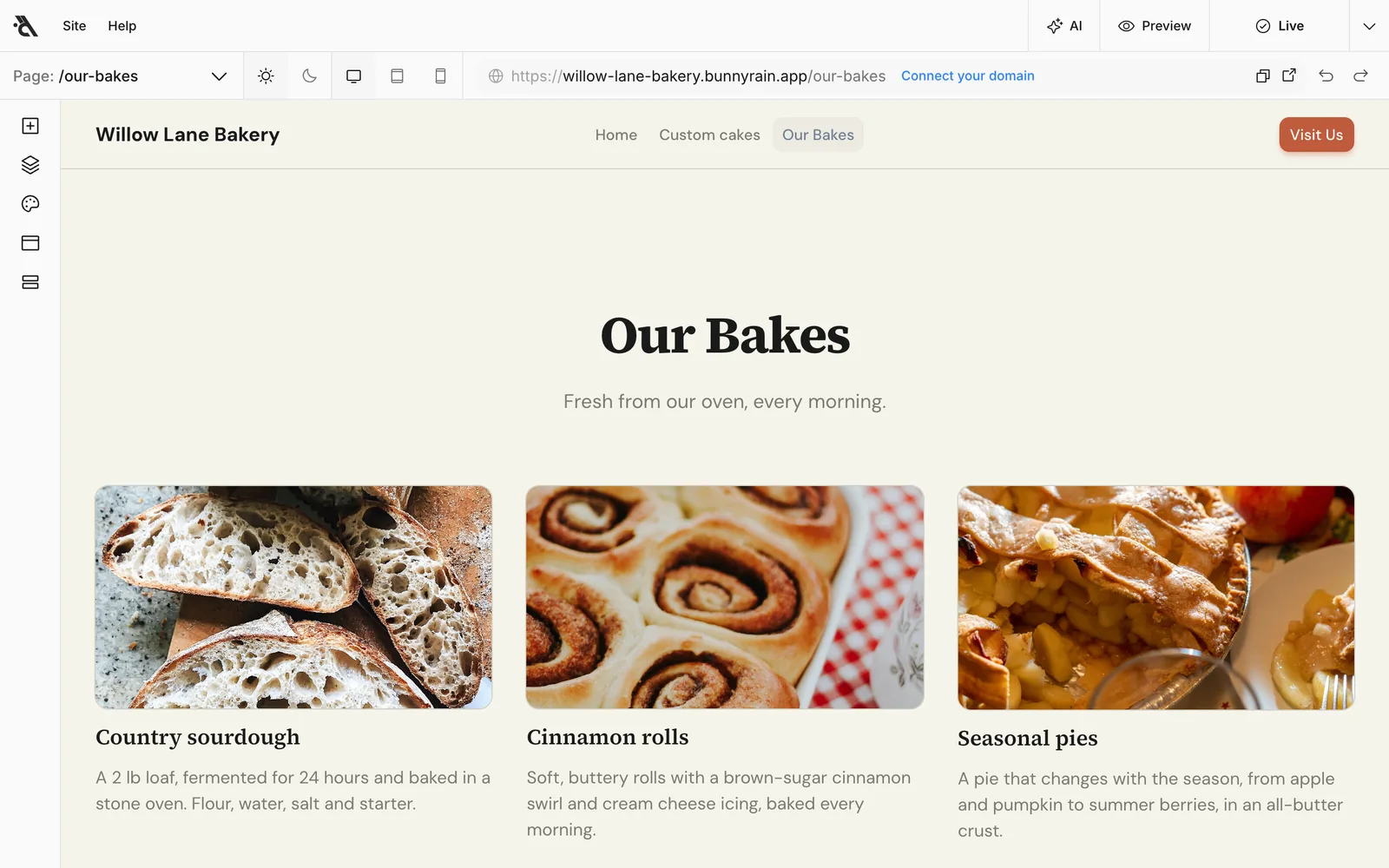
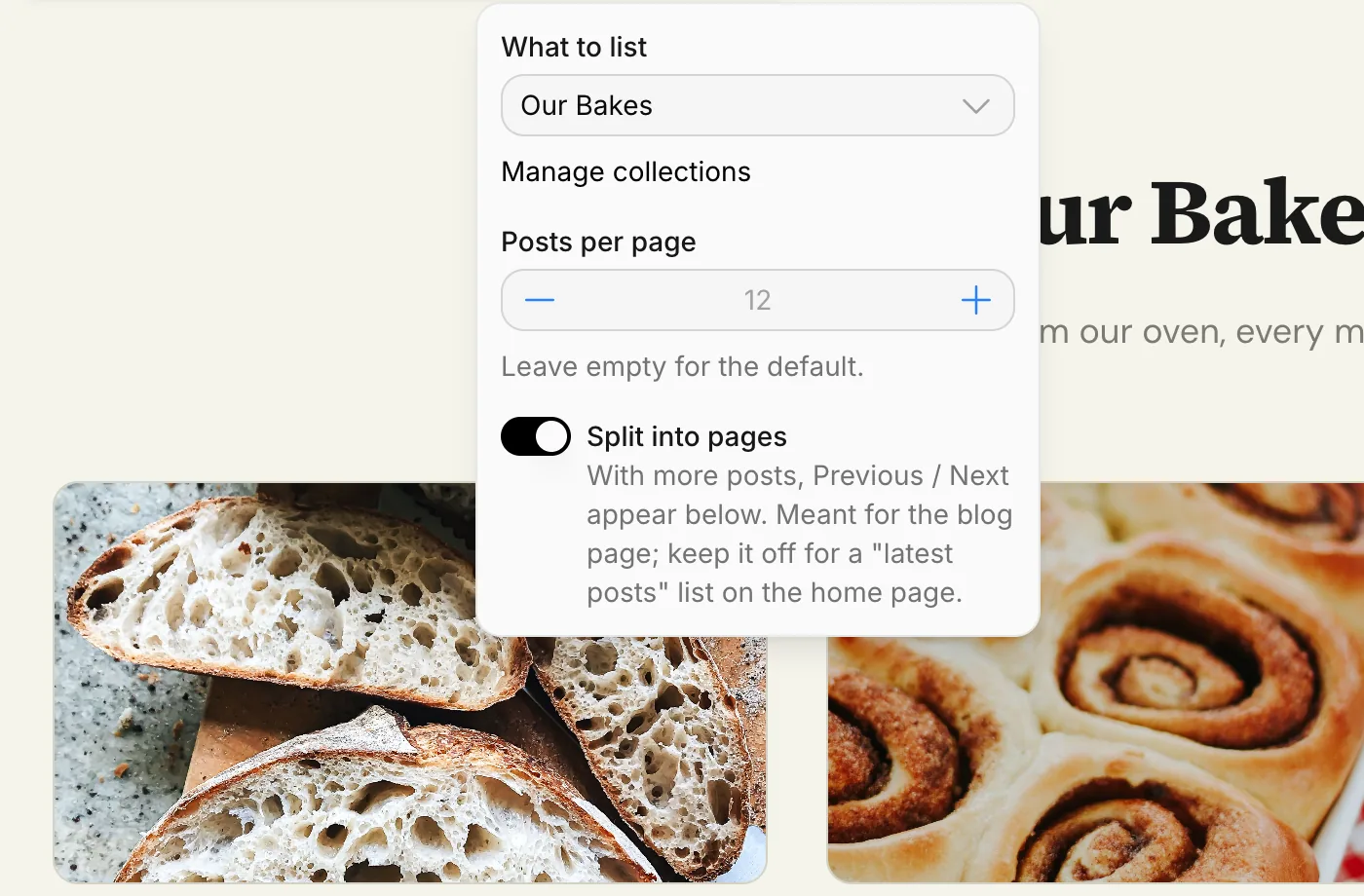
You can put the List block on other pages as well. For example, add a three-card "Our Bakes" section to your home page and show the full list on the collection's own page. In the block bar's Settings:
- What to list: The Blog or one of your collections.
- Number of posts / Posts per page: How many cards to show. Leave it empty for the default.
- Split into pages: With more pages, Previous / Next appear below. Turn it on for a full list page; leave it off for a short list on the home page.
Menu and links
A collection's pages aren't added to the menu one by one; the list page appears in the menu. To show a page in the menu, switch the menu to Custom in the Header panel and add it under a group. See Header and footer.
You can also link cards in blocks like Services, Team and Price list to collection pages; in the link picker, collection pages are listed under their collection's name. See Link a card to a page.
Delete a collection
In Collection settings, press Delete collection. All the pages in it are deleted too; the list page stays. This can't be undone.
Multiple languages
Publish your site in Spanish or other languages alongside English; have the assistant translate it or enter the translations yourself.
Blog
Publish blog posts on your site; write them in your site's own look, add a cover and an author, schedule them for later, and have the assistant draft them.