AI assistant
The assistant is your helper inside Bunnyrain. You write what you want in your own words, and it builds your page, polishes your text, adds a new page or answers your question about the dashboard. No forms to fill in, no settings to hunt for.
Open the assistant
Press AI in the top bar. The assistant opens on the right side of the screen; it's the same assistant in the editor and on the other dashboard screens. You can start a conversation in the editor and continue it on the site's settings screen.
In an empty conversation, the assistant shows a few suggestions that fit where you are; in the editor, for example, "Make the hero headline clearer and more compelling" or "Add an About page". Pressing a suggestion sends it right away.
Have the assistant write a page
The assistant can fill a new, empty page with a single message. In the video below, for Willow Lane Bakery's custom cakes page, we wrote:
Set up this page for our custom cakes. We make birthday, engagement and wedding cakes and design each one together with the customer. We need at least 5 days' notice for orders, and we offer tastings by appointment.
While the assistant works, the page is locked for a short while and says what's happening in the middle (The assistant is working on your request, The assistant is writing this page). Anything you changed in the meantime would be overwritten by the assistant's result; the lock prevents that. The page unlocks when it's done.
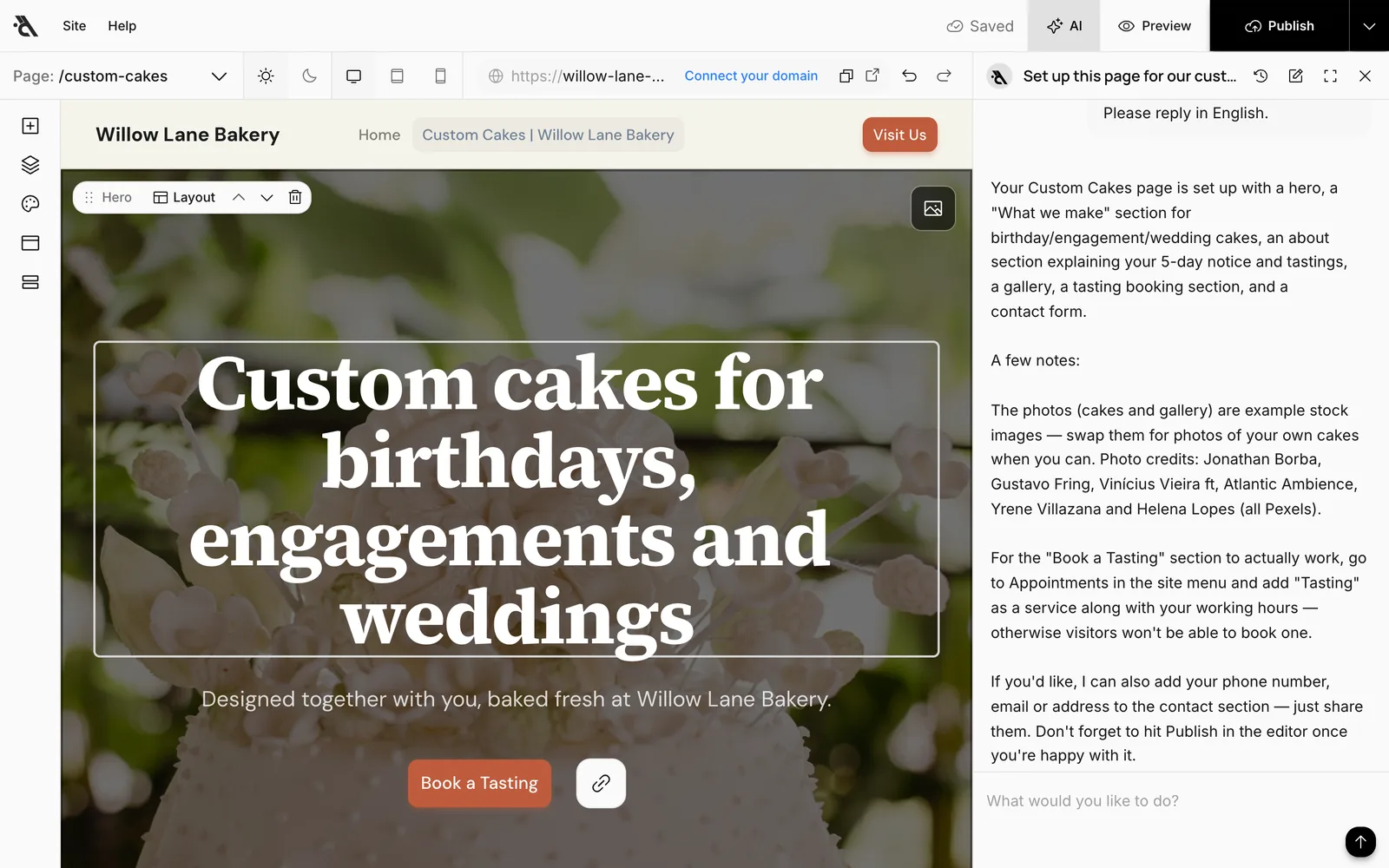
In its reply, the assistant says what it did and what's still missing: which sections it built, which photos are samples, which details (phone, address…) it needs from you. You can edit anything on the page by hand afterwards.
What you can ask for
The assistant does different things depending on where you are.
In the editor:
- Building the open page from scratch or changing part of it: "Shorten the hero headline", "Add our gluten-free loaves to the services section", "Add an FAQ section about delivery and payment"
- The site's theme, header and footer: "Use warmer colors", "Add our Instagram account to the footer"
- Other pages: "Add an About page", "Fix the address on the contact page"
- Collections and the blog: "Create a Services collection with a page for each service", "Write a blog post draft about sourdough"
- Photos: "Put a bakery display photo in the hero" (it picks from stock photos)
- Translation: "Write the Spanish version of the site" (see Multiple languages)
On the site's other screens (Overview, Analytics, Settings…): editing pages, adding pages and collections, blog post drafts, analytics questions like "How many people visited this week, and which page was viewed most?", finding and connecting your Google business.
On the organization screens (My sites, Members…): building a new site, digital business card or QR menu ("Build a site for my café"), inviting a teammate ("Invite noah@willowlanebakery.com as an editor"), renaming the organization.
On QR menus and digital business cards, the assistant handles that type's tasks: adding menu items, updating prices, adding links to a card and so on. See QR menu and Digital business card.
You can also ask where something is in the dashboard ("How do I connect my own domain?"). When it's something the assistant can do itself, it offers to do it instead of describing the steps.
If the assistant asks a question
If something is missing, the assistant asks. When the answer is one of a few options, the question comes with buttons; just press one. For details like a phone number, email or address, small input boxes may appear. You can always type your own answer in the message box instead of pressing a button.
Conversation history
The clock icon in the assistant's header lists your earlier conversations; press one to pick up where you left off. The pencil icon starts a new conversation. Starting a new conversation when you change topics keeps the assistant from getting stuck on earlier requests.
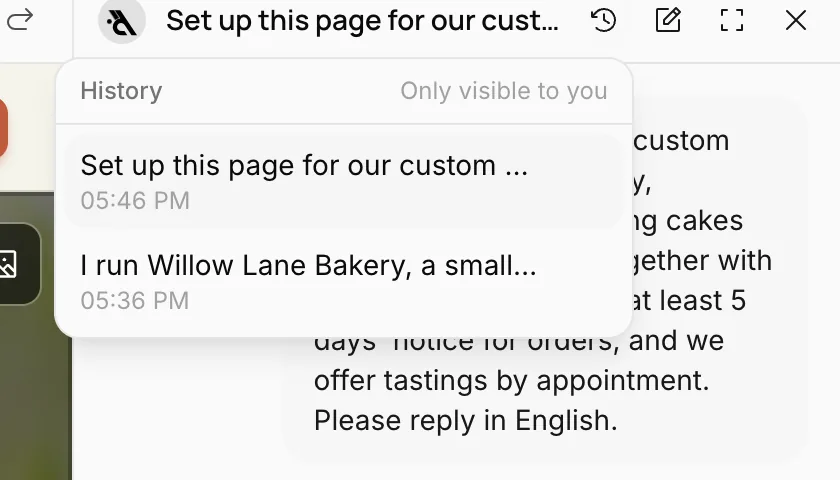
Only you can see your conversations; your teammates can't. Each site has its own conversations. Conversations are deleted automatically 90 days after their last message.
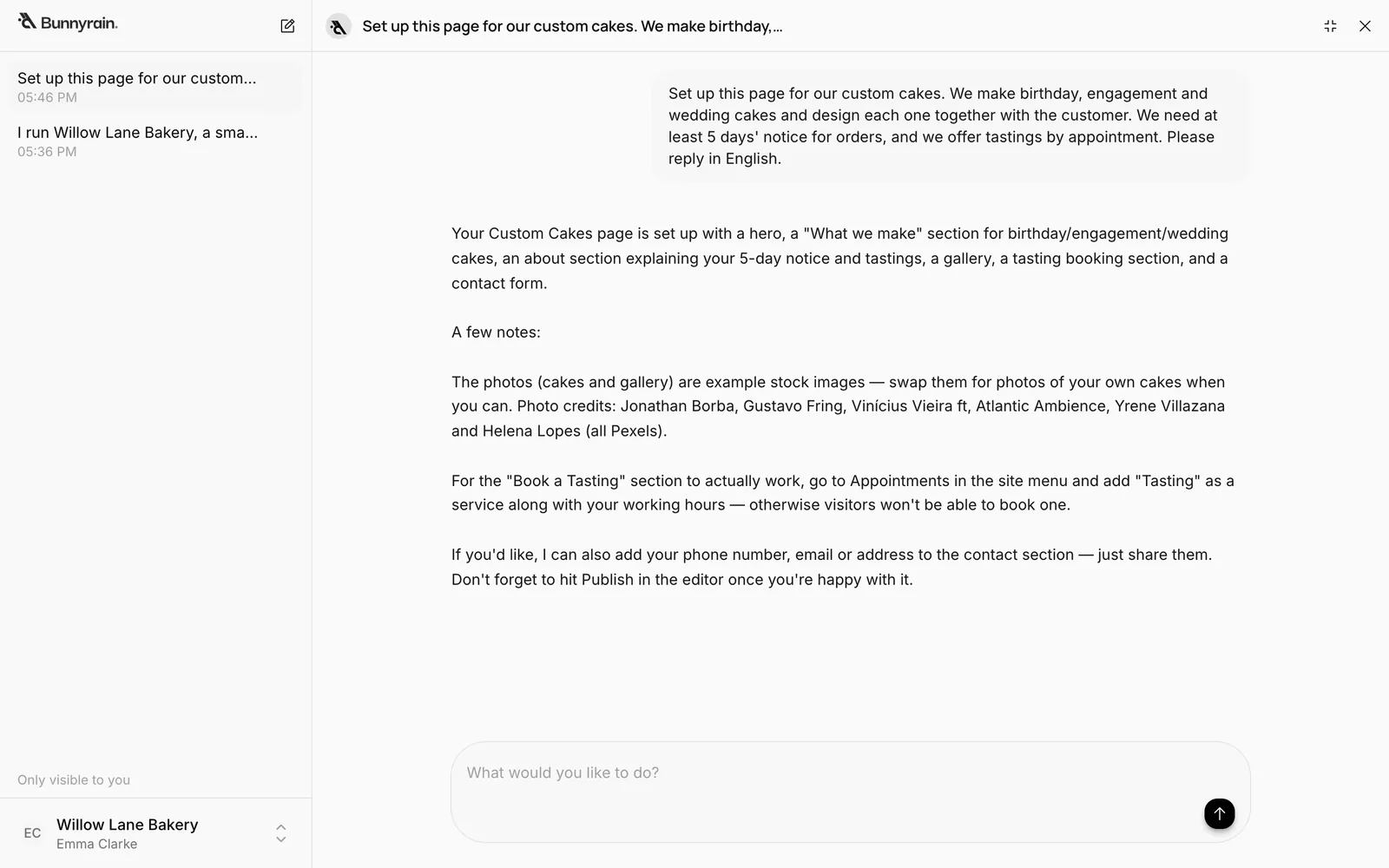
The full-screen button in the header opens the assistant over the whole screen, with your conversations listed on the left. Esc exits full screen.
Good to know
- The assistant doesn't publish. Every change it makes goes into the draft; visitors don't see it until you press Publish. Take a look at the result before publishing.
- It doesn't delete or change permissions. Deleting a page, collection or site, removing a member and changing roles are up to you; the assistant tells you where to do them.
- It picks photos from stock. On the first build it places stock photos that match the topic; they're placeholders for you to replace with your own. It deliberately doesn't add photos of people or brand logos: a stranger's face next to a real person's name would be misleading. Upload those yourself.
- Check the details. The assistant uses the information you give it, but always check details like prices, opening hours and addresses before publishing.
- It writes in your site's language. Your site's text is written in the site's language.