Overview
The first screen you see when you open a site is the Overview. It answers "what's happening on my site, and what's waiting for me?" at a glance. Overview at the top of the sidebar always brings you back here.
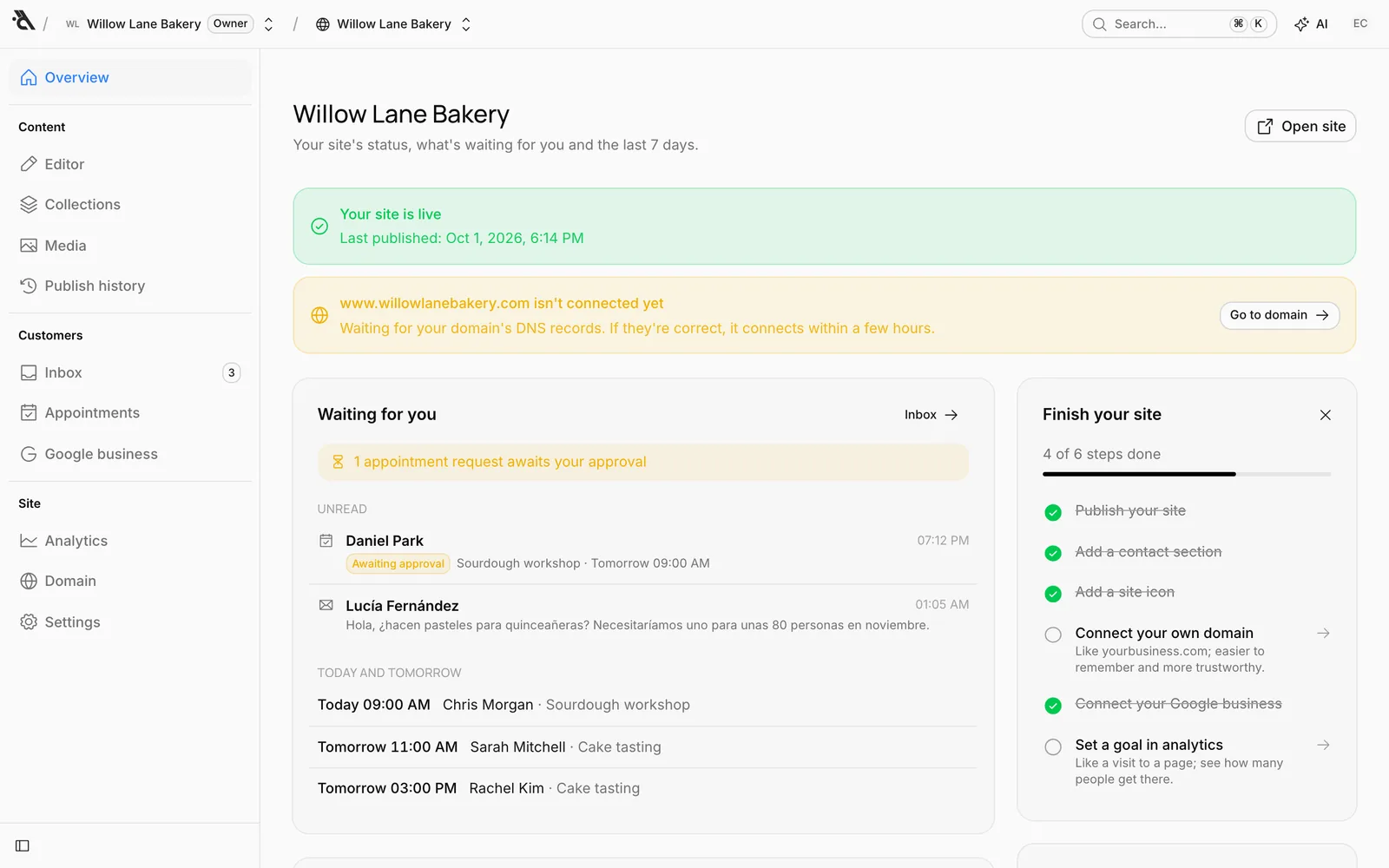
The status banner
The banner at the top tells you your site's publishing status:
- Your site is live, with the time of the last publish.
- You have unpublished changes: Visitors can't see your editor changes yet. Open the editor with Go to editor and publish them.
- Your site isn't live yet: Build your site in the editor and publish it.
If you've connected your own domain and its DNS records haven't been verified yet, a separate yellow banner appears (for example www.willowlanebakery.com isn't connected yet). Go to domain shows you what to do. See Connect your own domain.
Open site in the top right opens your site in a new tab.
Waiting for you
Things waiting for your reply:
- Appointment requests awaiting your approval (for example 1 appointment request awaits your approval).
- Unread: The latest unread messages in the inbox. Click one to open it in the inbox.
- Today and tomorrow: Upcoming appointments. Click one to open it in the calendar.
If nothing is waiting, the card says so. The Inbox link in its top right opens the inbox.
Last 7 days
Your site's visitors, pageviews and the number of people who reached you (form, phone, WhatsApp, appointment) over the last 7 days, compared with the week before. Below is a daily visitor chart. For details, press Go to analytics. See Site analytics.
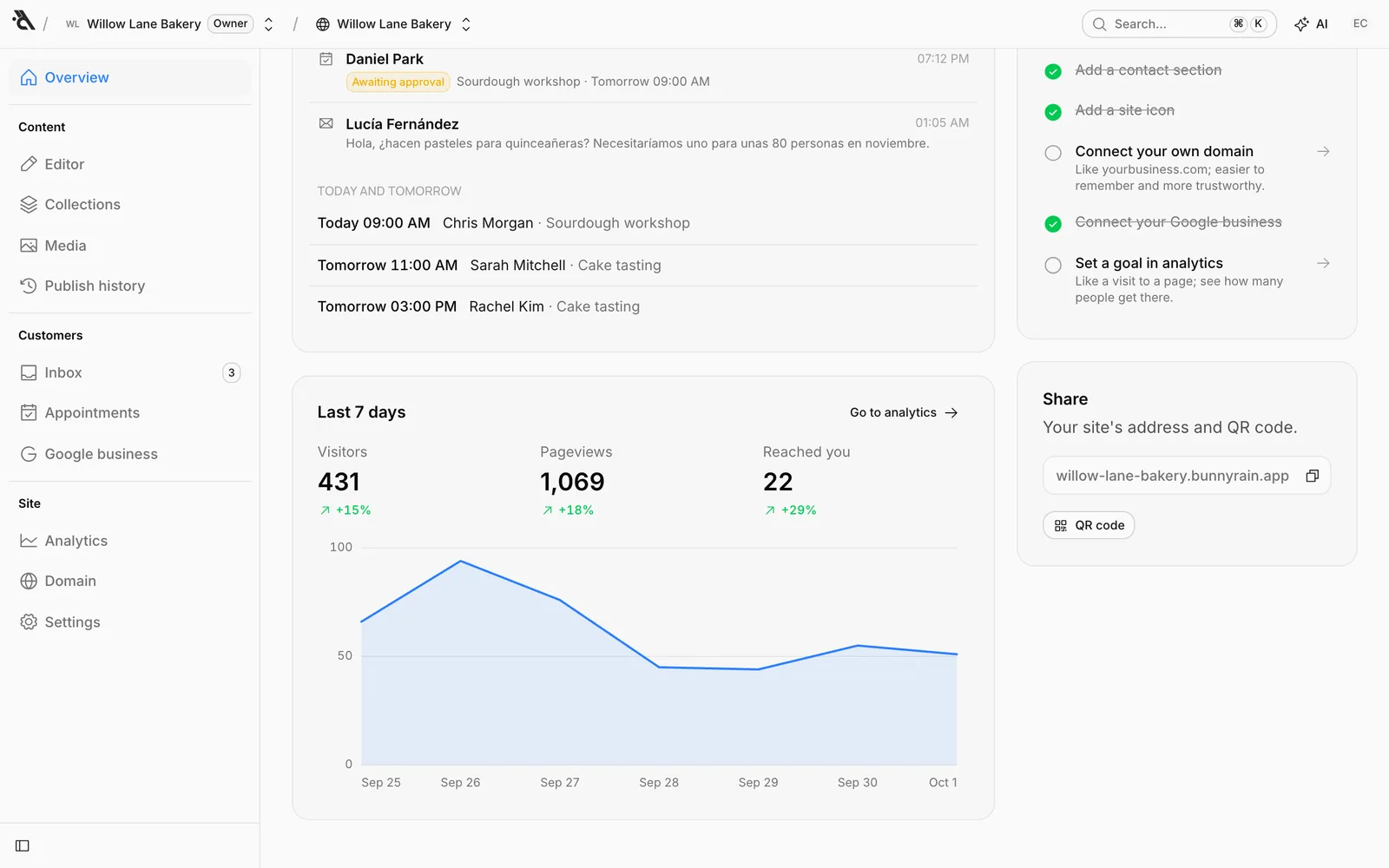
Finish your site
The list on the right shows the steps to a good site and checks them off by itself as you go:
- Publish your site
- Add a contact section
- Add a site icon
- Connect your own domain
- Connect your Google business
- Set a goal in analytics
Click a step that's not done to open the screen where you do it. If you don't need the list, hide it with the × in its top right. When every step is done, the list disappears on its own.
Share
Your site's address and QR code. Use Copy address to copy the address and share it in messages or on social media.
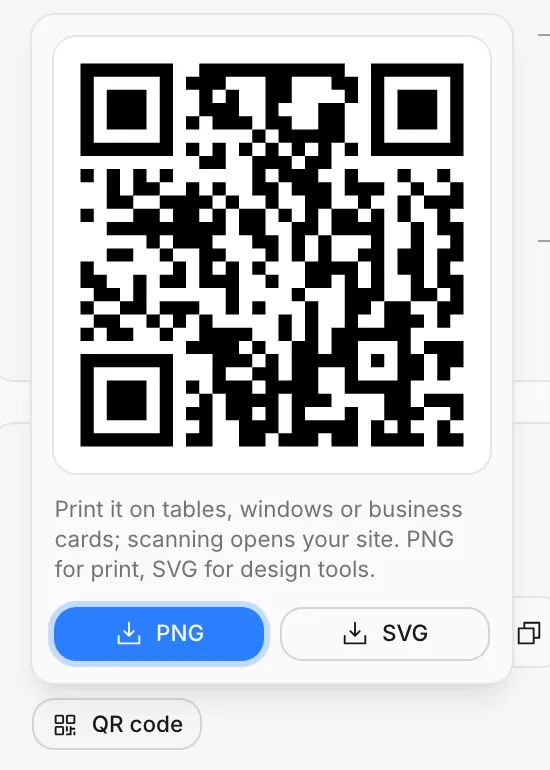
Press QR code to enlarge it. Anyone who scans it with their phone camera lands on your site. Download it as PNG for print or SVG for design tools, and put it on tables, the shop window, business cards or flyers.
Google business
Connect your business on Google Maps to your site; show your rating and reviews on the site, and bring over your address, phone, opening hours and photos in one click.
Site analytics
See how many people visit your site, where they come from, which pages they look at and how many reach out to you; set goals and download reports.