Dashboard tour
The dashboard is where you manage your sites: messages, appointments, analytics, domains and settings. You edit your site's look and text in the full-screen editor; see Editor tour.
My sites
When you sign in, the My sites screen opens. All the sites, digital business cards and menus in your organization are listed here.
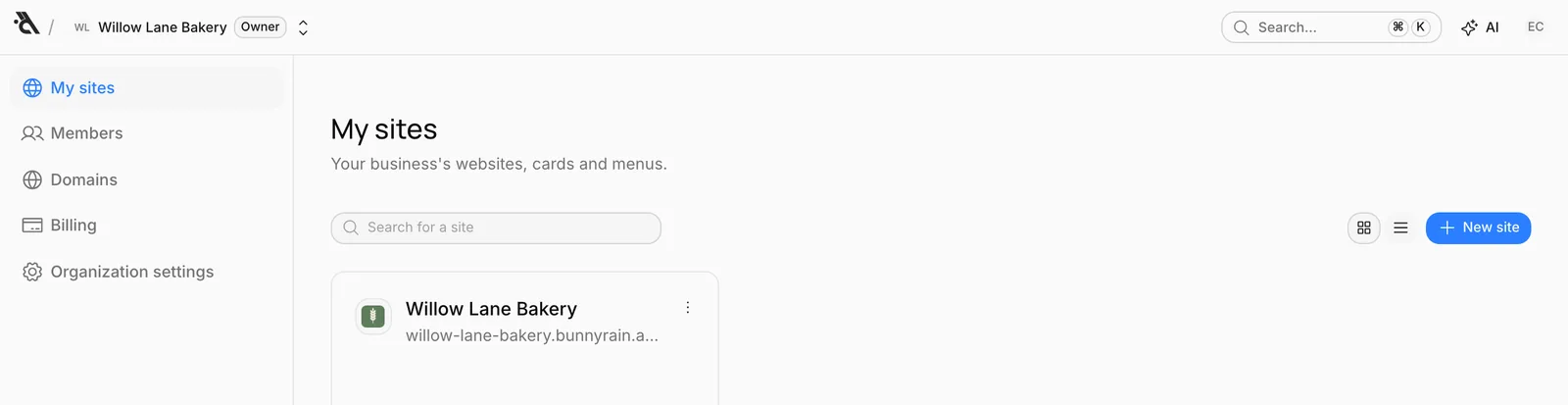
Each card shows:
- Name and address: The business name and the site's
bunnyrain.appaddress. Cards and menus show their type next to the name (Card, Menu). - Status: Live sites show a green Live.
- Unread messages: If your site received messages you haven't opened yet, their count appears in the bottom right (for example 3 unread).
Clicking a card opens the site's Overview. The three dots in the top right hold shortcuts: Editor (Menu for QR menus), Settings and Open site, which opens your site in a new tab.
The search box filters sites by name or address. The two buttons in the top right switch between card and list view. To create a new site, card or menu, press New site; see Create your first site.
The top bar
The bar at the very top shows where you are:
- Organization switcher: Your organization's name and your role (for example Owner) next to the logo.
- Site switcher: Inside a site, the site's name appears next to the organization name. Click it to switch to another site.
- Search: Jump quickly between screens and sites (see below).
- AI: Opens the assistant. The assistant works outside the editor too; for example, on the organization screens you can say "Build a site for my café" and it builds the site. See AI assistant.
- Profile: Your initials on the right open the profile menu (see below).
The organization switcher
An organization is the umbrella your sites and your team belong to: a business or a company. Sites, domains and members belong to the organization. All the sites you manage with the same team live in one organization.
Click the organization name in the top bar to open the menu:
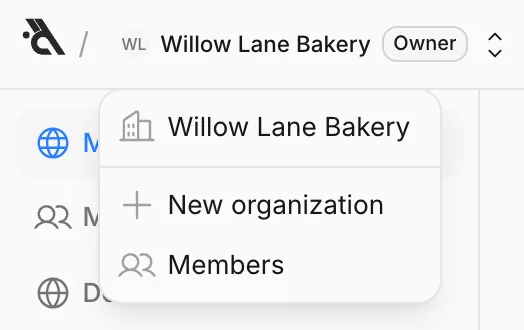
- If you're a member of several organizations, they're all listed; click one to switch to its sites.
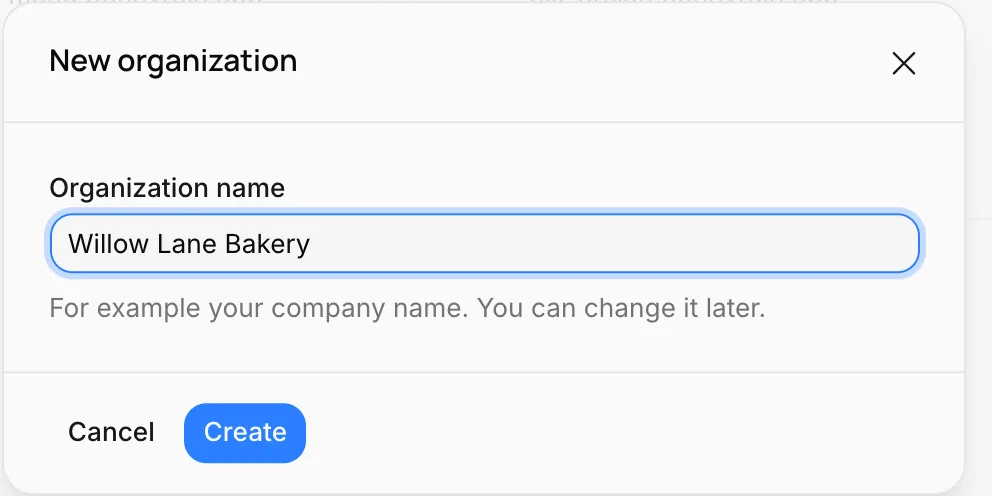
- New organization creates a new umbrella for a separate business. You only need a name; you can change it later in Organization settings.
- Members opens the screen where you invite teammates. See Members and roles.
The sidebar
What the sidebar shows depends on where you are.
On the organization screens (before you pick a site):
| Item | What it's for |
|---|---|
| My sites | Sites, digital business cards and menus |
| Members | Inviting teammates, roles |
| Domains | The organization's domains |
| Billing | Plan and subscription |
| Organization settings | The organization's name and email notifications |
Inside a site, the menu has three groups:
| Group | Item | What it's for |
|---|---|---|
| Overview | The site's status, things waiting for you and the last 7 days | |
| Content | Editor | Editing pages, the theme, header and footer |
| Collections | Multi-page content such as the blog, services or projects | |
| Media | The images you've uploaded to the site | |
| Publish history | Earlier publishes and going back to them | |
| Customers | Inbox | Form messages and appointment requests |
| Appointments | Calendar, services and working hours | |
| Google business | Google reviews and business details | |
| Site | Analytics | Visitor numbers and sources |
| Domain | Publishing the site on your own domain | |
| Settings | Languages, site icon, time zone, deleting the site |
Digital business cards and QR menus have a shorter menu: cards have no Collections and no Customers group; menus have Menu and Design instead of Editor and Publish history.
The button in the bottom-left corner sets how the sidebar behaves: Expanded (always open), Collapsed (icons only) or Expand on hover (icons; opens when you hover over it). Your choice is remembered.
Search
Click the Search… box in the top bar or press K. Type a few letters of the screen or site you're looking for; for example, typing "appoin" finds Appointments. Press Enter to open it.
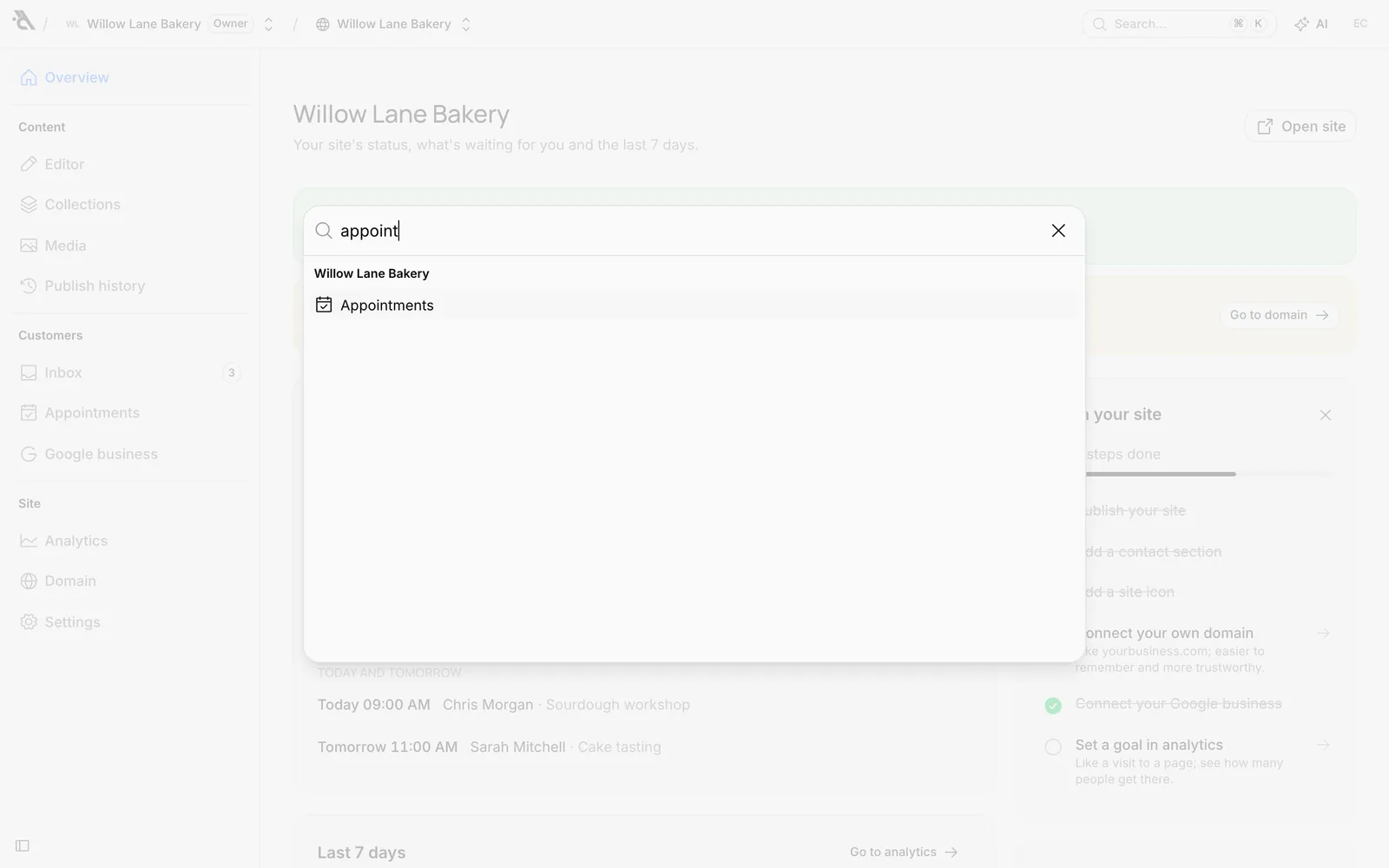
Search covers the open site's screens, all your sites, the organization screens and your account settings. You can also do things like New site or switching the theme (light / dark) from here.
The profile menu
Your initials in the top right open the profile menu:
- Account: Your name, sign-in methods and password. See Your account.
- Latest update and All release notes: What's new in Bunnyrain.
- Theme: Whether the dashboard looks light or dark. Doesn't affect your site's look.
- Language: The dashboard language (English or Turkish). Doesn't change your site's language.
- Sign out
The dashboard on your phone
The dashboard works on phones too. The sidebar opens with the button at the far left of the top bar. The assistant opens full screen instead of as a side panel. In the inbox you first see the message list, and tapping a message opens it.
Create your first site
Create a new site in Bunnyrain, describe your business to the assistant so it builds your page, and go live in a few minutes.
Your account
Signing up and logging in, profile details, signing in with Google and Apple, the dashboard theme and language, changing your password and deleting your account.