Google business
If your business is listed on Google Maps, connect it to your site once. After that:
- Your Google rating and reviews show on your site in a Google reviews section.
- You bring your address, phone number and opening hours to your site in one click.
- You copy the photos you uploaded to Google as the business into your site's media.
Connect your business
Open the Google business screen
Press Google business in the Customers group of the sidebar.
Search for your business
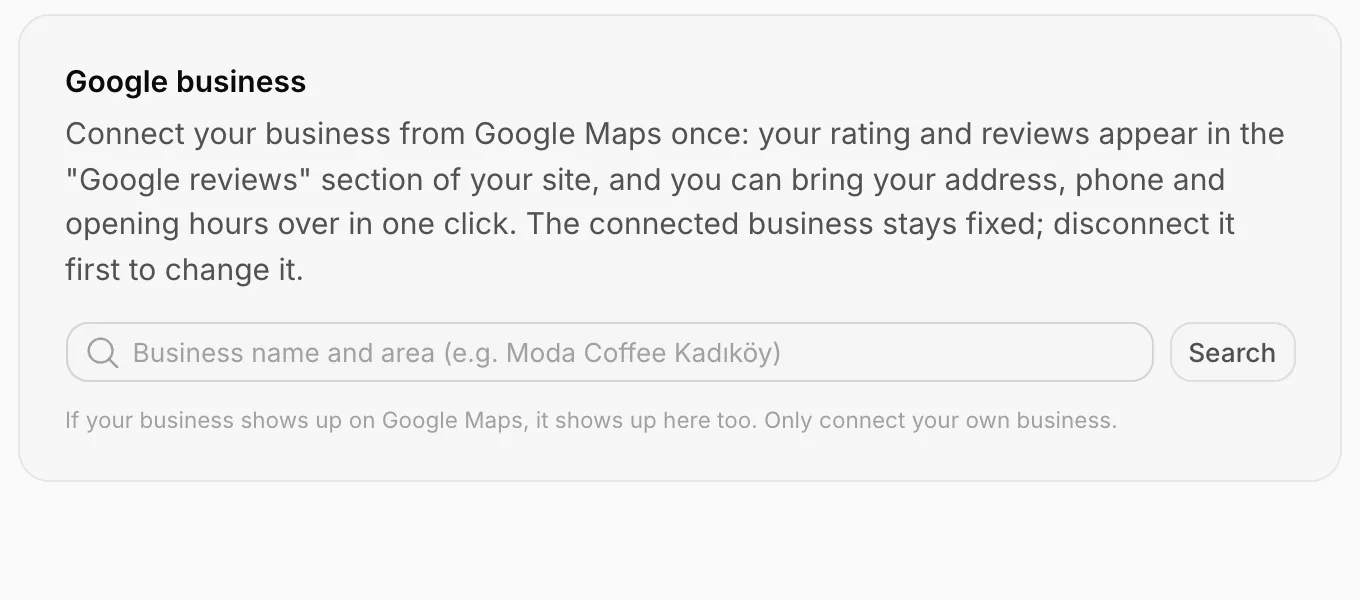
Type your business's name on Google Maps and its area in the box (for example "Willow Lane Bakery Portland") and press Search.
Connect the right business
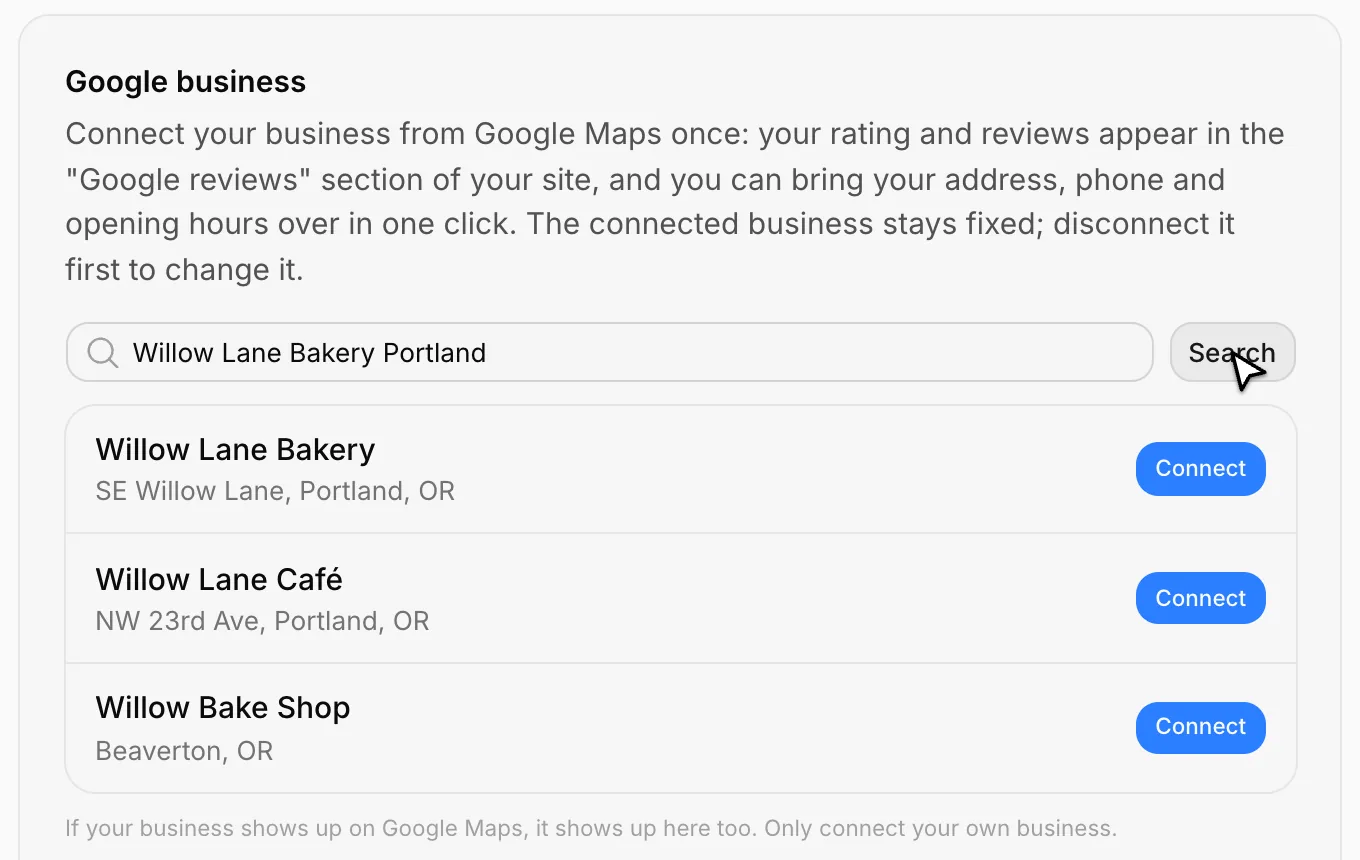
Find your own business in the results and press Connect next to it. Use the address to make sure it's the right one.
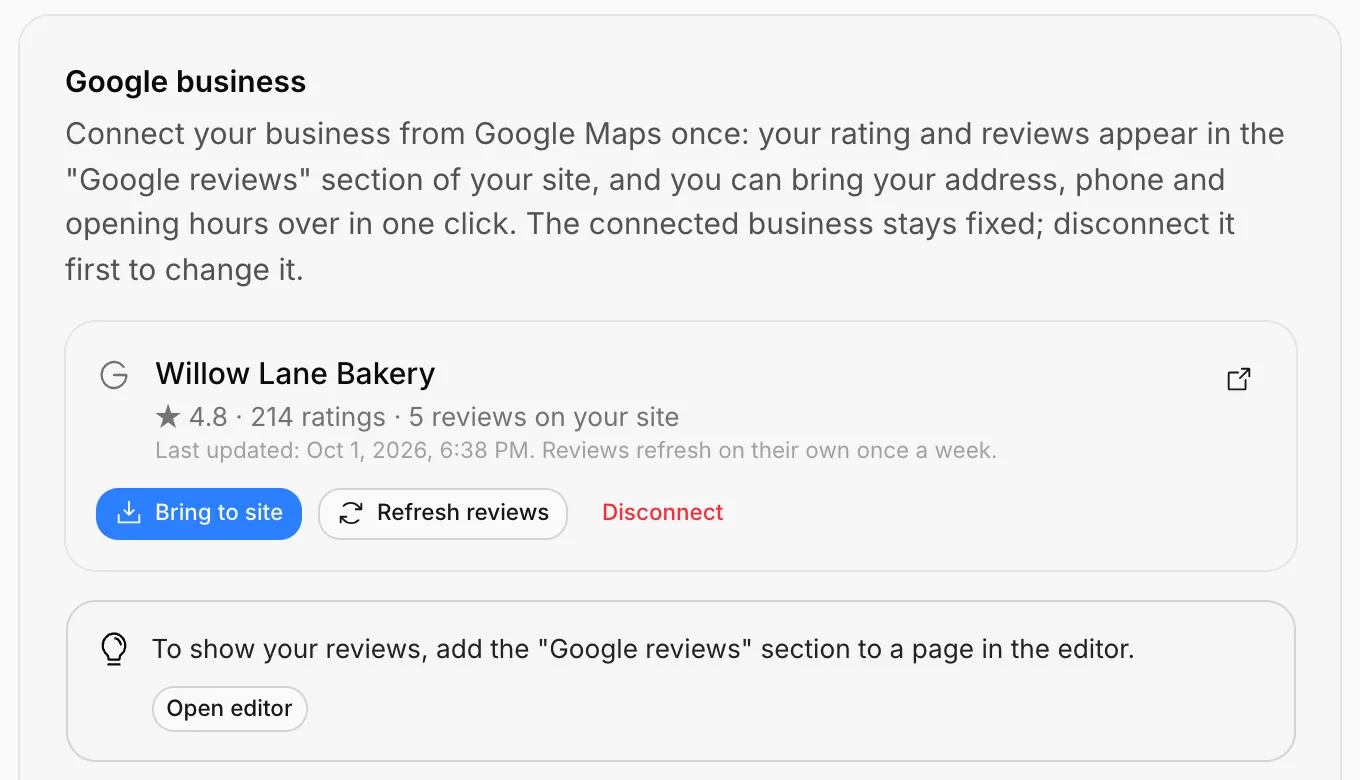
Once connected, the screen shows your business's name, rating, number of ratings and how many reviews will appear on your site.
Show your reviews on your site
For the reviews to appear on your site, add the Google reviews block to a page: in the editor, Add block > Trust > Google reviews. Then press Publish.
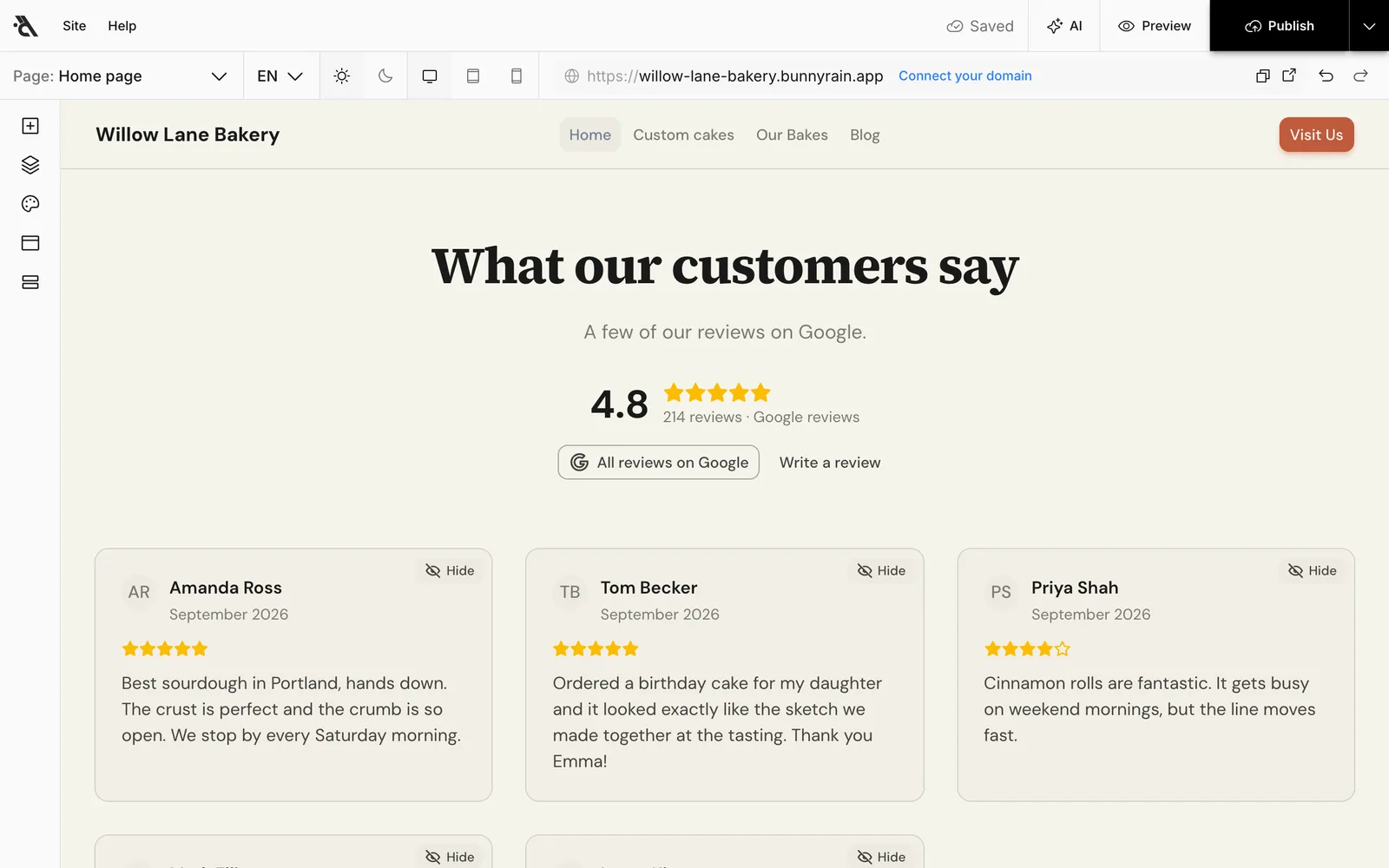
- Google provides at most 5 reviews; those are shown on your site. Each card shows the reviewer's name, the stars, the date and the Google mark.
- If you don't want a review on your site, press Hide on its card in the editor. Bring hidden reviews back with Show hidden Google reviews below the section.
- You can add reviews you received outside Google (a thank-you note from a customer, for example) by hand with Add item. Reviews you add don't carry the Google mark; they don't pretend to come from Google.
- The section has links for visitors to see all your reviews on Google and to write one.
- The block has seven layouts: a card grid, a scrolling strip, a moving band and more. See Blocks and layouts.
Reviews are refreshed automatically once a week. To see a new review right away, press Refresh reviews on the Google business screen.
Bring your details to your site
Press Bring to site on the Google business screen. In the window that opens, choose what to bring over:
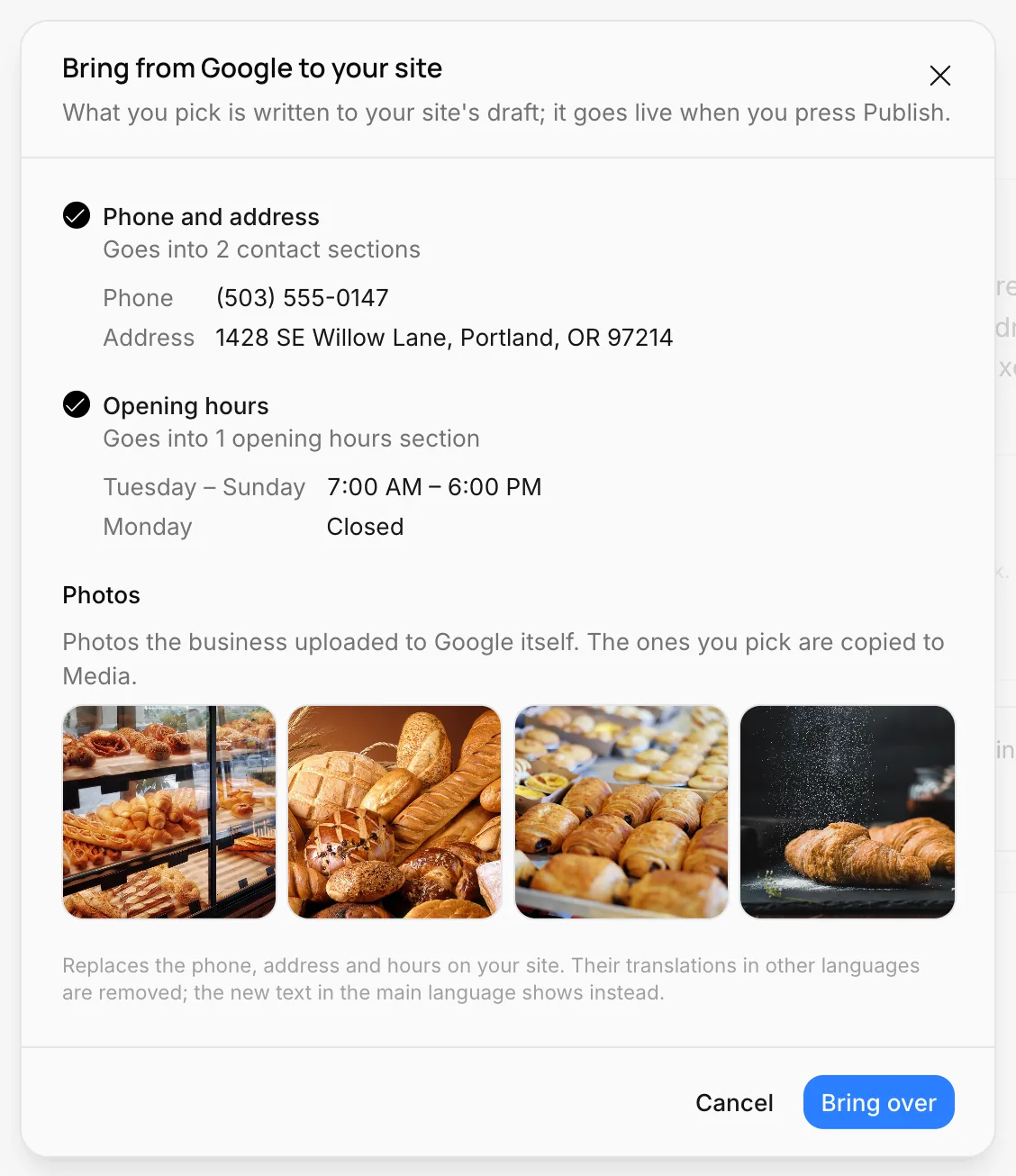
- Phone and address: Written into every contact section on your site. If your site has no contact section, this option is disabled; add a Contact block in the editor first.
- Opening hours: Written into every opening hours section. If your site has none, one is added.
- Photos: The photos your business uploaded to Google itself are listed; the ones you pick are copied to Media. Photos taken by customers aren't brought over, because their copyright belongs to them.
Press Bring over. The phone, address and hours are written to the draft; they show on your site when you press Publish. You can change them in the editor afterwards as you like.
Disconnect
If you press Disconnect, the Google reviews section disappears from the live site. The address, phone and hours you brought over earlier stay where they are. You can then connect another business.
Appointments
Enter your services and working hours; visitors pick a free time on your site and request an appointment, and you confirm it from the calendar.
Overview
Your site's status, the messages and appointments waiting for you, the last 7 days of visitors, the setup list and your site's QR code, all on one screen.