Publishing and publish history
Every change you make in the editor is saved automatically, but to a draft first. Visitors see the live version of your site; your draft only goes live when you press Publish. That way you can work on your site at your own pace and publish when you're ready.
Publish
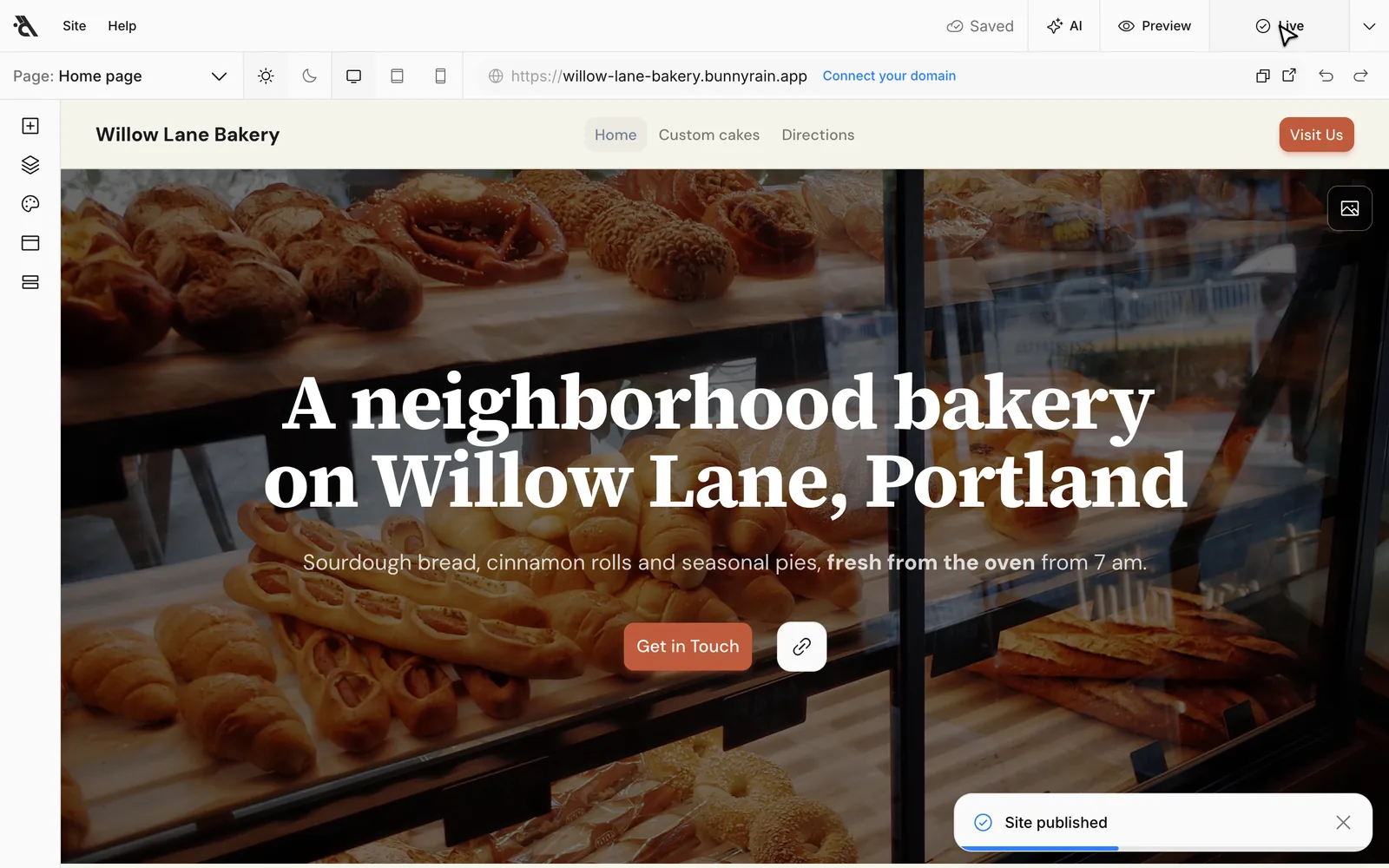
Press Publish in the top right of the editor. Within a few seconds the Site published notification appears and the button says Live.
Publish publishes the whole site together: the open page, changes on other pages, the theme, header and footer, and translations into other languages if you have them. Pages that haven't changed aren't touched; an empty page with no content isn't published.
The button's color tells you the status:
| Button | Meaning |
|---|---|
| Dark Publish | You have unpublished changes. |
| Live ✓ | The draft matches the live site. |
| Spinning icon | A change is being saved or publishing is in progress; wait a few seconds. |
| Red Can't publish | Something is blocking publishing (see below). |
| Red Not saved | Your latest change couldn't be saved; the editor is retrying. Check your connection. |
| Not published | Your site has never been published and there's nothing to publish yet. |
Publishing part by part
The arrow next to Publish opens the Publish status menu. Each part has its own row and its own button:
- Site appearance (theme, header and footer): The theme, header and footer.
- Each page separately: The home page and the other pages. The page you have open says Open.
- Publish everything: Does the same as the main button.
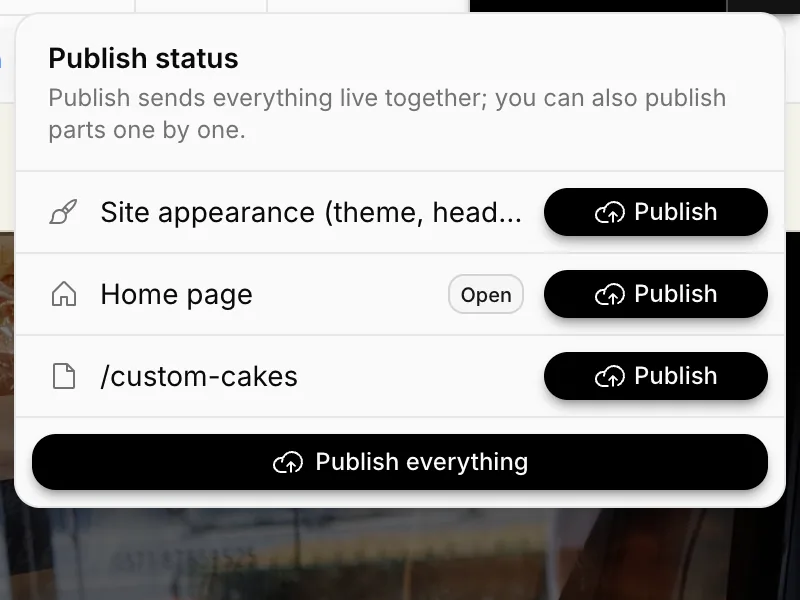
This menu helps when you're working on several things at once. For example, if you fixed a phone number on the home page while preparing a new page, you can publish just the Home page row; the unfinished new page stays in the draft. The button on a row that matches the live version is disabled.
If it says "Can't publish"
If a required field in a block is empty or a text is longer than it should be, the page can't be published, and the button turns into a red Can't publish. This keeps visitors from seeing a half-finished or broken section.
Press the button. In the menu, each problem is listed under its page ("FAQ: Question (item 1) is required" and so on). Click a problem and the editor takes you to that field; fill it in or shorten it.
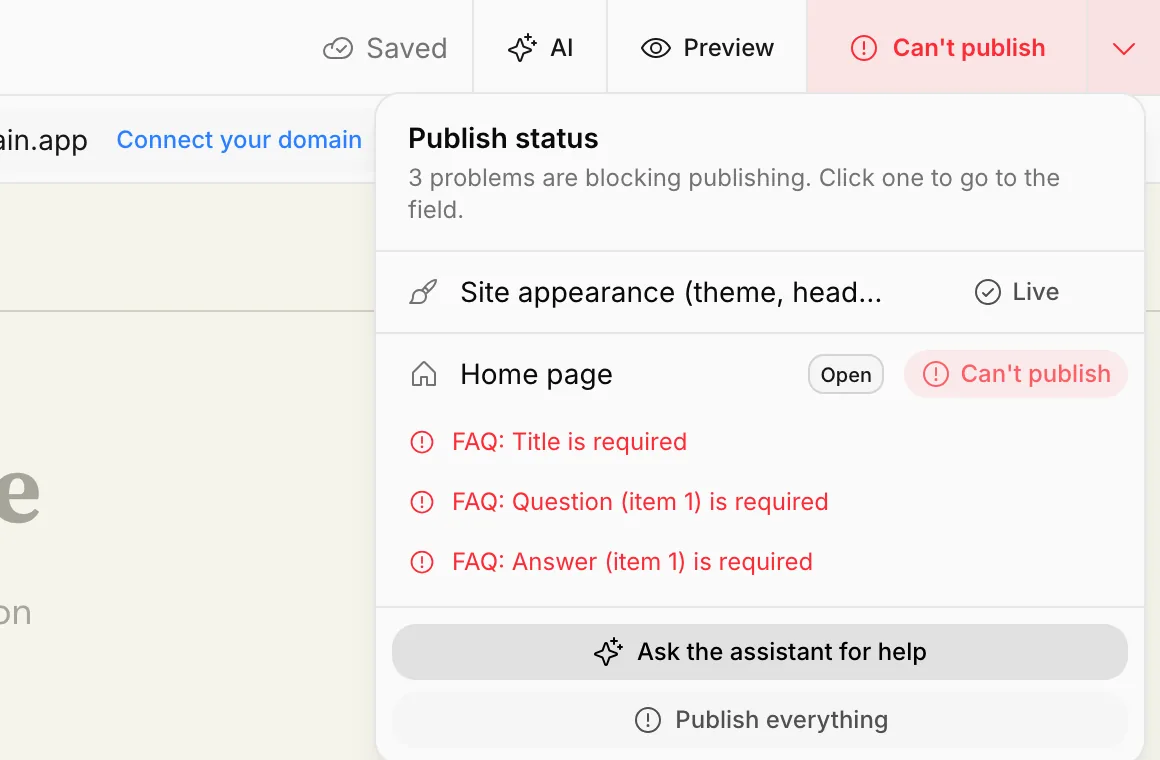
If you'd rather not fix the problems yourself, press Ask the assistant for help at the bottom of the menu. The assistant reads the problems, fills in the empty fields or shortens long text while keeping its meaning.
Publish history
After every publish, the live version of the site is saved: the theme, header and footer and every page, in every language. If you deleted something by mistake and published it, you can go back from here.
Press Publish history in the sidebar (or Publish history in the editor's Site menu).
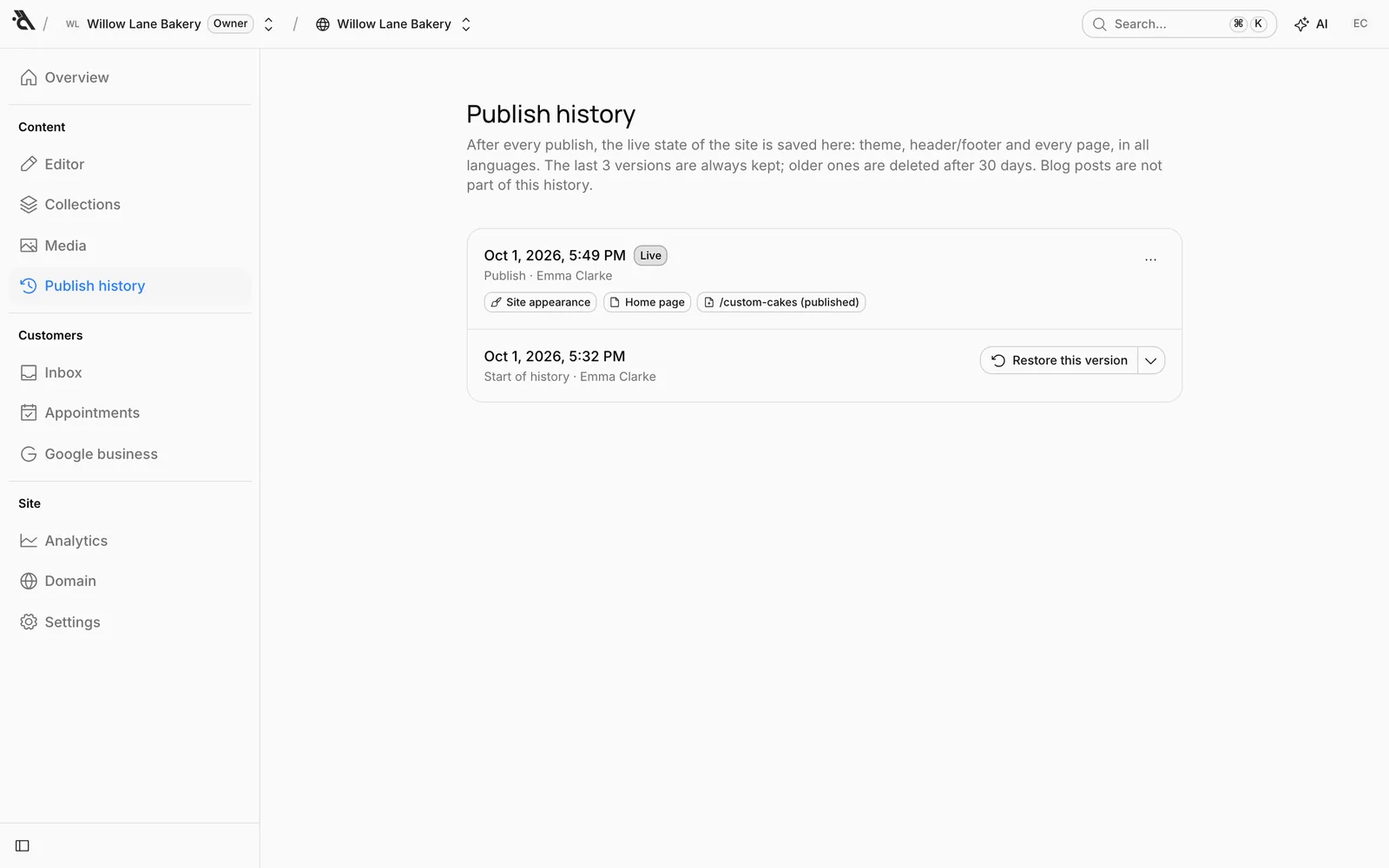
Each row shows the date and time of the publish, who published it and what changed (Site appearance, Home page, /custom-cakes and so on). The top version is the one that's live now.
Go back to an earlier version
On the row of the version you want, press Restore this version and confirm. The live site and your draft are replaced with that version.
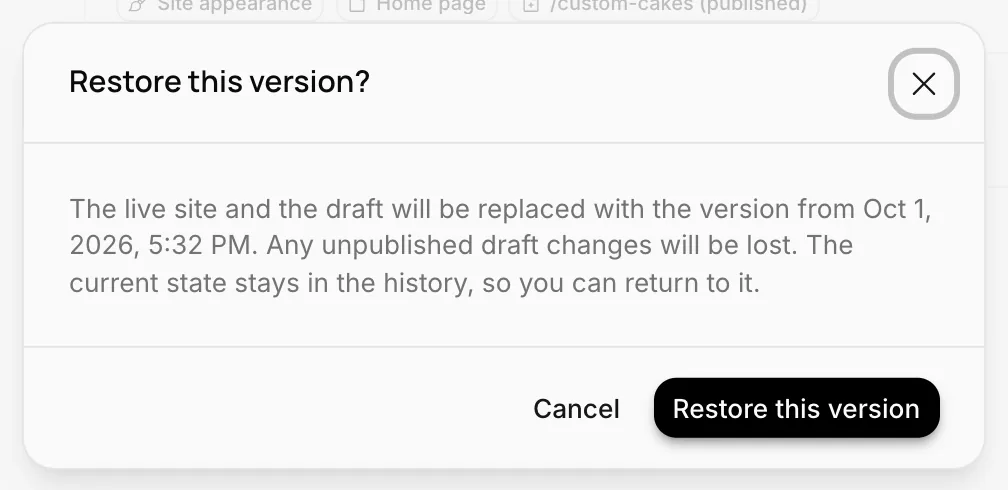
The current version isn't lost; it stays in the history as a row, and you can go back to it if you want.
Set as draft
If you want to look at an earlier version first, or make changes before publishing it, open the arrow next to Restore this version and choose Set as draft. Only your draft is replaced with that version; the live site stays as it is. Check it in the editor and publish when you're ready.
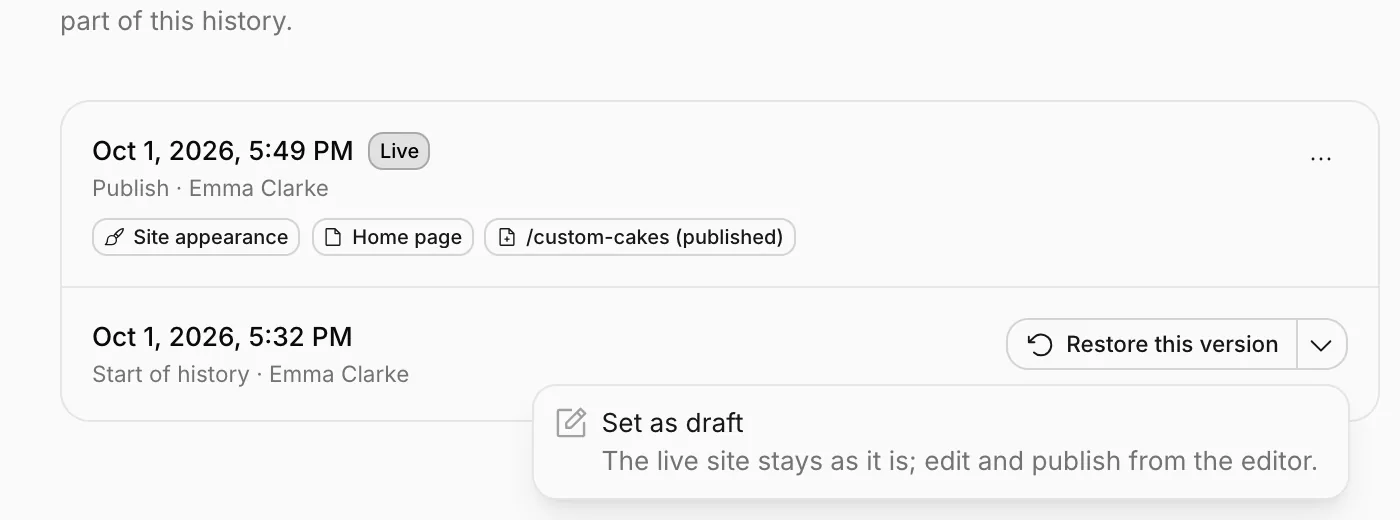
The top (live) version only has Set as draft. Use it to throw away all your unpublished draft changes and go back to the live version.
How long history is kept, and what it doesn't include
- The last 3 versions are always kept; older versions are deleted after 30 days.
- Blog posts aren't part of the history.
- Page addresses, whether a page shows in the menu, and collection pages' card images aren't restored.
- A page that was deleted later doesn't come back.
- If you changed your site's main language, you can't go back to versions from before the change.
Header and footer
Edit the header at the top of every page (logo, menu, button) and the footer at the bottom; build the menu yourself and add external links.
Multiple languages
Publish your site in Spanish or other languages alongside English; have the assistant translate it or enter the translations yourself.