Connect your own domain
Every site comes with a bunnyrain.app address (willow-lane-bakery.bunnyrain.app). If you connect your own domain (willowlanebakery.com), your site opens there. Your own domain is easy to remember and builds trust with customers.
After you connect it, your bunnyrain.app address keeps working and sends visitors to your new address automatically. The security certificate (the padlock in the address bar, https) is free and renews itself.
Connect the domain
Open the Domain screen
Press Domain in the sidebar. (The Connect your domain link in the editor's address bar brings you here too.)
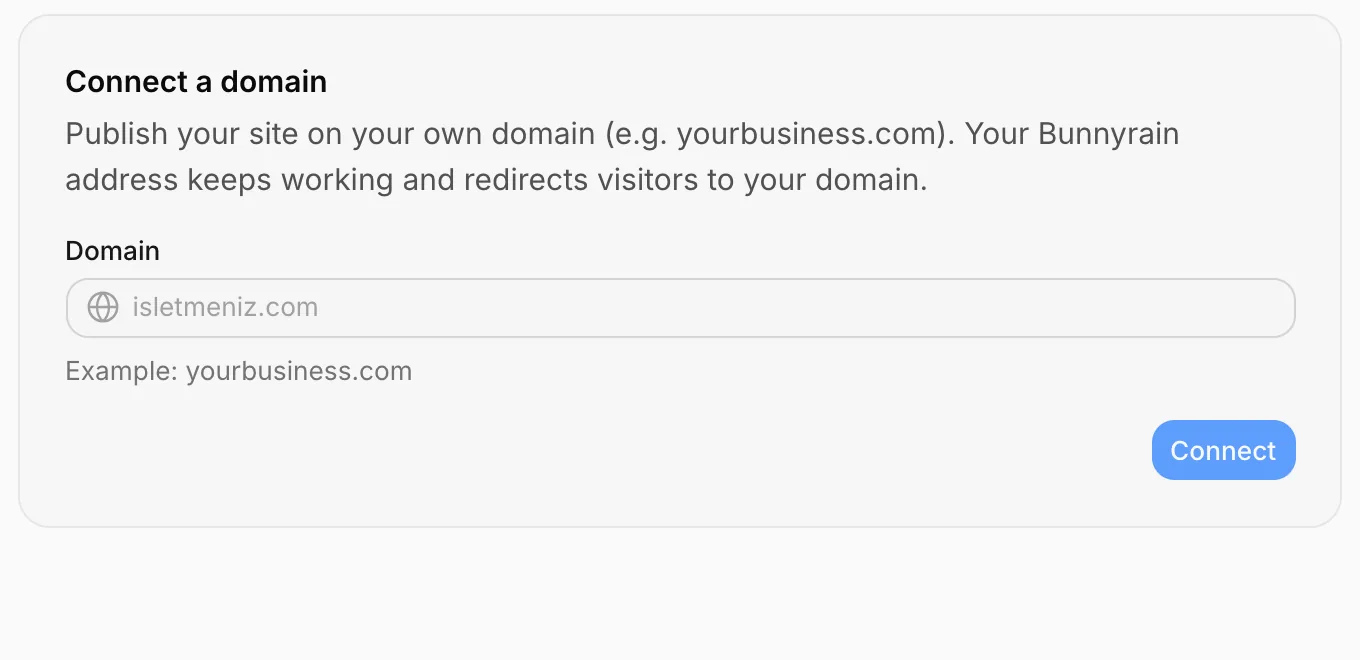
Type your domain
Type your domain (willowlanebakery.com) in the Domain box and press Connect. You don't need to type www; Bunnyrain sets up both willowlanebakery.com and www.willowlanebakery.com.
Add the DNS records
The screen shows the records you need to add in the DNS settings of the company you bought your domain from. Sign in to that company's dashboard, open the DNS settings (sometimes called "DNS management" or "zone records") and add the records exactly as shown in the Type, Name and Value columns. The copy button next to each value makes this easier.
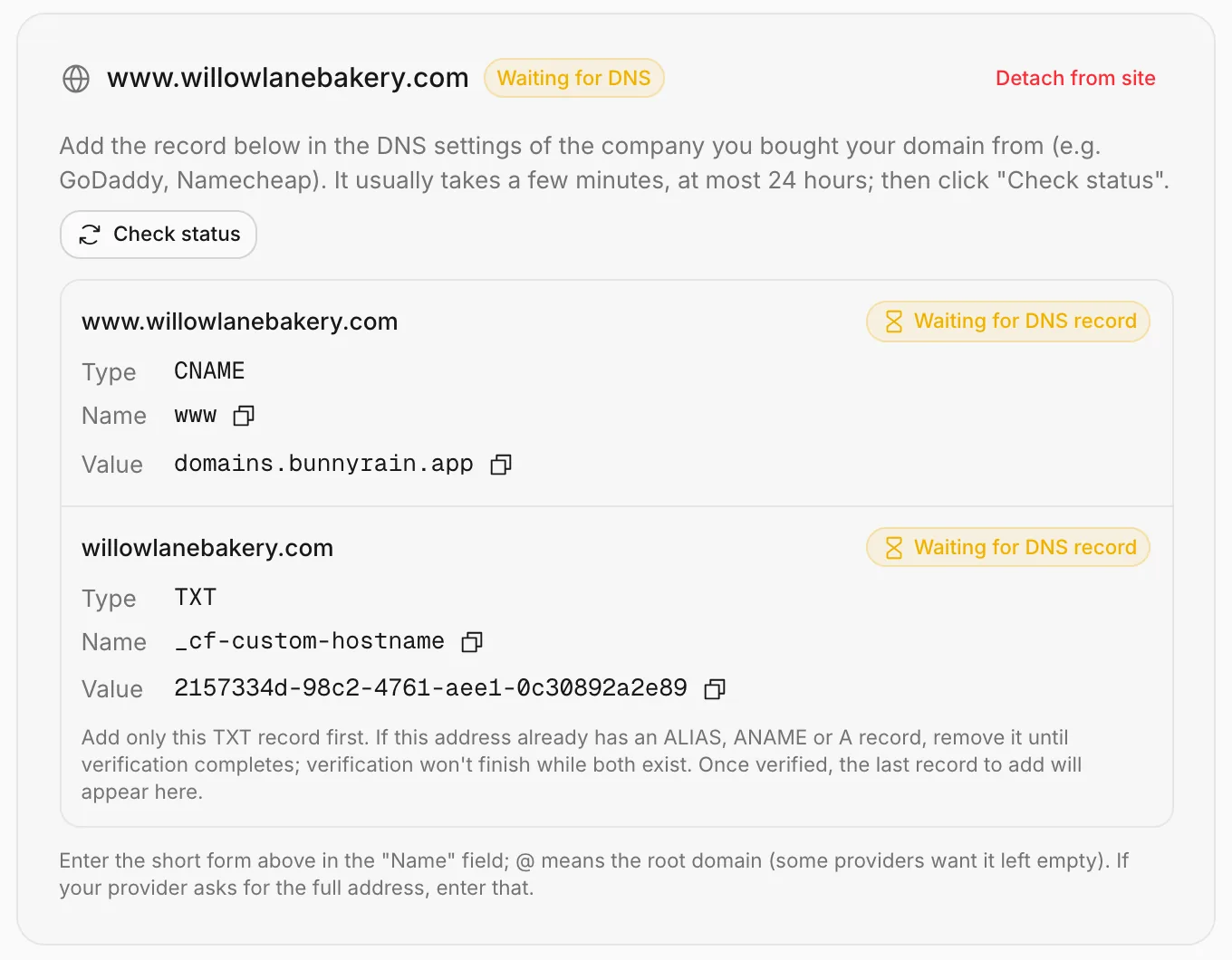
- For www: a
CNAMErecord with the namewwwand the valuedomains.bunnyrain.app. - For the root domain (
willowlanebakery.com): first aTXTrecord. Once it's verified, a second record (ALIAS) appears on the screen; add that one too.
Check the status
Records usually take effect within a few minutes, at most 24 hours. After adding them, press Check status. When the domain is ready, its badge says Live.
The badges tell you each record's status:
| Badge | Meaning |
|---|---|
| Waiting for DNS record | The record hasn't been added or hasn't taken effect yet. Wait a little and check again. |
| Preparing security certificate | The record is correct; the certificate will be ready within a few minutes. |
| Ready / Live | Your domain works. |
| Something is wrong / Record not found | Check the record; if it doesn't resolve, remove the domain and add it again. |
Until the domain is connected, a yellow notice also shows on the site's Overview.
If your root domain has no ALIAS
Many domain companies (GoDaddy, for example) don't offer an ALIAS record for the root domain, only an A record. In that case:
- Connect
www.willowlanebakery.comas above; your site works at that address. - Use your domain company's forwarding feature to forward
willowlanebakery.comtohttps://www.willowlanebakery.com.
The root domain row stays pending on the screen, but your site isn't affected. If you want the root domain connected directly too, you can move your domain's name servers to Cloudflare for free.
Which address to show
Once both addresses (willowlanebakery.com and www.willowlanebakery.com) are ready, a Send visitors to choice appears. The address you don't pick, and the bunnyrain.app address, send visitors to the one you picked. The default is the www address.
More than one domain
You can connect more than one domain to a site. One is the Primary; the others send visitors to the primary domain. To change the primary, press Make primary next to another domain.
Detach from site removes a domain from the site; the domain stays in your organization and you can assign it to another site.
The Domains screen
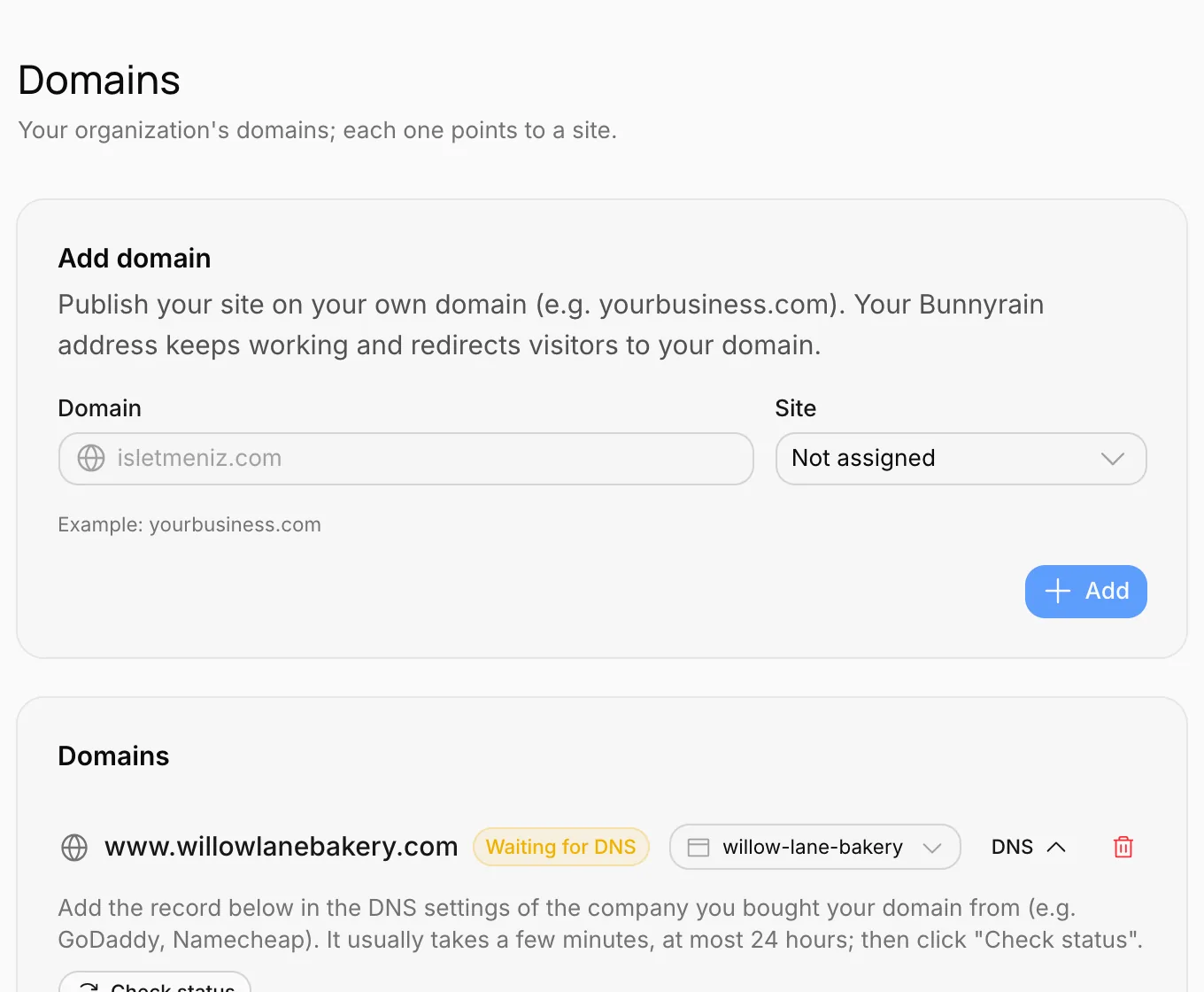
Domains belong to the organization, not to a site. On the Domains screen in the organization's sidebar, you see all your domains, add new ones and assign them to a site or move them between sites. Deleting a domain completely is only possible here (Remove).
Good to know
- If your domain's DNS record breaks later (for example, it's deleted at your domain company), your site stays live on its
bunnyrain.appaddress and the organization's owner gets a warning email. - Domains that wait 7 days without being connected are removed automatically; you can add them again later.
- Your site's QR code and share address use your connected domain.