Members and roles
You don't have to run your sites alone. Invite teammates to your organization and give each of them a role that fits their job: one handles messages, one manages appointments, one writes the blog.
Members and roles belong to the organization: a member's permissions apply to every site in the organization.
The Members screen
On the organization screens, press Members in the sidebar (or choose Members in the organization menu in the top bar). The screen has two tabs: Members and Roles.
Invite a teammate
Enter their email
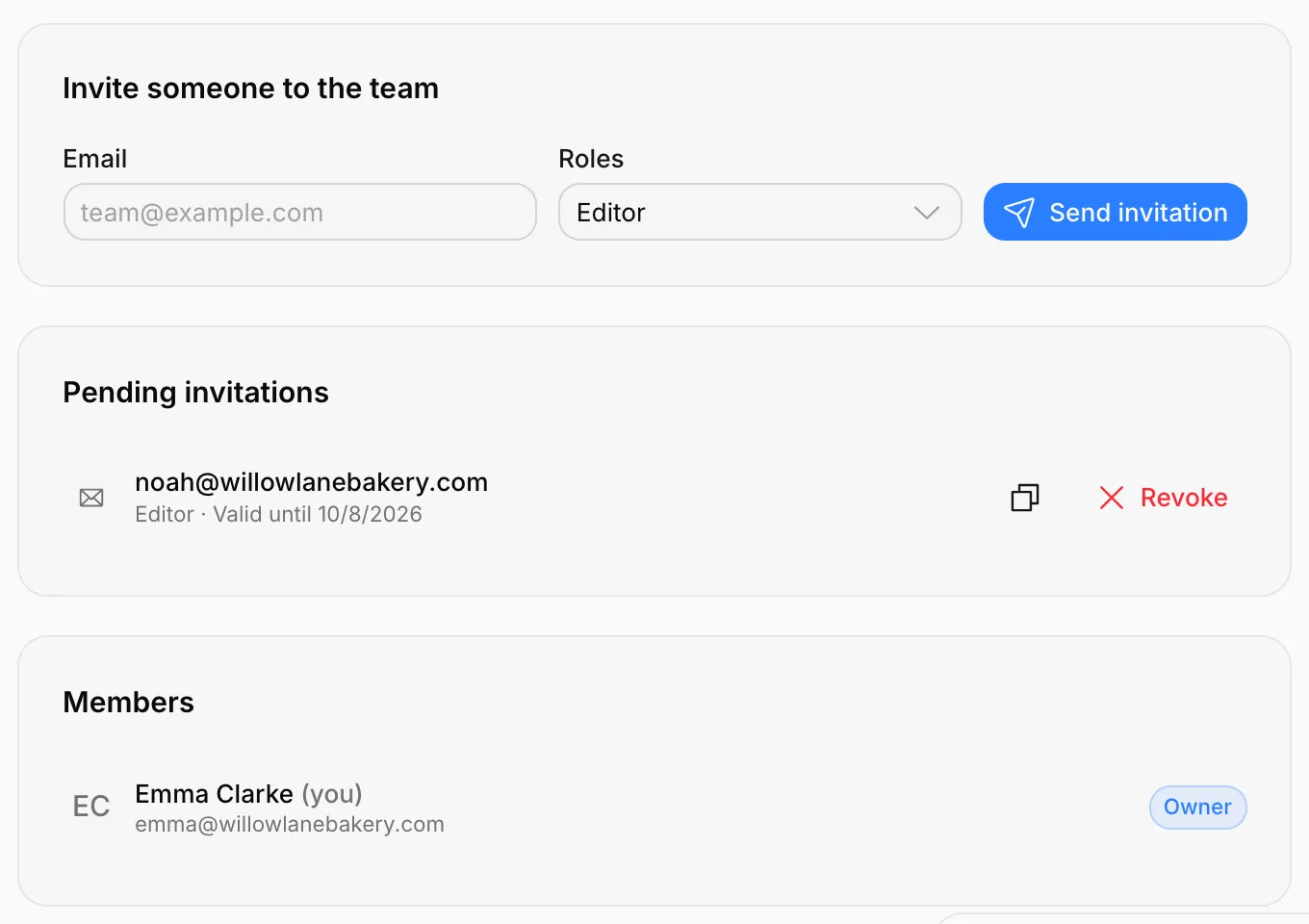
On the Invite someone to the team card, type your teammate's email address.
Choose their role
Choose one or more Roles. The default is Editor.
Press Send invitation
Your teammate gets an invitation email. The invitation appears in the Pending invitations list with its expiry date.
If the invitation email didn't arrive (it may be in spam), use Copy invitation link and send the link to your teammate yourself, by text message or email. You can take back an invitation with Revoke.
Invitations are valid for 7 days. For an expired invitation, send a new one.
Accepting the invitation
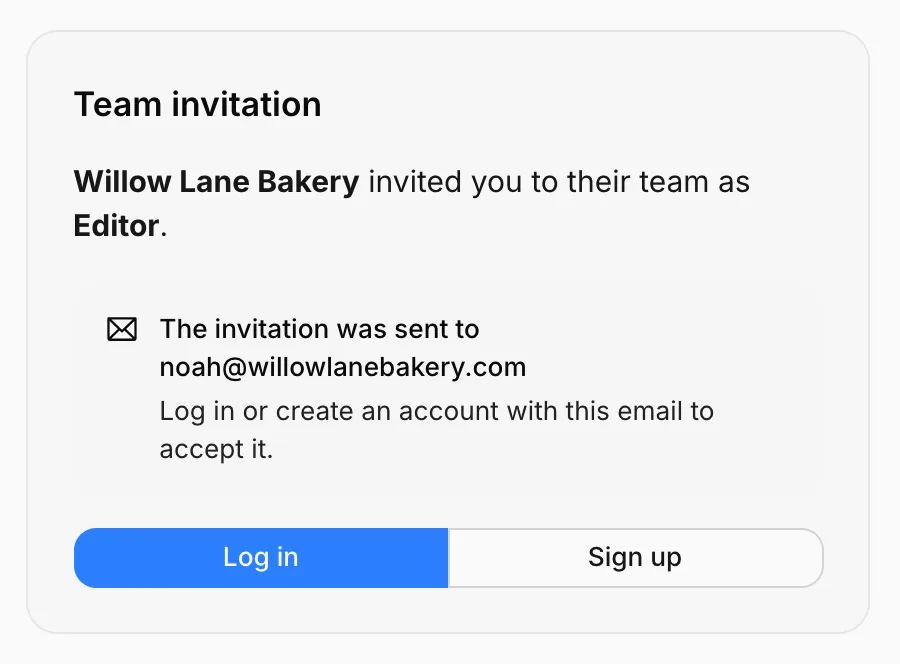
When your teammate opens the link in the email, they see the Team invitation page, which says which organization invited them and with which role. To accept, they log in or sign up with the invited email address and press Accept invitation.
Change a member's roles, remove a member
In the Members list, each member's roles are shown next to their name. Change roles with the role picker, or remove a member from the organization with Remove.
- The Owner is the person who created the organization and can do everything: billing, organization settings, deleting the organization. Owner isn't a role; the owner isn't given roles.
- You can't change your own roles.
- You can only give or take away permissions you have yourself; you can't remove a member with broader permissions than yours.
- A member without any role can see the sites but can't change anything.
Roles
The Roles tab lists two built-in roles and your organization's own roles.
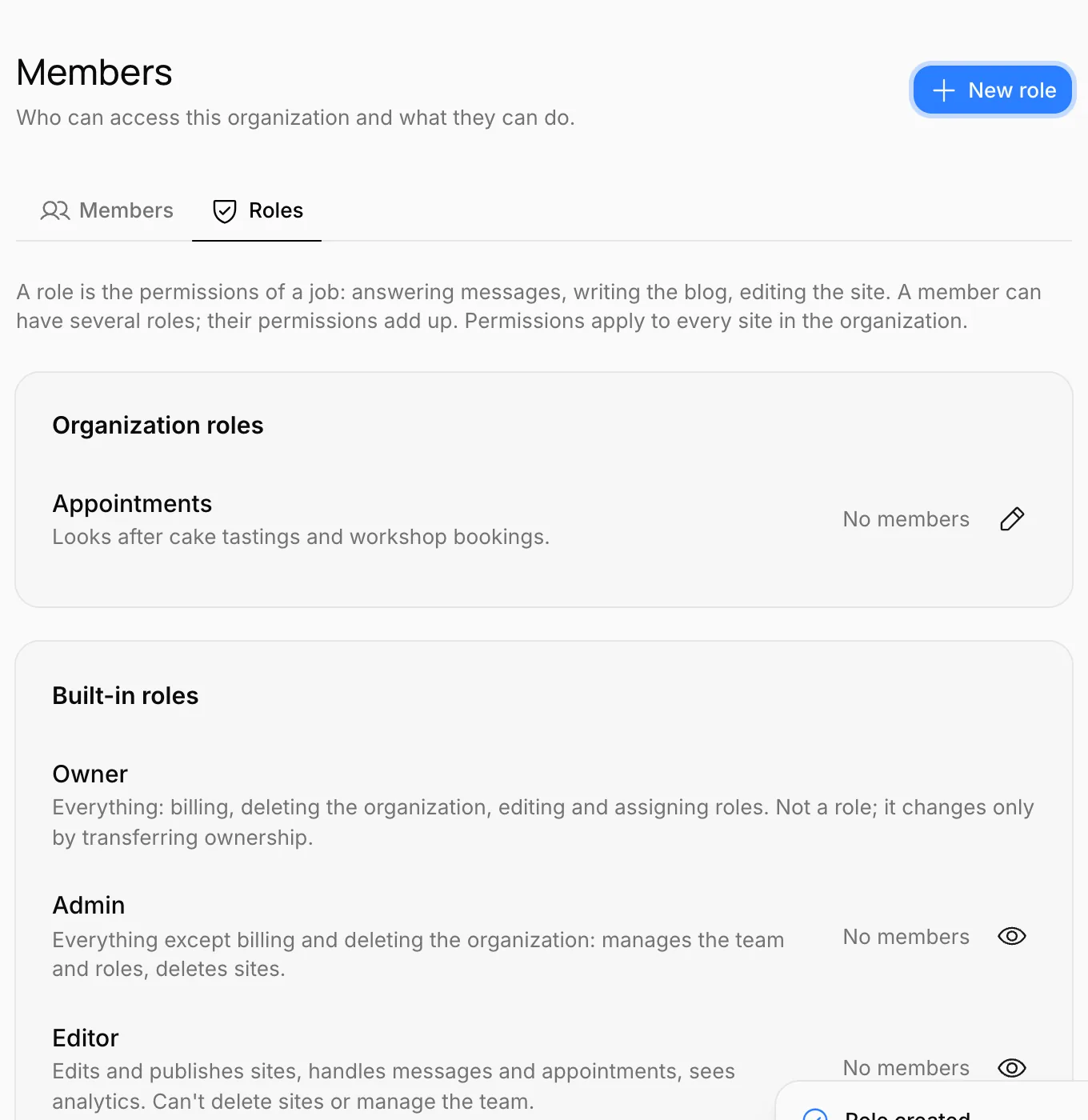
Built-in roles are the same in every organization and can't be changed:
| Role | What they can do |
|---|---|
| Admin | Everything except billing and deleting the organization: manages the team and roles, deletes sites. |
| Editor | Edits and publishes sites, handles messages and appointments, sees analytics. Can't delete sites or manage the team. |
Create your own role
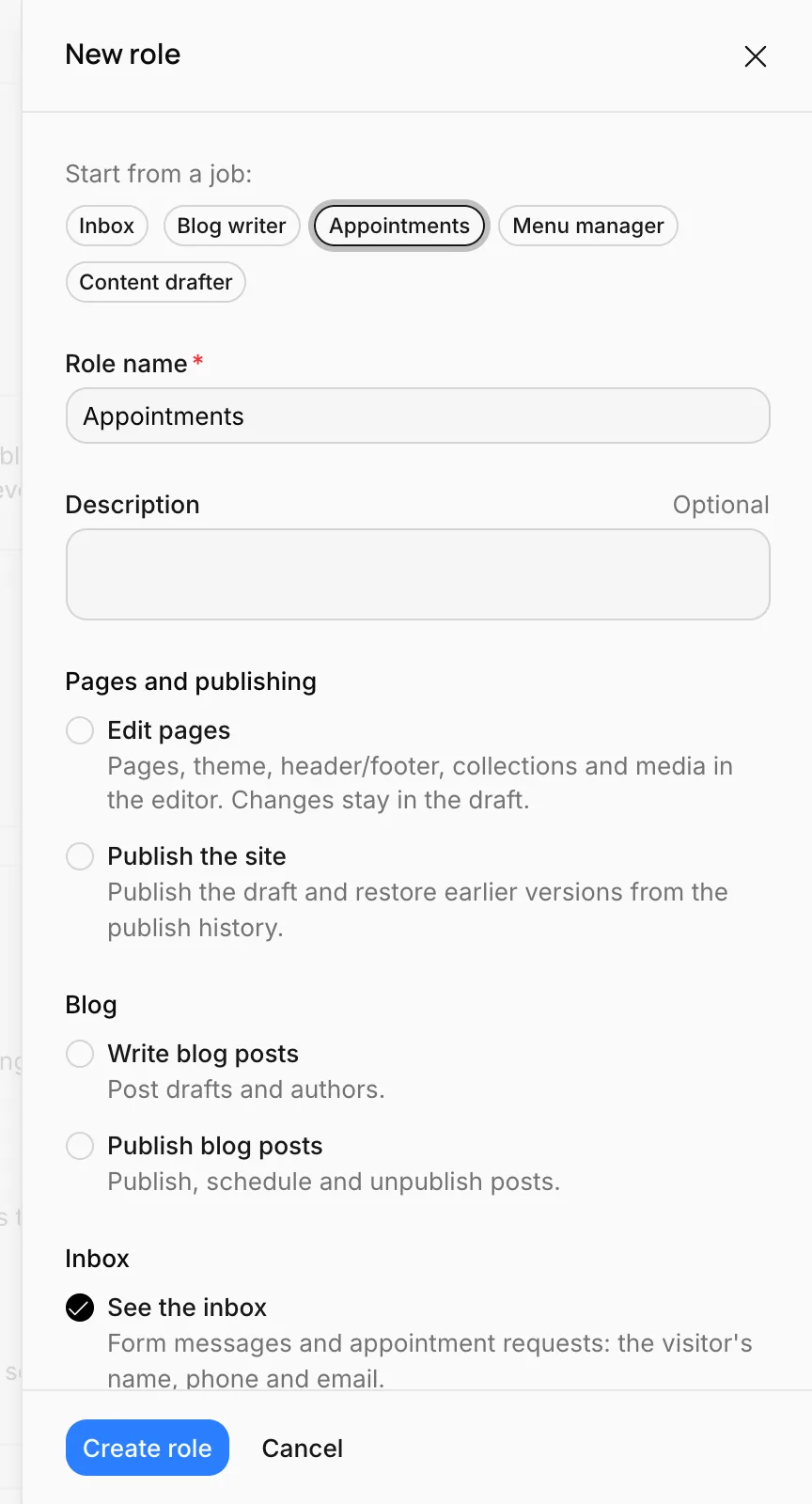
If the built-in roles don't fit, create roles for specific jobs: someone who handles messages, a blog writer, someone who manages appointments. Press New role:
- Start from a job: Press one of the Inbox, Blog writer, Appointments, Content drafter or Menu manager templates and the right permissions are checked for you.
- Role name and an optional Description.
- Permissions: check what the role can do, one by one.
You can give a member several roles; their permissions add up. For example, a member with both an inbox role and a blog writer role can reply to messages and write the blog.
Permissions
| Group | Permission | What it allows |
|---|---|---|
| Pages and publishing | Edit pages | Pages, theme, header and footer, collections and media in the editor. Changes stay in the draft. |
| Publish the site | Taking the draft live and going back to an earlier version in the publish history. | |
| Blog | Write blog posts | Post drafts and authors. |
| Publish blog posts | Publishing, scheduling and unpublishing posts. | |
| Inbox | See the inbox | Form messages and appointment requests: the visitor's name, phone and email. |
| Reply to messages | Replying to visitors by email from the inbox, and message templates. | |
| Appointments | Manage appointments | Calendar, confirm / decline / cancel, services and working hours. |
| Menu | Edit the menu | The QR menu's categories, items, prices and details. |
| Analytics | See analytics | Visitor numbers, sources and people who reached you. |
| Sites | Create sites, Site settings, Delete sites | Creating new sites; languages, site icon, time zone and Google business; permanently deleting a site. |
| Organization | Manage members, Manage roles, Manage domains | Invitations and removing members; creating and assigning roles; adding, removing and connecting domains. |
Members don't see screens they don't have permission for. For example, a member who can only Manage appointments has no Analytics or Domain in their sidebar.